
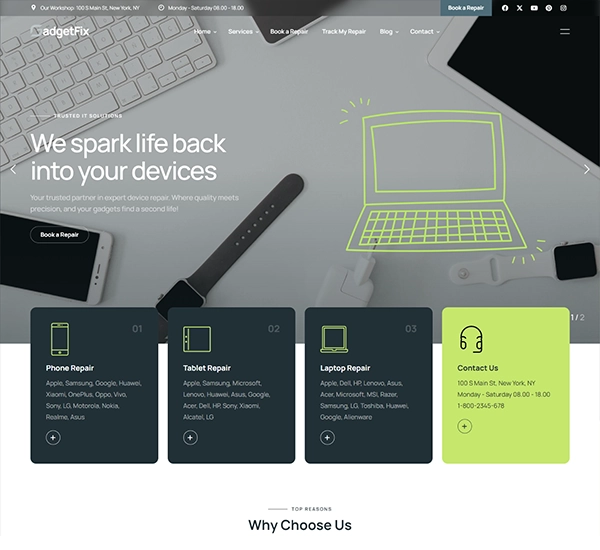

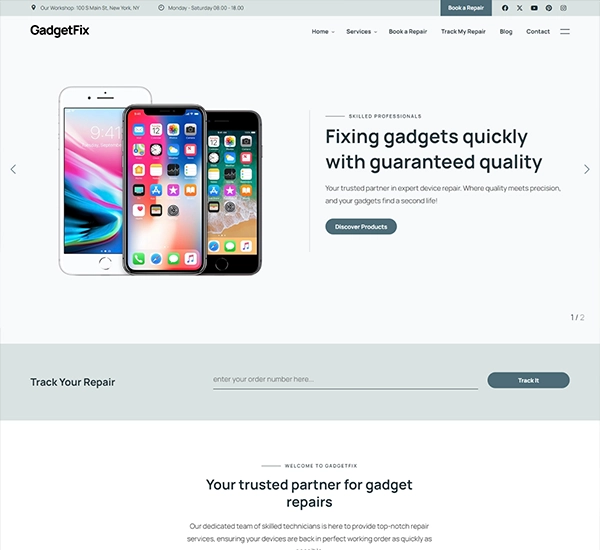
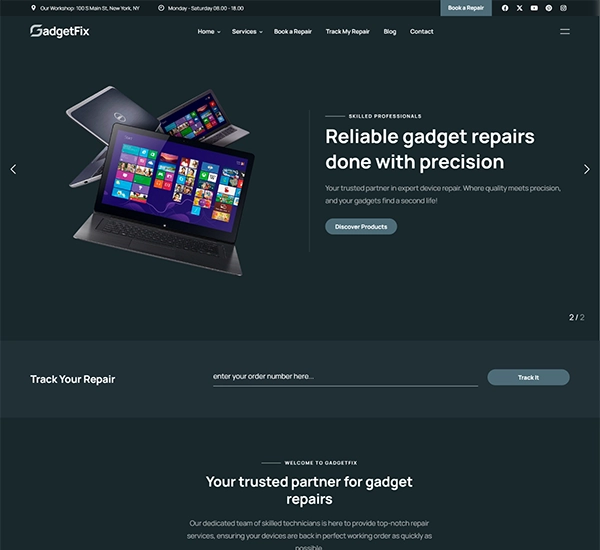
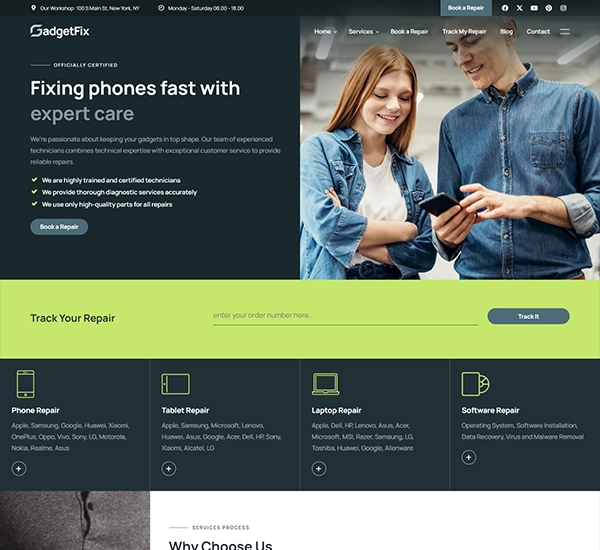




- We Repair All Kinds of Phones & Tablets
From Smartphones to Tablets of all brands & Laptops, iMacs or Desktop PC’s of various brands. We fix all types of problems.

Select your issue
- Audio Distortion during Video Calls
- Audio Distortion on Dell XPS 15
- Audio Jack Not Recognizing Headphones
- Bluetooth Audio Not Working on iPhone X
- Crackling Sound from Speakers
- Dell XPS 15 Screen Flickering
- Dell XPS 15 Software Boot Loop
- Google Pixel 6 Screen Burn-In
- Google Pixel 6 Software Update Failure
- iPad Pro 12.9-inch Screen Unresponsive
- iPhone 11 Screen LCD Bleeding
- iPhone X Screen Ghost Touches
- Low Volume Output from Speakers
- Microphone Not Working on iPad Pro 12.9-inch (5th generation)
- No Sound Issue on Google Pixel 6
- No Sound Output from Speakers
- PlayStation 5 System Software Error
- Samsung Galaxy Tab S7 App Crashing
- Speaker Not Working on iPhone 11
- Xbox Series X Dashboard Lagging
- Audio Distortion on Dell XPS 15
- Bluetooth Audio Not Working on iPhone X
- Dell XPS 15 Screen Flickering
- Dell XPS 15 Software Boot Loop
- Google Pixel 6 Screen Burn-In
- Google Pixel 6 Software Update Failure
- iPad Pro 12.9-inch Screen Unresponsive
- iPhone 11 Screen LCD Bleeding
- iPhone X Screen Ghost Touches
- Microphone Not Working on iPad Pro 12.9-inch (5th generation)
- No Sound Issue on Google Pixel 6
- PlayStation 5 System Software Error
- Samsung Galaxy Tab S7 App Crashing
- Speaker Not Working on iPhone 11
- Xbox Series X Dashboard Lagging
- Audio Distortion on Dell XPS 15
- Bluetooth Audio Not Working on iPhone X
- Dell XPS 15 Screen Flickering
- Faulty Volume Button
- Google Pixel 6 Screen Burn-In
- iPad Pro 12.9-inch Screen Unresponsive
- iPhone 11 Screen LCD Bleeding
- iPhone X Screen Ghost Touches
- Jammed Home Button
- Jammed Touch Bar Button on MacBook Pro 16-inch
- Loose Side Button
- Loose Volume Button on Samsung Galaxy S21
- Microphone Not Working on iPad Pro 12.9-inch (5th generation)
- No Sound Issue on Google Pixel 6
- Non-Clicking Power Button on iPad Pro 12.9-inch (5th Gen)
- Speaker Not Working on iPhone 11
- Sticky Home Button on iPhone 11
- Sticky Lock Button
- Unresponsive Power Button
- Unresponsive Power Button on iPad Pro 12.9-inch (5th Gen)
- Water Damage Repair for iPad Pro 12.9-inch (5th generation)
- Water Damage Repair for iPhone 11
- Water Damage Repair for iPhone X
- Water Damage Repair for MacBook Pro 16-inch
- Water Damage Repair for PlayStation 5
- Audio Distortion on Dell XPS 15
- Bluetooth Audio Not Working on iPhone X
- Blurry Camera Quality
- Camera Flash Not Working
- Camera Freezing or Lagging
- Camera Not Focusing Correctly
- Dell XPS 15 Screen Flickering
- Front Camera Not Working
- Google Pixel 6 Screen Burn-In
- iPad Pro 12.9-inch Screen Unresponsive
- iPhone 11 Screen LCD Bleeding
- iPhone X Screen Ghost Touches
- Jammed Touch Bar Button on MacBook Pro 16-inch
- Loose Volume Button on Samsung Galaxy S21
- Microphone Not Working on iPad Pro 12.9-inch (5th generation)
- No Sound Issue on Google Pixel 6
- Non-Clicking Power Button on iPad Pro 12.9-inch (5th Gen)
- Speaker Not Working on iPhone 11
- Sticky Home Button on iPhone 11
- Unresponsive Power Button on iPad Pro 12.9-inch (5th Gen)
- Water Damage Repair for iPad Pro 12.9-inch (5th generation)
- Water Damage Repair for iPhone 11
- Water Damage Repair for iPhone X
- Water Damage Repair for MacBook Pro 16-inch
- Water Damage Repair for PlayStation 5
- Audio Distortion on Dell XPS 15
- Bluetooth Audio Not Working on iPhone X
- Dell XPS 15 Screen Flickering
- Google Pixel 6 Screen Burn-In
- iPad Pro 12.9-inch Screen Unresponsive
- iPhone 11 Screen LCD Bleeding
- iPhone X Camera Not Focusing Issue
- iPhone X Front Camera Flash Not Working Issue
- iPhone X Screen Ghost Touches
- Microphone Not Working on iPad Pro 12.9-inch (5th generation)
- No Sound Issue on Google Pixel 6
- PlayStation 5 Camera Not Recognized Issue
- Samsung Galaxy S21 Camera Shaking Issue
- Samsung Galaxy Tab S7 Front Camera Not Working Issue
- Speaker Not Working on iPhone 11
- Water Damage Repair for iPad Pro 12.9-inch (5th generation)
- Water Damage Repair for iPhone 11
- Water Damage Repair for iPhone X
- Water Damage Repair for MacBook Pro 16-inch
- Water Damage Repair for PlayStation 5
- Dell XPS 15 Software Boot Loop
- Google Pixel 6 Software Update Failure
- iPhone X Camera Not Focusing Issue
- iPhone X Front Camera Flash Not Working Issue
- MacBook Pro 16-inch Sticky Keyboard Key Repair
- PlayStation 5 Camera Not Recognized Issue
- PlayStation 5 Controller Button Replacement
- PlayStation 5 System Software Error
- Samsung Galaxy S21 Camera Shaking Issue
- Samsung Galaxy S21 Power Button Repair
- Samsung Galaxy Tab S7 App Crashing
- Samsung Galaxy Tab S7 Front Camera Not Working Issue
- Samsung Galaxy Tab S7 Volume Button Replacement
- Water Damage Repair for iPad Pro 12.9-inch (5th generation)
- Water Damage Repair for iPhone 11
- Water Damage Repair for iPhone X
- Water Damage Repair for MacBook Pro 16-inch
- Water Damage Repair for PlayStation 5
- Xbox Series X Dashboard Lagging
- Xbox Series X Home Button Repair
- iPhone X Camera Not Focusing Issue
- iPhone X Front Camera Flash Not Working Issue
- Jammed Touch Bar Button on MacBook Pro 16-inch
- Loose Volume Button on Samsung Galaxy S21
- MacBook Pro 16-inch Sticky Keyboard Key Repair
- Non-Clicking Power Button on iPad Pro 12.9-inch (5th Gen)
- PlayStation 5 Camera Not Recognized Issue
- PlayStation 5 Controller Button Replacement
- Samsung Galaxy S21 Camera Shaking Issue
- Samsung Galaxy S21 Power Button Repair
- Samsung Galaxy Tab S7 Front Camera Not Working Issue
- Samsung Galaxy Tab S7 Volume Button Replacement
- Sticky Home Button on iPhone 11
- Unresponsive Power Button on iPad Pro 12.9-inch (5th Gen)
- Xbox Series X Home Button Repair
- Dell XPS 15 Software Boot Loop
- Google Pixel 6 Software Update Failure
- iPhone X Camera Not Focusing Issue
- iPhone X Front Camera Flash Not Working Issue
- MacBook Pro 16-inch Sticky Keyboard Key Repair
- PlayStation 5 Camera Not Recognized Issue
- PlayStation 5 Controller Button Replacement
- PlayStation 5 System Software Error
- Samsung Galaxy S21 Camera Shaking Issue
- Samsung Galaxy S21 Power Button Repair
- Samsung Galaxy Tab S7 App Crashing
- Samsung Galaxy Tab S7 Front Camera Not Working Issue
- Samsung Galaxy Tab S7 Volume Button Replacement
- Xbox Series X Dashboard Lagging
- Xbox Series X Home Button Repair
- Dell XPS 15 Software Boot Loop
- Google Pixel 6 Software Update Failure
- MacBook Pro 16-inch Sticky Keyboard Key Repair
- PlayStation 5 Controller Button Replacement
- PlayStation 5 System Software Error
- Samsung Galaxy S21 Power Button Repair
- Samsung Galaxy Tab S7 App Crashing
- Samsung Galaxy Tab S7 Volume Button Replacement
- Xbox Series X Dashboard Lagging
- Xbox Series X Home Button Repair
Audio Distortion during Video Calls
Issue Overview
If you're experiencing audio distortion specifically during video calls on your Dell XPS 15, it can hinder communication and point to software or driver-related problems.
Common Symptoms
- Crackling or distorted sound during video calls
- Echoes or feedback during calls
- Inconsistent audio quality affecting conversations
Why Professional Repair is Recommended
Professional repair is advised to diagnose and address potenti...
Issue Overview
If you're experiencing audio distortion specifically during video calls on your Dell XPS 15, it can hinder communication and point to software or driver-related problems.
Common Symptoms
- Crackling or distorted sound during video calls
- Echoes or feedback during calls
- Inconsistent audio quality affecting conversations
Why Professional Repair is Recommended
Professional repair is advised to diagnose and address potential software conflicts, driver issues, or hardware malfunctions that may require specialized tools and expertise.
Repair Process
The repair process typically involves testing audio settings, updating drivers, checking video call applications, and potentially adjusting sound configurations or replacing faulty audio components.
Potential Consequences
If not resolved, the audio distortion can persist, impacting your ability to engage in clear communication during video calls and potentially affecting other multimedia applications.
Technical Details
The issue may be caused by driver conflicts, audio enhancements settings, or hardware issues affecting audio input/output during video calls.
Prevention Tips
- Regularly update video call applications and audio drivers
- Use headphones or external microphones for better audio quality
- Avoid running multiple audio-intensive applications simultaneously
| DIY Repair | $50 | 1 hour | |
| Professional Repair | $300 | 1 hour |
Audio Distortion on Dell XPS 15
Issue Overview
One common audio issue with the Dell XPS 15 is audio distortion, where sound quality becomes poor or fuzzy, affecting the overall listening experience.
Common Symptoms
- Crackling or popping noises during audio playback
- Muffled sound output
- Inconsistent volume levels
Why Professional Repair is Recommended
Professional repair is recommended for audio distortion on Dell XPS 15 to ensure that the root cause of the issue ...
Issue Overview
One common audio issue with the Dell XPS 15 is audio distortion, where sound quality becomes poor or fuzzy, affecting the overall listening experience.
Common Symptoms
- Crackling or popping noises during audio playback
- Muffled sound output
- Inconsistent volume levels
Why Professional Repair is Recommended
Professional repair is recommended for audio distortion on Dell XPS 15 to ensure that the root cause of the issue is identified and resolved correctly, preventing further damage to the audio components.
Repair Process
The repair process typically involves diagnosing the audio hardware and software, checking for driver issues, cleaning or replacing speakers, and testing the audio output to ensure the distortion is eliminated.
Potential Consequences
If not addressed, audio distortion can lead to permanent damage to the speakers or audio circuitry, resulting in complete audio failure on the Dell XPS 15.
Technical Details
The audio distortion on Dell XPS 15 can be caused by software conflicts, outdated drivers, speaker damage, or faulty audio components.
Prevention Tips
- Regularly update audio drivers
- Avoid exposing the laptop to excessive heat or moisture
- Use external speakers or headphones to reduce strain on internal speakers
| DIY Repair | $65 | 2 hours | |
| Professional Repair | $390 | 2 hours |
Audio Jack Not Recognizing Headphones
Issue Overview
If the audio jack on your Dell XPS 15 fails to detect headphones or external audio devices, it can disrupt your listening experience.
Common Symptoms
- Audio continues playing through speakers when headphones are plugged in
- No sound output in headphones despite being properly connected
- Intermittent audio detection issues with the audio jack
Why Professional Repair is Recommended
Professional repair is advised to troub...
Issue Overview
If the audio jack on your Dell XPS 15 fails to detect headphones or external audio devices, it can disrupt your listening experience.
Common Symptoms
- Audio continues playing through speakers when headphones are plugged in
- No sound output in headphones despite being properly connected
- Intermittent audio detection issues with the audio jack
Why Professional Repair is Recommended
Professional repair is advised to troubleshoot potential hardware faults within the audio jack or internal connections that may require specialized tools and technical knowledge to resolve.
Repair Process
The repair process typically involves inspecting the audio jack, testing headphone connections, checking for driver conflicts, and repairing or replacing faulty audio jack components.
Potential Consequences
If left unattended, the audio jack issues can lead to further damage to the headphone port or internal audio hardware, affecting your ability to use headphones or external audio devices.
Technical Details
The issue may be caused by a damaged audio jack, driver incompatibility, or internal wiring problems.
Prevention Tips
- Avoid inserting or removing headphones roughly from the audio jack
- Regularly clean the audio jack to prevent dust accumulation
- Use compatible headphones to prevent damage to the audio jack
| DIY Repair | $50 | 1 hour | |
| Professional Repair | $300 | 1 hour |
Bluetooth Audio Not Working on iPhone X
Issue Overview
If you're experiencing Bluetooth audio issues on your iPhone X, it means the device is unable to connect to Bluetooth headphones or speakers, limiting your wireless audio experience.
Common Symptoms
- Unable to pair with Bluetooth devices
- Intermittent disconnection during audio playback
- Poor audio quality over Bluetooth
Why Professional Repair is Recommended
Professional repair for Bluetooth audio issues on iPhone X i...
Issue Overview
If you're experiencing Bluetooth audio issues on your iPhone X, it means the device is unable to connect to Bluetooth headphones or speakers, limiting your wireless audio experience.
Common Symptoms
- Unable to pair with Bluetooth devices
- Intermittent disconnection during audio playback
- Poor audio quality over Bluetooth
Why Professional Repair is Recommended
Professional repair for Bluetooth audio issues on iPhone X is recommended to address potential hardware malfunctions or software conflicts that require specialized tools and expertise to resolve effectively.
Repair Process
The repair process typically involves checking Bluetooth settings, updating software, resetting network settings, replacing Bluetooth modules, and testing connectivity to ensure stable Bluetooth audio output.
Potential Consequences
If the Bluetooth audio problem persists, you may continue to experience connectivity issues, poor audio quality, and limited wireless audio functionality on your iPhone X.
Technical Details
Bluetooth audio issues on iPhone X can stem from software bugs, outdated firmware, hardware damage, or Bluetooth antenna problems affecting wireless connectivity.
Prevention Tips
- Keep device software up to date
- Avoid placing the device near interference sources
- Reset Bluetooth settings periodically
| DIY Repair | $85 | 3 hours | |
| Professional Repair | $510 | 3 hours |
Crackling Sound from Speakers
Issue Overview
If you're hearing crackling sounds from your Dell XPS 15 speakers, the audio quality is likely compromised.
Common Symptoms
- Crackling or popping noises during audio playback
- Distorted sound even at low volume levels
- Intermittent sound cutting in and out
Why Professional Repair is Recommended
Professional repair is recommended as crackling sounds can indicate hardware issues with the speakers or audio components that...
Issue Overview
If you're hearing crackling sounds from your Dell XPS 15 speakers, the audio quality is likely compromised.
Common Symptoms
- Crackling or popping noises during audio playback
- Distorted sound even at low volume levels
- Intermittent sound cutting in and out
Why Professional Repair is Recommended
Professional repair is recommended as crackling sounds can indicate hardware issues with the speakers or audio components that may require specialized tools and expertise to diagnose and fix.
Repair Process
The repair process typically involves diagnosing the cause of the crackling sound, checking speaker connections, testing audio drivers, and potentially replacing faulty speakers or audio components.
Potential Consequences
If not addressed, the crackling sound can worsen over time, leading to complete audio failure or permanent damage to the speakers.
Technical Details
The issue may be caused by damaged speakers, loose connections, outdated drivers, or faulty audio hardware.
Prevention Tips
- Avoid playing audio at maximum volume for extended periods
- Regularly update audio drivers and system software
- Avoid exposing the laptop to liquid or physical damage
| DIY Repair | $50 | 1 hour | |
| Professional Repair | $300 | 1 hour |
Dell XPS 15 Screen Flickering
Issue Overview
One common screen issue with the Dell XPS 15 is screen flickering, where the display flashes or blinks intermittently.
Common Symptoms
- Screen flickers randomly
- Flashing lines or artifacts on the display
- Intermittent blackouts
Why Professional Repair is Recommended
Professional repair is recommended for Dell XPS 15 screen flickering issues because it often involves delicate internal components and intricate connectio...
Issue Overview
One common screen issue with the Dell XPS 15 is screen flickering, where the display flashes or blinks intermittently.
Common Symptoms
- Screen flickers randomly
- Flashing lines or artifacts on the display
- Intermittent blackouts
Why Professional Repair is Recommended
Professional repair is recommended for Dell XPS 15 screen flickering issues because it often involves delicate internal components and intricate connections that require expertise to handle properly.
Repair Process
The repair process typically involves diagnosing the root cause, which could be related to the display driver, loose cables, or faulty hardware components. It may require opening up the laptop, checking connections, updating drivers, or replacing faulty parts.
Potential Consequences
If not addressed, screen flickering can worsen over time and potentially lead to a complete screen failure, rendering the laptop unusable.
Technical Details
Screen flickering on the Dell XPS 15 can be caused by issues with the graphics card, display driver, loose cables, or a failing LCD panel.
Prevention Tips
- Avoid rough handling of the laptop to prevent cable disconnections
- Update graphics drivers regularly
- Avoid exposure to extreme temperatures
| DIY Repair | $50 | 1 hour | |
| Professional Repair | $300 | 1 hour |
Dell XPS 15 Software Boot Loop
Issue Overview
If your Dell XPS 15 is stuck in a boot loop, it means the operating system is having trouble loading properly, causing the laptop to continuously restart without fully booting up.
Common Symptoms
- Constant restarting during boot-up process
- Error messages indicating system failure
- Inability to access desktop or login screen
Why Professional Repair is Recommended
Professional repair is recommended as fixing boot loop i...
Issue Overview
If your Dell XPS 15 is stuck in a boot loop, it means the operating system is having trouble loading properly, causing the laptop to continuously restart without fully booting up.
Common Symptoms
- Constant restarting during boot-up process
- Error messages indicating system failure
- Inability to access desktop or login screen
Why Professional Repair is Recommended
Professional repair is recommended as fixing boot loop issues can be complex and require advanced troubleshooting skills. Incorrect fixes can lead to data loss or further system damage.
Repair Process
The repair process usually involves diagnosing the cause of the boot loop, repairing corrupted system files, updating drivers, and potentially reinstalling the operating system.
Potential Consequences
If not addressed, a software boot loop can lead to permanent data loss, hardware damage, and render the laptop unusable.
Technical Details
The boot loop issue on Dell XPS 15 can be caused by corrupted system files, driver conflicts, or malware infections.
Prevention Tips
- Regularly update the operating system and drivers
- Avoid installing unknown software or clicking on suspicious links
- Backup important data to prevent loss
| DIY Repair | $50 | 1 hour | |
| Professional Repair | $300 | 1 hour |
Google Pixel 6 Screen Burn-In
Issue Overview
Screen burn-in is a common issue with the Google Pixel 6, where persistent images or ghostly outlines remain on the display even when not in use.
Common Symptoms
- Ghost images on the screen
- Persistent outlines of icons or text
- Uneven screen brightness
Why Professional Repair is Recommended
Professional repair is recommended for Google Pixel 6 screen burn-in as it involves replacing the OLED screen, which requires spe...
Issue Overview
Screen burn-in is a common issue with the Google Pixel 6, where persistent images or ghostly outlines remain on the display even when not in use.
Common Symptoms
- Ghost images on the screen
- Persistent outlines of icons or text
- Uneven screen brightness
Why Professional Repair is Recommended
Professional repair is recommended for Google Pixel 6 screen burn-in as it involves replacing the OLED screen, which requires specialized tools and expertise to prevent further damage.
Repair Process
The repair process typically involves disassembling the device, removing the old OLED screen, and installing a new one. Calibration and testing are crucial to ensure proper functionality.
Potential Consequences
If left untreated, screen burn-in can worsen over time, affecting the overall display quality and potentially leading to complete screen failure.
Technical Details
Screen burn-in on the Google Pixel 6 is caused by prolonged display of static images, uneven pixel degradation, or manufacturing defects in the OLED panel.
Prevention Tips
- Avoid displaying static images for extended periods
- Adjust screen timeout settings
- Use dark mode whenever possible
| DIY Repair | $65 | 2 hours | |
| Professional Repair | $390 | 2 hours |
Google Pixel 6 Software Update Failure
Issue Overview
If your Google Pixel 6 fails to update software, it means the device is unable to install the latest system updates, leaving it vulnerable to security risks and missing out on new features.
Common Symptoms
- Error messages during update process
- Repeated update prompts without success
- Device freezing or crashing after failed update
Why Professional Repair is Recommended
Professional repair is recommended as resolving s...
Issue Overview
If your Google Pixel 6 fails to update software, it means the device is unable to install the latest system updates, leaving it vulnerable to security risks and missing out on new features.
Common Symptoms
- Error messages during update process
- Repeated update prompts without success
- Device freezing or crashing after failed update
Why Professional Repair is Recommended
Professional repair is recommended as resolving software update failures requires technical knowledge to troubleshoot update errors, system compatibility issues, and potential hardware-related problems.
Repair Process
The repair process typically involves diagnosing the update failure cause, clearing cache partitions, performing a factory reset, or manually updating the software.
Potential Consequences
If not addressed, software update failures can lead to device instability, security vulnerabilities, and hindered performance.
Technical Details
Google Pixel 6 software update failures can be caused by network issues, insufficient storage space, corrupted update files, or hardware malfunctions.
Prevention Tips
- Ensure a stable internet connection during updates
- Free up storage space before updating
- Backup important data before initiating updates
| DIY Repair | $100 | 30 hours | |
| Professional Repair | $600 | 30 hours |
iPad Pro 12.9-inch Screen Unresponsive
Issue Overview
An iPad Pro 12.9-inch (5th generation) screen unresponsive issue occurs when the touch functionality of the display stops working, making it difficult to interact with the device.
Common Symptoms
- No response to touch input
- Delayed touch response
- Ghost touches or erratic behavior
Why Professional Repair is Recommended
Professional repair is recommended for iPad Pro 12.9-inch screen unresponsive problems as it often i...
Issue Overview
An iPad Pro 12.9-inch (5th generation) screen unresponsive issue occurs when the touch functionality of the display stops working, making it difficult to interact with the device.
Common Symptoms
- No response to touch input
- Delayed touch response
- Ghost touches or erratic behavior
Why Professional Repair is Recommended
Professional repair is recommended for iPad Pro 12.9-inch screen unresponsive problems as it often involves intricate connections and delicate components that require expertise to diagnose and fix properly.
Repair Process
The repair process typically involves diagnosing whether the issue is software-related or hardware-related. It may require recalibration, replacing the digitizer or display, or addressing internal connection issues.
Potential Consequences
If not addressed, an unresponsive screen can hinder productivity and eventually lead to complete touch functionality loss, rendering the iPad unusable.
Technical Details
The iPad Pro 12.9-inch screen unresponsive issue can be caused by software glitches, a faulty digitizer, loose connections, or display damage.
Prevention Tips
- Avoid exposure to moisture
- Keep software updated
- Use a screen protector to prevent physical damage
| DIY Repair | $50 | 1 hour | |
| Professional Repair | $300 | 1 hour |
iPhone 11 Screen LCD Bleeding
Issue Overview
iPhone 11 screen LCD bleeding is a problem where there are visible patches or streaks of light leaking from the edges of the screen, affecting the display quality.
Common Symptoms
- Light leakage along the edges
- Discolored patches on the screen
- Dark spots or streaks on display
Why Professional Repair is Recommended
Professional repair is recommended for iPhone 11 screen LCD bleeding as it involves delicate screen comp...
Issue Overview
iPhone 11 screen LCD bleeding is a problem where there are visible patches or streaks of light leaking from the edges of the screen, affecting the display quality.
Common Symptoms
- Light leakage along the edges
- Discolored patches on the screen
- Dark spots or streaks on display
Why Professional Repair is Recommended
Professional repair is recommended for iPhone 11 screen LCD bleeding as it involves delicate screen components and precise calibration to ensure a proper display without light leaks.
Repair Process
The repair process typically involves replacing the screen assembly, ensuring proper sealing to prevent light leakage, and calibrating the display for optimal performance.
Potential Consequences
If left untreated, LCD bleeding can worsen over time, affecting the overall display quality and potentially leading to complete screen failure.
Technical Details
LCD bleeding on the iPhone 11 can be caused by physical damage, poor screen assembly, or manufacturing defects in the LCD panel.
Prevention Tips
- Use a protective case to prevent physical damage
- Avoid exposing the device to extreme temperatures
- Avoid applying excessive pressure on the screen
| DIY Repair | $65 | 2 hours | |
| Professional Repair | $390 | 2 hours |
iPhone X Screen Ghost Touches
Issue Overview
iPhone X screen ghost touches occur when the display registers touches or swipes without user input, leading to erratic behavior and incorrect interactions with the device.
Common Symptoms
- Random apps opening or closing
- Unresponsive areas on the screen
- Erratic scrolling or typing behavior
Why Professional Repair is Recommended
Professional repair is recommended for iPhone X screen ghost touches as it often involves ...
Issue Overview
iPhone X screen ghost touches occur when the display registers touches or swipes without user input, leading to erratic behavior and incorrect interactions with the device.
Common Symptoms
- Random apps opening or closing
- Unresponsive areas on the screen
- Erratic scrolling or typing behavior
Why Professional Repair is Recommended
Professional repair is recommended for iPhone X screen ghost touches as it often involves intricate connections and delicate components that require expertise to diagnose and fix properly.
Repair Process
The repair process typically involves diagnosing whether the issue is software-related or hardware-related. It may require recalibrating the display, replacing the digitizer, or addressing internal connection issues.
Potential Consequences
If not addressed, ghost touches can interfere with daily device use, lead to data loss, and potentially cause permanent damage to the screen or internal components.
Technical Details
Ghost touches on the iPhone X can be caused by software glitches, a faulty digitizer, water damage, or physical trauma to the device.
Prevention Tips
- Avoid exposure to moisture
- Keep software updated
- Use a screen protector to prevent physical damage
| DIY Repair | $50 | 1 hour | |
| Professional Repair | $300 | 1 hour |
Low Volume Output from Speakers
Issue Overview
If your Dell XPS 15 is producing unusually low volume levels from the speakers, it can hamper your audio experience and indicate potential hardware or software issues.
Common Symptoms
- Audio output is barely audible even at maximum volume
- Unbalanced sound quality between speakers
- Sound distortion or crackling due to high volume adjustments
Why Professional Repair is Recommended
Professional repair is recommended to a...
Issue Overview
If your Dell XPS 15 is producing unusually low volume levels from the speakers, it can hamper your audio experience and indicate potential hardware or software issues.
Common Symptoms
- Audio output is barely audible even at maximum volume
- Unbalanced sound quality between speakers
- Sound distortion or crackling due to high volume adjustments
Why Professional Repair is Recommended
Professional repair is recommended to address underlying hardware faults, audio driver issues, or speaker malfunctions that may require expert diagnosis and repair.
Repair Process
The repair process typically involves testing audio settings, updating drivers, adjusting sound configurations, and potentially replacing damaged speakers or audio components.
Potential Consequences
If not fixed promptly, the low volume output can strain the speakers, impact audio clarity, and lead to complete audio failure over time.
Technical Details
The issue may be caused by driver conflicts, damaged speakers, audio enhancements settings, or faulty audio components.
Prevention Tips
- Avoid playing audio at maximum volume for extended periods
- Regularly update audio drivers and system software
- Avoid exposing the laptop to liquid or physical damage
| DIY Repair | $100 | 30 hours | |
| Professional Repair | $600 | 30 hours |
Microphone Not Working on iPad Pro 12.9-inch (5th generation)
Issue Overview
If your iPad Pro 12.9-inch (5th generation) microphone is not working, it means you're unable to record audio, make voice calls, or use voice commands, significantly limiting the device's functionality.
Common Symptoms
- No sound input during calls or recordings
- Voice memos are silent or distorted
- Voice recognition failure
Why Professional Repair is Recommended
Professional repair is recommended for the microphone iss...
Issue Overview
If your iPad Pro 12.9-inch (5th generation) microphone is not working, it means you're unable to record audio, make voice calls, or use voice commands, significantly limiting the device's functionality.
Common Symptoms
- No sound input during calls or recordings
- Voice memos are silent or distorted
- Voice recognition failure
Why Professional Repair is Recommended
Professional repair is recommended for the microphone issue on iPad Pro 12.9-inch to ensure that the delicate microphone components are handled with care and precision, as improper repairs can cause further damage.
Repair Process
The repair process typically involves testing the microphone, checking for software issues, repairing or replacing the microphone module, and calibrating the microphone settings to restore full functionality.
Potential Consequences
If the microphone problem is not addressed, you may experience continued audio recording failures, disrupted voice calls, and hindered voice assistant capabilities on your iPad Pro.
Technical Details
The microphone malfunction on iPad Pro 12.9-inch can be caused by software bugs, physical damage to the microphone, or faulty connections affecting sound input.
Prevention Tips
- Avoid exposing the device to dust and moisture
- Use a protective case to shield the microphone
- Regularly clean the microphone opening
| DIY Repair | $85 | 3 hours | |
| Professional Repair | $510 | 3 hours |
No Sound Issue on Google Pixel 6
Issue Overview
If you're facing a 'no sound' issue on your Google Pixel 6, it means the device is not producing any audio output through the speakers or headphones, significantly impacting your multimedia experience.
Common Symptoms
- Silent notifications and calls
- No sound during video playback
- Headphone jack not recognizing devices
Why Professional Repair is Recommended
Professional repair for the 'no sound' issue on Google Pixel ...
Issue Overview
If you're facing a 'no sound' issue on your Google Pixel 6, it means the device is not producing any audio output through the speakers or headphones, significantly impacting your multimedia experience.
Common Symptoms
- Silent notifications and calls
- No sound during video playback
- Headphone jack not recognizing devices
Why Professional Repair is Recommended
Professional repair for the 'no sound' issue on Google Pixel 6 is recommended to address potential hardware failures, such as damaged audio components or faulty connections, which may require specialized tools and expertise to fix.
Repair Process
The repair process typically involves diagnosing the audio hardware, checking for software conflicts, repairing or replacing audio components, and testing the sound output to ensure the issue is resolved.
Potential Consequences
If left unresolved, the 'no sound' issue can lead to a complete audio system failure on your Google Pixel 6, rendering the device unable to produce any sound.
Technical Details
The 'no sound' problem on Google Pixel 6 can be caused by software glitches, audio driver issues, hardware damage, or faulty connections affecting audio output.
Prevention Tips
- Avoid exposing the device to water or moisture
- Update the device software regularly
- Use Bluetooth devices if experiencing headphone jack issues
| DIY Repair | $85 | 3 hours | |
| Professional Repair | $510 | 3 hours |
No Sound Output from Speakers
Issue Overview
If your Dell XPS 15 is not producing any sound from the speakers, it could be due to various software or hardware issues.
Common Symptoms
- Absence of sound output from speakers
- No audio playback even when volume is adjusted
- Speaker icon showing sound, but no actual audio
Why Professional Repair is Recommended
Professional repair is recommended to diagnose whether the issue stems from faulty speakers, audio drivers, o...
Issue Overview
If your Dell XPS 15 is not producing any sound from the speakers, it could be due to various software or hardware issues.
Common Symptoms
- Absence of sound output from speakers
- No audio playback even when volume is adjusted
- Speaker icon showing sound, but no actual audio
Why Professional Repair is Recommended
Professional repair is recommended to diagnose whether the issue stems from faulty speakers, audio drivers, or internal hardware components that require expertise to identify and fix.
Repair Process
The repair process typically involves checking audio settings, updating drivers, testing speaker connections, and potentially replacing damaged speakers or internal components.
Potential Consequences
If left unresolved, the absence of sound output can impact your multimedia experience and indicate underlying hardware issues that may worsen over time.
Technical Details
The issue may be caused by driver conflicts, hardware malfunctions, or damaged speakers.
Prevention Tips
- Regularly update audio drivers and system software
- Avoid sudden volume changes or system interruptions
- Keep the laptop away from excessive heat or moisture
| DIY Repair | $100 | 30 hours | |
| Professional Repair | $600 | 30 hours |
PlayStation 5 System Software Error
Issue Overview
If your PlayStation 5 encounters a system software error, it means there is a problem with the console's operating system, causing issues with game loading, system stability, and online connectivity.
Common Symptoms
- Game crashes or freezes during gameplay
- System error messages or codes display on the screen
- Difficulty connecting to online services
Why Professional Repair is Recommended
Professional repair is recomme...
Issue Overview
If your PlayStation 5 encounters a system software error, it means there is a problem with the console's operating system, causing issues with game loading, system stability, and online connectivity.
Common Symptoms
- Game crashes or freezes during gameplay
- System error messages or codes display on the screen
- Difficulty connecting to online services
Why Professional Repair is Recommended
Professional repair is recommended as system software errors on PlayStation 5 may require firmware updates, system restores, or hardware inspections to ensure optimal performance.
Repair Process
The repair process typically involves software troubleshooting, updating system software, checking for corrupted data, and performing system resets if necessary.
Potential Consequences
If not addressed, system software errors can lead to game data loss, network connectivity issues, and impact the overall gaming experience.
Technical Details
PlayStation 5 system software errors can be caused by corrupted system files, incomplete updates, network issues, or hardware malfunctions.
Prevention Tips
- Regularly update system software and games
- Avoid sudden power interruptions during updates
- Keep the console ventilated to prevent overheating
| DIY Repair | $50 | 1 hour | |
| Professional Repair | $300 | 1 hour |
Samsung Galaxy Tab S7 App Crashing
Issue Overview
If your Samsung Galaxy Tab S7 apps keep crashing, it indicates a software issue that disrupts the normal functioning of applications, causing them to unexpectedly close or freeze.
Common Symptoms
- Apps closing abruptly during use
- Error messages when launching specific apps
- Device becoming unresponsive when using certain apps
Why Professional Repair is Recommended
Professional repair is recommended as app crashing pro...
Issue Overview
If your Samsung Galaxy Tab S7 apps keep crashing, it indicates a software issue that disrupts the normal functioning of applications, causing them to unexpectedly close or freeze.
Common Symptoms
- Apps closing abruptly during use
- Error messages when launching specific apps
- Device becoming unresponsive when using certain apps
Why Professional Repair is Recommended
Professional repair is recommended as app crashing problems on Samsung Galaxy Tab S7 may require troubleshooting app conflicts, clearing app cache, or updating the operating system to resolve underlying software issues.
Repair Process
The repair process typically involves identifying problematic apps, clearing app cache data, updating apps and the OS, and potentially performing a factory reset if needed.
Potential Consequences
If not addressed, app crashing issues can lead to data loss, hindered productivity, and frustration when using the tablet for daily tasks.
Technical Details
Samsung Galaxy Tab S7 app crashing can be caused by outdated apps, incompatible software updates, insufficient storage space, or corrupted app data.
Prevention Tips
- Regularly update apps and the operating system
- Clear app cache periodically
- Avoid installing apps from unknown sources
| DIY Repair | $100 | 30 hours | |
| Professional Repair | $600 | 30 hours |
Speaker Not Working on iPhone 11
Issue Overview
If the speaker on your iPhone 11 is not working, you won't be able to hear phone calls, alarms, or media audio, impacting your communication and entertainment on the device.
Common Symptoms
- No sound during calls or media playback
- Audio only works with headphones
- Speakerphone option unavailable
Why Professional Repair is Recommended
Professional repair for the speaker issue on iPhone 11 is recommended to ensure that ...
Issue Overview
If the speaker on your iPhone 11 is not working, you won't be able to hear phone calls, alarms, or media audio, impacting your communication and entertainment on the device.
Common Symptoms
- No sound during calls or media playback
- Audio only works with headphones
- Speakerphone option unavailable
Why Professional Repair is Recommended
Professional repair for the speaker issue on iPhone 11 is recommended to ensure that the intricate speaker components are handled correctly, as DIY attempts can lead to further damage or void warranties.
Repair Process
The repair process typically involves diagnosing the speaker, checking for software issues, repairing or replacing the speaker unit, and testing the audio output to ensure the speaker functions properly.
Potential Consequences
If the speaker problem persists, you may miss important calls, alarms, or notifications, impacting your daily communication and multimedia experience on the iPhone 11.
Technical Details
The speaker malfunction on iPhone 11 can be caused by software glitches, physical speaker damage, or issues with the audio output circuitry.
Prevention Tips
- Avoid exposing the device to water or dust
- Keep the speaker grills clean and free from debris
- Avoid playing audio at maximum volume for extended periods
| DIY Repair | $85 | 3 hours | |
| Professional Repair | $510 | 3 hours |
Xbox Series X Dashboard Lagging
Issue Overview
If your Xbox Series X dashboard is lagging, it means the user interface is experiencing delays and slow responsiveness, making it challenging to navigate menus, access features, and launch games smoothly.
Common Symptoms
- Slow response when navigating menus
- Input delays when selecting options
- Dashboard freezing or stuttering during use
Why Professional Repair is Recommended
Professional repair is recommended as addre...
Issue Overview
If your Xbox Series X dashboard is lagging, it means the user interface is experiencing delays and slow responsiveness, making it challenging to navigate menus, access features, and launch games smoothly.
Common Symptoms
- Slow response when navigating menus
- Input delays when selecting options
- Dashboard freezing or stuttering during use
Why Professional Repair is Recommended
Professional repair is recommended as addressing dashboard lagging issues on Xbox Series X may involve optimizing system settings, clearing cache data, or updating the console firmware to enhance performance.
Repair Process
The repair process usually involves adjusting system settings, clearing system cache, updating firmware, and checking for system conflicts that may cause the lagging.
Potential Consequences
If not addressed, persistent dashboard lagging can impact the gaming experience, lead to frustration, and hinder efficient use of the console.
Technical Details
Xbox Series X dashboard lagging can be caused by full storage capacity, system software glitches, network issues, or background processes consuming resources.
Prevention Tips
- Regularly update console firmware
- Clean up unnecessary files to free up storage
- Avoid running multiple apps simultaneously
| DIY Repair | $50 | 1 hour | |
| Professional Repair | $300 | 1 hour |
Audio Distortion on Dell XPS 15
Issue Overview
One common audio issue with the Dell XPS 15 is audio distortion, where sound quality becomes poor or fuzzy, affecting the overall listening experience.
Common Symptoms
- Crackling or popping noises during audio playback
- Muffled sound output
- Inconsistent volume levels
Why Professional Repair is Recommended
Professional repair is recommended for audio distortion on Dell XPS 15 to ensure that the root cause of the issue ...
Issue Overview
One common audio issue with the Dell XPS 15 is audio distortion, where sound quality becomes poor or fuzzy, affecting the overall listening experience.
Common Symptoms
- Crackling or popping noises during audio playback
- Muffled sound output
- Inconsistent volume levels
Why Professional Repair is Recommended
Professional repair is recommended for audio distortion on Dell XPS 15 to ensure that the root cause of the issue is identified and resolved correctly, preventing further damage to the audio components.
Repair Process
The repair process typically involves diagnosing the audio hardware and software, checking for driver issues, cleaning or replacing speakers, and testing the audio output to ensure the distortion is eliminated.
Potential Consequences
If not addressed, audio distortion can lead to permanent damage to the speakers or audio circuitry, resulting in complete audio failure on the Dell XPS 15.
Technical Details
The audio distortion on Dell XPS 15 can be caused by software conflicts, outdated drivers, speaker damage, or faulty audio components.
Prevention Tips
- Regularly update audio drivers
- Avoid exposing the laptop to excessive heat or moisture
- Use external speakers or headphones to reduce strain on internal speakers
| DIY Repair | $65 | 2 hours | |
| Professional Repair | $390 | 2 hours |
Bluetooth Audio Not Working on iPhone X
Issue Overview
If you're experiencing Bluetooth audio issues on your iPhone X, it means the device is unable to connect to Bluetooth headphones or speakers, limiting your wireless audio experience.
Common Symptoms
- Unable to pair with Bluetooth devices
- Intermittent disconnection during audio playback
- Poor audio quality over Bluetooth
Why Professional Repair is Recommended
Professional repair for Bluetooth audio issues on iPhone X i...
Issue Overview
If you're experiencing Bluetooth audio issues on your iPhone X, it means the device is unable to connect to Bluetooth headphones or speakers, limiting your wireless audio experience.
Common Symptoms
- Unable to pair with Bluetooth devices
- Intermittent disconnection during audio playback
- Poor audio quality over Bluetooth
Why Professional Repair is Recommended
Professional repair for Bluetooth audio issues on iPhone X is recommended to address potential hardware malfunctions or software conflicts that require specialized tools and expertise to resolve effectively.
Repair Process
The repair process typically involves checking Bluetooth settings, updating software, resetting network settings, replacing Bluetooth modules, and testing connectivity to ensure stable Bluetooth audio output.
Potential Consequences
If the Bluetooth audio problem persists, you may continue to experience connectivity issues, poor audio quality, and limited wireless audio functionality on your iPhone X.
Technical Details
Bluetooth audio issues on iPhone X can stem from software bugs, outdated firmware, hardware damage, or Bluetooth antenna problems affecting wireless connectivity.
Prevention Tips
- Keep device software up to date
- Avoid placing the device near interference sources
- Reset Bluetooth settings periodically
| DIY Repair | $85 | 3 hours | |
| Professional Repair | $510 | 3 hours |
Dell XPS 15 Screen Flickering
Issue Overview
One common screen issue with the Dell XPS 15 is screen flickering, where the display flashes or blinks intermittently.
Common Symptoms
- Screen flickers randomly
- Flashing lines or artifacts on the display
- Intermittent blackouts
Why Professional Repair is Recommended
Professional repair is recommended for Dell XPS 15 screen flickering issues because it often involves delicate internal components and intricate connectio...
Issue Overview
One common screen issue with the Dell XPS 15 is screen flickering, where the display flashes or blinks intermittently.
Common Symptoms
- Screen flickers randomly
- Flashing lines or artifacts on the display
- Intermittent blackouts
Why Professional Repair is Recommended
Professional repair is recommended for Dell XPS 15 screen flickering issues because it often involves delicate internal components and intricate connections that require expertise to handle properly.
Repair Process
The repair process typically involves diagnosing the root cause, which could be related to the display driver, loose cables, or faulty hardware components. It may require opening up the laptop, checking connections, updating drivers, or replacing faulty parts.
Potential Consequences
If not addressed, screen flickering can worsen over time and potentially lead to a complete screen failure, rendering the laptop unusable.
Technical Details
Screen flickering on the Dell XPS 15 can be caused by issues with the graphics card, display driver, loose cables, or a failing LCD panel.
Prevention Tips
- Avoid rough handling of the laptop to prevent cable disconnections
- Update graphics drivers regularly
- Avoid exposure to extreme temperatures
| DIY Repair | $50 | 1 hour | |
| Professional Repair | $300 | 1 hour |
Dell XPS 15 Software Boot Loop
Issue Overview
If your Dell XPS 15 is stuck in a boot loop, it means the operating system is having trouble loading properly, causing the laptop to continuously restart without fully booting up.
Common Symptoms
- Constant restarting during boot-up process
- Error messages indicating system failure
- Inability to access desktop or login screen
Why Professional Repair is Recommended
Professional repair is recommended as fixing boot loop i...
Issue Overview
If your Dell XPS 15 is stuck in a boot loop, it means the operating system is having trouble loading properly, causing the laptop to continuously restart without fully booting up.
Common Symptoms
- Constant restarting during boot-up process
- Error messages indicating system failure
- Inability to access desktop or login screen
Why Professional Repair is Recommended
Professional repair is recommended as fixing boot loop issues can be complex and require advanced troubleshooting skills. Incorrect fixes can lead to data loss or further system damage.
Repair Process
The repair process usually involves diagnosing the cause of the boot loop, repairing corrupted system files, updating drivers, and potentially reinstalling the operating system.
Potential Consequences
If not addressed, a software boot loop can lead to permanent data loss, hardware damage, and render the laptop unusable.
Technical Details
The boot loop issue on Dell XPS 15 can be caused by corrupted system files, driver conflicts, or malware infections.
Prevention Tips
- Regularly update the operating system and drivers
- Avoid installing unknown software or clicking on suspicious links
- Backup important data to prevent loss
| DIY Repair | $50 | 1 hour | |
| Professional Repair | $300 | 1 hour |
Google Pixel 6 Screen Burn-In
Issue Overview
Screen burn-in is a common issue with the Google Pixel 6, where persistent images or ghostly outlines remain on the display even when not in use.
Common Symptoms
- Ghost images on the screen
- Persistent outlines of icons or text
- Uneven screen brightness
Why Professional Repair is Recommended
Professional repair is recommended for Google Pixel 6 screen burn-in as it involves replacing the OLED screen, which requires spe...
Issue Overview
Screen burn-in is a common issue with the Google Pixel 6, where persistent images or ghostly outlines remain on the display even when not in use.
Common Symptoms
- Ghost images on the screen
- Persistent outlines of icons or text
- Uneven screen brightness
Why Professional Repair is Recommended
Professional repair is recommended for Google Pixel 6 screen burn-in as it involves replacing the OLED screen, which requires specialized tools and expertise to prevent further damage.
Repair Process
The repair process typically involves disassembling the device, removing the old OLED screen, and installing a new one. Calibration and testing are crucial to ensure proper functionality.
Potential Consequences
If left untreated, screen burn-in can worsen over time, affecting the overall display quality and potentially leading to complete screen failure.
Technical Details
Screen burn-in on the Google Pixel 6 is caused by prolonged display of static images, uneven pixel degradation, or manufacturing defects in the OLED panel.
Prevention Tips
- Avoid displaying static images for extended periods
- Adjust screen timeout settings
- Use dark mode whenever possible
| DIY Repair | $65 | 2 hours | |
| Professional Repair | $390 | 2 hours |
Google Pixel 6 Software Update Failure
Issue Overview
If your Google Pixel 6 fails to update software, it means the device is unable to install the latest system updates, leaving it vulnerable to security risks and missing out on new features.
Common Symptoms
- Error messages during update process
- Repeated update prompts without success
- Device freezing or crashing after failed update
Why Professional Repair is Recommended
Professional repair is recommended as resolving s...
Issue Overview
If your Google Pixel 6 fails to update software, it means the device is unable to install the latest system updates, leaving it vulnerable to security risks and missing out on new features.
Common Symptoms
- Error messages during update process
- Repeated update prompts without success
- Device freezing or crashing after failed update
Why Professional Repair is Recommended
Professional repair is recommended as resolving software update failures requires technical knowledge to troubleshoot update errors, system compatibility issues, and potential hardware-related problems.
Repair Process
The repair process typically involves diagnosing the update failure cause, clearing cache partitions, performing a factory reset, or manually updating the software.
Potential Consequences
If not addressed, software update failures can lead to device instability, security vulnerabilities, and hindered performance.
Technical Details
Google Pixel 6 software update failures can be caused by network issues, insufficient storage space, corrupted update files, or hardware malfunctions.
Prevention Tips
- Ensure a stable internet connection during updates
- Free up storage space before updating
- Backup important data before initiating updates
| DIY Repair | $100 | 30 hours | |
| Professional Repair | $600 | 30 hours |
iPad Pro 12.9-inch Screen Unresponsive
Issue Overview
An iPad Pro 12.9-inch (5th generation) screen unresponsive issue occurs when the touch functionality of the display stops working, making it difficult to interact with the device.
Common Symptoms
- No response to touch input
- Delayed touch response
- Ghost touches or erratic behavior
Why Professional Repair is Recommended
Professional repair is recommended for iPad Pro 12.9-inch screen unresponsive problems as it often i...
Issue Overview
An iPad Pro 12.9-inch (5th generation) screen unresponsive issue occurs when the touch functionality of the display stops working, making it difficult to interact with the device.
Common Symptoms
- No response to touch input
- Delayed touch response
- Ghost touches or erratic behavior
Why Professional Repair is Recommended
Professional repair is recommended for iPad Pro 12.9-inch screen unresponsive problems as it often involves intricate connections and delicate components that require expertise to diagnose and fix properly.
Repair Process
The repair process typically involves diagnosing whether the issue is software-related or hardware-related. It may require recalibration, replacing the digitizer or display, or addressing internal connection issues.
Potential Consequences
If not addressed, an unresponsive screen can hinder productivity and eventually lead to complete touch functionality loss, rendering the iPad unusable.
Technical Details
The iPad Pro 12.9-inch screen unresponsive issue can be caused by software glitches, a faulty digitizer, loose connections, or display damage.
Prevention Tips
- Avoid exposure to moisture
- Keep software updated
- Use a screen protector to prevent physical damage
| DIY Repair | $50 | 1 hour | |
| Professional Repair | $300 | 1 hour |
iPhone 11 Screen LCD Bleeding
Issue Overview
iPhone 11 screen LCD bleeding is a problem where there are visible patches or streaks of light leaking from the edges of the screen, affecting the display quality.
Common Symptoms
- Light leakage along the edges
- Discolored patches on the screen
- Dark spots or streaks on display
Why Professional Repair is Recommended
Professional repair is recommended for iPhone 11 screen LCD bleeding as it involves delicate screen comp...
Issue Overview
iPhone 11 screen LCD bleeding is a problem where there are visible patches or streaks of light leaking from the edges of the screen, affecting the display quality.
Common Symptoms
- Light leakage along the edges
- Discolored patches on the screen
- Dark spots or streaks on display
Why Professional Repair is Recommended
Professional repair is recommended for iPhone 11 screen LCD bleeding as it involves delicate screen components and precise calibration to ensure a proper display without light leaks.
Repair Process
The repair process typically involves replacing the screen assembly, ensuring proper sealing to prevent light leakage, and calibrating the display for optimal performance.
Potential Consequences
If left untreated, LCD bleeding can worsen over time, affecting the overall display quality and potentially leading to complete screen failure.
Technical Details
LCD bleeding on the iPhone 11 can be caused by physical damage, poor screen assembly, or manufacturing defects in the LCD panel.
Prevention Tips
- Use a protective case to prevent physical damage
- Avoid exposing the device to extreme temperatures
- Avoid applying excessive pressure on the screen
| DIY Repair | $65 | 2 hours | |
| Professional Repair | $390 | 2 hours |
iPhone X Screen Ghost Touches
Issue Overview
iPhone X screen ghost touches occur when the display registers touches or swipes without user input, leading to erratic behavior and incorrect interactions with the device.
Common Symptoms
- Random apps opening or closing
- Unresponsive areas on the screen
- Erratic scrolling or typing behavior
Why Professional Repair is Recommended
Professional repair is recommended for iPhone X screen ghost touches as it often involves ...
Issue Overview
iPhone X screen ghost touches occur when the display registers touches or swipes without user input, leading to erratic behavior and incorrect interactions with the device.
Common Symptoms
- Random apps opening or closing
- Unresponsive areas on the screen
- Erratic scrolling or typing behavior
Why Professional Repair is Recommended
Professional repair is recommended for iPhone X screen ghost touches as it often involves intricate connections and delicate components that require expertise to diagnose and fix properly.
Repair Process
The repair process typically involves diagnosing whether the issue is software-related or hardware-related. It may require recalibrating the display, replacing the digitizer, or addressing internal connection issues.
Potential Consequences
If not addressed, ghost touches can interfere with daily device use, lead to data loss, and potentially cause permanent damage to the screen or internal components.
Technical Details
Ghost touches on the iPhone X can be caused by software glitches, a faulty digitizer, water damage, or physical trauma to the device.
Prevention Tips
- Avoid exposure to moisture
- Keep software updated
- Use a screen protector to prevent physical damage
| DIY Repair | $50 | 1 hour | |
| Professional Repair | $300 | 1 hour |
Microphone Not Working on iPad Pro 12.9-inch (5th generation)
Issue Overview
If your iPad Pro 12.9-inch (5th generation) microphone is not working, it means you're unable to record audio, make voice calls, or use voice commands, significantly limiting the device's functionality.
Common Symptoms
- No sound input during calls or recordings
- Voice memos are silent or distorted
- Voice recognition failure
Why Professional Repair is Recommended
Professional repair is recommended for the microphone iss...
Issue Overview
If your iPad Pro 12.9-inch (5th generation) microphone is not working, it means you're unable to record audio, make voice calls, or use voice commands, significantly limiting the device's functionality.
Common Symptoms
- No sound input during calls or recordings
- Voice memos are silent or distorted
- Voice recognition failure
Why Professional Repair is Recommended
Professional repair is recommended for the microphone issue on iPad Pro 12.9-inch to ensure that the delicate microphone components are handled with care and precision, as improper repairs can cause further damage.
Repair Process
The repair process typically involves testing the microphone, checking for software issues, repairing or replacing the microphone module, and calibrating the microphone settings to restore full functionality.
Potential Consequences
If the microphone problem is not addressed, you may experience continued audio recording failures, disrupted voice calls, and hindered voice assistant capabilities on your iPad Pro.
Technical Details
The microphone malfunction on iPad Pro 12.9-inch can be caused by software bugs, physical damage to the microphone, or faulty connections affecting sound input.
Prevention Tips
- Avoid exposing the device to dust and moisture
- Use a protective case to shield the microphone
- Regularly clean the microphone opening
| DIY Repair | $85 | 3 hours | |
| Professional Repair | $510 | 3 hours |
No Sound Issue on Google Pixel 6
Issue Overview
If you're facing a 'no sound' issue on your Google Pixel 6, it means the device is not producing any audio output through the speakers or headphones, significantly impacting your multimedia experience.
Common Symptoms
- Silent notifications and calls
- No sound during video playback
- Headphone jack not recognizing devices
Why Professional Repair is Recommended
Professional repair for the 'no sound' issue on Google Pixel ...
Issue Overview
If you're facing a 'no sound' issue on your Google Pixel 6, it means the device is not producing any audio output through the speakers or headphones, significantly impacting your multimedia experience.
Common Symptoms
- Silent notifications and calls
- No sound during video playback
- Headphone jack not recognizing devices
Why Professional Repair is Recommended
Professional repair for the 'no sound' issue on Google Pixel 6 is recommended to address potential hardware failures, such as damaged audio components or faulty connections, which may require specialized tools and expertise to fix.
Repair Process
The repair process typically involves diagnosing the audio hardware, checking for software conflicts, repairing or replacing audio components, and testing the sound output to ensure the issue is resolved.
Potential Consequences
If left unresolved, the 'no sound' issue can lead to a complete audio system failure on your Google Pixel 6, rendering the device unable to produce any sound.
Technical Details
The 'no sound' problem on Google Pixel 6 can be caused by software glitches, audio driver issues, hardware damage, or faulty connections affecting audio output.
Prevention Tips
- Avoid exposing the device to water or moisture
- Update the device software regularly
- Use Bluetooth devices if experiencing headphone jack issues
| DIY Repair | $85 | 3 hours | |
| Professional Repair | $510 | 3 hours |
PlayStation 5 System Software Error
Issue Overview
If your PlayStation 5 encounters a system software error, it means there is a problem with the console's operating system, causing issues with game loading, system stability, and online connectivity.
Common Symptoms
- Game crashes or freezes during gameplay
- System error messages or codes display on the screen
- Difficulty connecting to online services
Why Professional Repair is Recommended
Professional repair is recomme...
Issue Overview
If your PlayStation 5 encounters a system software error, it means there is a problem with the console's operating system, causing issues with game loading, system stability, and online connectivity.
Common Symptoms
- Game crashes or freezes during gameplay
- System error messages or codes display on the screen
- Difficulty connecting to online services
Why Professional Repair is Recommended
Professional repair is recommended as system software errors on PlayStation 5 may require firmware updates, system restores, or hardware inspections to ensure optimal performance.
Repair Process
The repair process typically involves software troubleshooting, updating system software, checking for corrupted data, and performing system resets if necessary.
Potential Consequences
If not addressed, system software errors can lead to game data loss, network connectivity issues, and impact the overall gaming experience.
Technical Details
PlayStation 5 system software errors can be caused by corrupted system files, incomplete updates, network issues, or hardware malfunctions.
Prevention Tips
- Regularly update system software and games
- Avoid sudden power interruptions during updates
- Keep the console ventilated to prevent overheating
| DIY Repair | $50 | 1 hour | |
| Professional Repair | $300 | 1 hour |
Samsung Galaxy Tab S7 App Crashing
Issue Overview
If your Samsung Galaxy Tab S7 apps keep crashing, it indicates a software issue that disrupts the normal functioning of applications, causing them to unexpectedly close or freeze.
Common Symptoms
- Apps closing abruptly during use
- Error messages when launching specific apps
- Device becoming unresponsive when using certain apps
Why Professional Repair is Recommended
Professional repair is recommended as app crashing pro...
Issue Overview
If your Samsung Galaxy Tab S7 apps keep crashing, it indicates a software issue that disrupts the normal functioning of applications, causing them to unexpectedly close or freeze.
Common Symptoms
- Apps closing abruptly during use
- Error messages when launching specific apps
- Device becoming unresponsive when using certain apps
Why Professional Repair is Recommended
Professional repair is recommended as app crashing problems on Samsung Galaxy Tab S7 may require troubleshooting app conflicts, clearing app cache, or updating the operating system to resolve underlying software issues.
Repair Process
The repair process typically involves identifying problematic apps, clearing app cache data, updating apps and the OS, and potentially performing a factory reset if needed.
Potential Consequences
If not addressed, app crashing issues can lead to data loss, hindered productivity, and frustration when using the tablet for daily tasks.
Technical Details
Samsung Galaxy Tab S7 app crashing can be caused by outdated apps, incompatible software updates, insufficient storage space, or corrupted app data.
Prevention Tips
- Regularly update apps and the operating system
- Clear app cache periodically
- Avoid installing apps from unknown sources
| DIY Repair | $100 | 30 hours | |
| Professional Repair | $600 | 30 hours |
Speaker Not Working on iPhone 11
Issue Overview
If the speaker on your iPhone 11 is not working, you won't be able to hear phone calls, alarms, or media audio, impacting your communication and entertainment on the device.
Common Symptoms
- No sound during calls or media playback
- Audio only works with headphones
- Speakerphone option unavailable
Why Professional Repair is Recommended
Professional repair for the speaker issue on iPhone 11 is recommended to ensure that ...
Issue Overview
If the speaker on your iPhone 11 is not working, you won't be able to hear phone calls, alarms, or media audio, impacting your communication and entertainment on the device.
Common Symptoms
- No sound during calls or media playback
- Audio only works with headphones
- Speakerphone option unavailable
Why Professional Repair is Recommended
Professional repair for the speaker issue on iPhone 11 is recommended to ensure that the intricate speaker components are handled correctly, as DIY attempts can lead to further damage or void warranties.
Repair Process
The repair process typically involves diagnosing the speaker, checking for software issues, repairing or replacing the speaker unit, and testing the audio output to ensure the speaker functions properly.
Potential Consequences
If the speaker problem persists, you may miss important calls, alarms, or notifications, impacting your daily communication and multimedia experience on the iPhone 11.
Technical Details
The speaker malfunction on iPhone 11 can be caused by software glitches, physical speaker damage, or issues with the audio output circuitry.
Prevention Tips
- Avoid exposing the device to water or dust
- Keep the speaker grills clean and free from debris
- Avoid playing audio at maximum volume for extended periods
| DIY Repair | $85 | 3 hours | |
| Professional Repair | $510 | 3 hours |
Xbox Series X Dashboard Lagging
Issue Overview
If your Xbox Series X dashboard is lagging, it means the user interface is experiencing delays and slow responsiveness, making it challenging to navigate menus, access features, and launch games smoothly.
Common Symptoms
- Slow response when navigating menus
- Input delays when selecting options
- Dashboard freezing or stuttering during use
Why Professional Repair is Recommended
Professional repair is recommended as addre...
Issue Overview
If your Xbox Series X dashboard is lagging, it means the user interface is experiencing delays and slow responsiveness, making it challenging to navigate menus, access features, and launch games smoothly.
Common Symptoms
- Slow response when navigating menus
- Input delays when selecting options
- Dashboard freezing or stuttering during use
Why Professional Repair is Recommended
Professional repair is recommended as addressing dashboard lagging issues on Xbox Series X may involve optimizing system settings, clearing cache data, or updating the console firmware to enhance performance.
Repair Process
The repair process usually involves adjusting system settings, clearing system cache, updating firmware, and checking for system conflicts that may cause the lagging.
Potential Consequences
If not addressed, persistent dashboard lagging can impact the gaming experience, lead to frustration, and hinder efficient use of the console.
Technical Details
Xbox Series X dashboard lagging can be caused by full storage capacity, system software glitches, network issues, or background processes consuming resources.
Prevention Tips
- Regularly update console firmware
- Clean up unnecessary files to free up storage
- Avoid running multiple apps simultaneously
| DIY Repair | $50 | 1 hour | |
| Professional Repair | $300 | 1 hour |
Audio Distortion on Dell XPS 15
Issue Overview
One common audio issue with the Dell XPS 15 is audio distortion, where sound quality becomes poor or fuzzy, affecting the overall listening experience.
Common Symptoms
- Crackling or popping noises during audio playback
- Muffled sound output
- Inconsistent volume levels
Why Professional Repair is Recommended
Professional repair is recommended for audio distortion on Dell XPS 15 to ensure that the root cause of the issue ...
Issue Overview
One common audio issue with the Dell XPS 15 is audio distortion, where sound quality becomes poor or fuzzy, affecting the overall listening experience.
Common Symptoms
- Crackling or popping noises during audio playback
- Muffled sound output
- Inconsistent volume levels
Why Professional Repair is Recommended
Professional repair is recommended for audio distortion on Dell XPS 15 to ensure that the root cause of the issue is identified and resolved correctly, preventing further damage to the audio components.
Repair Process
The repair process typically involves diagnosing the audio hardware and software, checking for driver issues, cleaning or replacing speakers, and testing the audio output to ensure the distortion is eliminated.
Potential Consequences
If not addressed, audio distortion can lead to permanent damage to the speakers or audio circuitry, resulting in complete audio failure on the Dell XPS 15.
Technical Details
The audio distortion on Dell XPS 15 can be caused by software conflicts, outdated drivers, speaker damage, or faulty audio components.
Prevention Tips
- Regularly update audio drivers
- Avoid exposing the laptop to excessive heat or moisture
- Use external speakers or headphones to reduce strain on internal speakers
| DIY Repair | $65 | 2 hours | |
| Professional Repair | $390 | 2 hours |
Bluetooth Audio Not Working on iPhone X
Issue Overview
If you're experiencing Bluetooth audio issues on your iPhone X, it means the device is unable to connect to Bluetooth headphones or speakers, limiting your wireless audio experience.
Common Symptoms
- Unable to pair with Bluetooth devices
- Intermittent disconnection during audio playback
- Poor audio quality over Bluetooth
Why Professional Repair is Recommended
Professional repair for Bluetooth audio issues on iPhone X i...
Issue Overview
If you're experiencing Bluetooth audio issues on your iPhone X, it means the device is unable to connect to Bluetooth headphones or speakers, limiting your wireless audio experience.
Common Symptoms
- Unable to pair with Bluetooth devices
- Intermittent disconnection during audio playback
- Poor audio quality over Bluetooth
Why Professional Repair is Recommended
Professional repair for Bluetooth audio issues on iPhone X is recommended to address potential hardware malfunctions or software conflicts that require specialized tools and expertise to resolve effectively.
Repair Process
The repair process typically involves checking Bluetooth settings, updating software, resetting network settings, replacing Bluetooth modules, and testing connectivity to ensure stable Bluetooth audio output.
Potential Consequences
If the Bluetooth audio problem persists, you may continue to experience connectivity issues, poor audio quality, and limited wireless audio functionality on your iPhone X.
Technical Details
Bluetooth audio issues on iPhone X can stem from software bugs, outdated firmware, hardware damage, or Bluetooth antenna problems affecting wireless connectivity.
Prevention Tips
- Keep device software up to date
- Avoid placing the device near interference sources
- Reset Bluetooth settings periodically
| DIY Repair | $85 | 3 hours | |
| Professional Repair | $510 | 3 hours |
Dell XPS 15 Screen Flickering
Issue Overview
One common screen issue with the Dell XPS 15 is screen flickering, where the display flashes or blinks intermittently.
Common Symptoms
- Screen flickers randomly
- Flashing lines or artifacts on the display
- Intermittent blackouts
Why Professional Repair is Recommended
Professional repair is recommended for Dell XPS 15 screen flickering issues because it often involves delicate internal components and intricate connectio...
Issue Overview
One common screen issue with the Dell XPS 15 is screen flickering, where the display flashes or blinks intermittently.
Common Symptoms
- Screen flickers randomly
- Flashing lines or artifacts on the display
- Intermittent blackouts
Why Professional Repair is Recommended
Professional repair is recommended for Dell XPS 15 screen flickering issues because it often involves delicate internal components and intricate connections that require expertise to handle properly.
Repair Process
The repair process typically involves diagnosing the root cause, which could be related to the display driver, loose cables, or faulty hardware components. It may require opening up the laptop, checking connections, updating drivers, or replacing faulty parts.
Potential Consequences
If not addressed, screen flickering can worsen over time and potentially lead to a complete screen failure, rendering the laptop unusable.
Technical Details
Screen flickering on the Dell XPS 15 can be caused by issues with the graphics card, display driver, loose cables, or a failing LCD panel.
Prevention Tips
- Avoid rough handling of the laptop to prevent cable disconnections
- Update graphics drivers regularly
- Avoid exposure to extreme temperatures
| DIY Repair | $50 | 1 hour | |
| Professional Repair | $300 | 1 hour |
Faulty Volume Button
Issue Overview
Another common button-related issue on the iPad Pro 12.9-inch (5th generation) is a faulty volume button. This problem can affect the device's audio settings and make it challenging to adjust the volume.
Common Symptoms
- Volume buttons do not respond when pressed
- Volume level does not change when buttons are pressed
- Buttons feel loose or unresponsive
Why Professional Repair is Recommended
Professional repair is recom...
Issue Overview
Another common button-related issue on the iPad Pro 12.9-inch (5th generation) is a faulty volume button. This problem can affect the device's audio settings and make it challenging to adjust the volume.
Common Symptoms
- Volume buttons do not respond when pressed
- Volume level does not change when buttons are pressed
- Buttons feel loose or unresponsive
Why Professional Repair is Recommended
Professional repair is recommended for this issue as it involves delicate components within the device that may require expert handling. Incorrect repair attempts can lead to further damage.
Repair Process
The repair process typically involves opening the device, examining the volume button mechanism, cleaning or replacing the buttons, and ensuring proper functionality.
Potential Consequences
A faulty volume button can impact the user experience by limiting the control over audio settings. Ignoring this issue may result in the inability to adjust the volume as needed.
Technical Details
The volume buttons are essential for adjusting the audio output of the device. They are interconnected with the device's audio system and require precise calibration for optimal performance.
Prevention Tips
- Avoid pressing the volume buttons too forcefully
- Keep the buttons clean and free from debris
| DIY Repair | $85 | 4 hours | |
| Professional Repair | $510 | 4 hours |
Google Pixel 6 Screen Burn-In
Issue Overview
Screen burn-in is a common issue with the Google Pixel 6, where persistent images or ghostly outlines remain on the display even when not in use.
Common Symptoms
- Ghost images on the screen
- Persistent outlines of icons or text
- Uneven screen brightness
Why Professional Repair is Recommended
Professional repair is recommended for Google Pixel 6 screen burn-in as it involves replacing the OLED screen, which requires spe...
Issue Overview
Screen burn-in is a common issue with the Google Pixel 6, where persistent images or ghostly outlines remain on the display even when not in use.
Common Symptoms
- Ghost images on the screen
- Persistent outlines of icons or text
- Uneven screen brightness
Why Professional Repair is Recommended
Professional repair is recommended for Google Pixel 6 screen burn-in as it involves replacing the OLED screen, which requires specialized tools and expertise to prevent further damage.
Repair Process
The repair process typically involves disassembling the device, removing the old OLED screen, and installing a new one. Calibration and testing are crucial to ensure proper functionality.
Potential Consequences
If left untreated, screen burn-in can worsen over time, affecting the overall display quality and potentially leading to complete screen failure.
Technical Details
Screen burn-in on the Google Pixel 6 is caused by prolonged display of static images, uneven pixel degradation, or manufacturing defects in the OLED panel.
Prevention Tips
- Avoid displaying static images for extended periods
- Adjust screen timeout settings
- Use dark mode whenever possible
| DIY Repair | $65 | 2 hours | |
| Professional Repair | $390 | 2 hours |
iPad Pro 12.9-inch Screen Unresponsive
Issue Overview
An iPad Pro 12.9-inch (5th generation) screen unresponsive issue occurs when the touch functionality of the display stops working, making it difficult to interact with the device.
Common Symptoms
- No response to touch input
- Delayed touch response
- Ghost touches or erratic behavior
Why Professional Repair is Recommended
Professional repair is recommended for iPad Pro 12.9-inch screen unresponsive problems as it often i...
Issue Overview
An iPad Pro 12.9-inch (5th generation) screen unresponsive issue occurs when the touch functionality of the display stops working, making it difficult to interact with the device.
Common Symptoms
- No response to touch input
- Delayed touch response
- Ghost touches or erratic behavior
Why Professional Repair is Recommended
Professional repair is recommended for iPad Pro 12.9-inch screen unresponsive problems as it often involves intricate connections and delicate components that require expertise to diagnose and fix properly.
Repair Process
The repair process typically involves diagnosing whether the issue is software-related or hardware-related. It may require recalibration, replacing the digitizer or display, or addressing internal connection issues.
Potential Consequences
If not addressed, an unresponsive screen can hinder productivity and eventually lead to complete touch functionality loss, rendering the iPad unusable.
Technical Details
The iPad Pro 12.9-inch screen unresponsive issue can be caused by software glitches, a faulty digitizer, loose connections, or display damage.
Prevention Tips
- Avoid exposure to moisture
- Keep software updated
- Use a screen protector to prevent physical damage
| DIY Repair | $50 | 1 hour | |
| Professional Repair | $300 | 1 hour |
iPhone 11 Screen LCD Bleeding
Issue Overview
iPhone 11 screen LCD bleeding is a problem where there are visible patches or streaks of light leaking from the edges of the screen, affecting the display quality.
Common Symptoms
- Light leakage along the edges
- Discolored patches on the screen
- Dark spots or streaks on display
Why Professional Repair is Recommended
Professional repair is recommended for iPhone 11 screen LCD bleeding as it involves delicate screen comp...
Issue Overview
iPhone 11 screen LCD bleeding is a problem where there are visible patches or streaks of light leaking from the edges of the screen, affecting the display quality.
Common Symptoms
- Light leakage along the edges
- Discolored patches on the screen
- Dark spots or streaks on display
Why Professional Repair is Recommended
Professional repair is recommended for iPhone 11 screen LCD bleeding as it involves delicate screen components and precise calibration to ensure a proper display without light leaks.
Repair Process
The repair process typically involves replacing the screen assembly, ensuring proper sealing to prevent light leakage, and calibrating the display for optimal performance.
Potential Consequences
If left untreated, LCD bleeding can worsen over time, affecting the overall display quality and potentially leading to complete screen failure.
Technical Details
LCD bleeding on the iPhone 11 can be caused by physical damage, poor screen assembly, or manufacturing defects in the LCD panel.
Prevention Tips
- Use a protective case to prevent physical damage
- Avoid exposing the device to extreme temperatures
- Avoid applying excessive pressure on the screen
| DIY Repair | $65 | 2 hours | |
| Professional Repair | $390 | 2 hours |
iPhone X Screen Ghost Touches
Issue Overview
iPhone X screen ghost touches occur when the display registers touches or swipes without user input, leading to erratic behavior and incorrect interactions with the device.
Common Symptoms
- Random apps opening or closing
- Unresponsive areas on the screen
- Erratic scrolling or typing behavior
Why Professional Repair is Recommended
Professional repair is recommended for iPhone X screen ghost touches as it often involves ...
Issue Overview
iPhone X screen ghost touches occur when the display registers touches or swipes without user input, leading to erratic behavior and incorrect interactions with the device.
Common Symptoms
- Random apps opening or closing
- Unresponsive areas on the screen
- Erratic scrolling or typing behavior
Why Professional Repair is Recommended
Professional repair is recommended for iPhone X screen ghost touches as it often involves intricate connections and delicate components that require expertise to diagnose and fix properly.
Repair Process
The repair process typically involves diagnosing whether the issue is software-related or hardware-related. It may require recalibrating the display, replacing the digitizer, or addressing internal connection issues.
Potential Consequences
If not addressed, ghost touches can interfere with daily device use, lead to data loss, and potentially cause permanent damage to the screen or internal components.
Technical Details
Ghost touches on the iPhone X can be caused by software glitches, a faulty digitizer, water damage, or physical trauma to the device.
Prevention Tips
- Avoid exposure to moisture
- Keep software updated
- Use a screen protector to prevent physical damage
| DIY Repair | $50 | 1 hour | |
| Professional Repair | $300 | 1 hour |
Jammed Home Button
Issue Overview
One frustrating issue that iPad Pro 12.9-inch (5th generation) users may encounter is a jammed home button. The home button is crucial for navigation and device functionality, so any obstruction can be a significant inconvenience.
Common Symptoms
- Home button does not depress when pressed
- No tactile feedback when pressing the button
- Button is stuck or unresponsive
Why Professional Repair is Recommended
Professional r...
Issue Overview
One frustrating issue that iPad Pro 12.9-inch (5th generation) users may encounter is a jammed home button. The home button is crucial for navigation and device functionality, so any obstruction can be a significant inconvenience.
Common Symptoms
- Home button does not depress when pressed
- No tactile feedback when pressing the button
- Button is stuck or unresponsive
Why Professional Repair is Recommended
Professional repair is recommended for this issue as the home button is intricately connected to the device's internal components. Attempting to fix it without expertise can lead to further damage to the button or other parts.
Repair Process
The repair process typically involves carefully opening the device, examining the home button mechanism, cleaning any obstructions, and replacing the button if necessary.
Potential Consequences
A jammed home button can hinder the user's ability to navigate the device effectively, impacting productivity and user experience. Ignoring this issue may lead to complete unresponsiveness of the home button.
Technical Details
The home button is a vital component for device navigation and accessibility. It is linked to the device's main logic board and requires precise calibration for optimal performance.
Prevention Tips
- Avoid using the home button with wet or dirty hands
- Regularly clean around the home button to prevent debris buildup
| DIY Repair | $65 | 2 hours | |
| Professional Repair | $390 | 2 hours |
Jammed Touch Bar Button on MacBook Pro 16-inch
Issue Overview
MacBook Pro 16-inch users may experience a jammed touch bar button, disrupting the functionality of this innovative feature. A jammed touch bar button can be caused by physical obstruction or internal component issues.
Common Symptoms
- Touch bar button stuck in a pressed position
- Inability to use touch bar functions
- Touch bar button unresponsive to touch
Why Professional Repair is Recommended
Professional repair is r...
Issue Overview
MacBook Pro 16-inch users may experience a jammed touch bar button, disrupting the functionality of this innovative feature. A jammed touch bar button can be caused by physical obstruction or internal component issues.
Common Symptoms
- Touch bar button stuck in a pressed position
- Inability to use touch bar functions
- Touch bar button unresponsive to touch
Why Professional Repair is Recommended
Professional repair is recommended for a jammed touch bar button on the MacBook Pro 16-inch due to the complex nature of the touch bar mechanism. Skilled technicians can diagnose the issue accurately and perform the necessary repairs without causing further damage.
Repair Process
The repair process typically involves carefully disassembling the MacBook Pro, inspecting the touch bar button mechanism, clearing any obstructions, repairing or replacing faulty components, and recalibrating the touch bar for optimal functionality.
Potential Consequences
If left unaddressed, a jammed touch bar button can hinder productivity and limit access to essential functions on the MacBook Pro. It may also indicate underlying issues with the device's touch bar system.
Technical Details
The touch bar button on the MacBook Pro 16-inch is a touch-sensitive control interface that enhances user interaction. It is integrated with the device's logic board and requires precise troubleshooting during repair.
Prevention Tips
- Avoid pressing the touch bar button with excessive force
- Keep the touch bar area clean and free from debris
- Regularly update macOS to ensure compatibility with touch bar functions
| DIY Repair | $65 | 2 hours | |
| Professional Repair | $390 | 2 hours |
Loose Side Button
Issue Overview
Users of the iPad Pro 12.9-inch (5th generation) may encounter a common problem with the side buttons becoming loose. The side buttons are essential for adjusting the device's settings, so any instability in their function can be inconvenient.
Common Symptoms
- Side buttons wobble or feel loose when touched
- Buttons do not provide tactile feedback when pressed
- Difficulty in using the side buttons to adjust settings
Why Profes...
Issue Overview
Users of the iPad Pro 12.9-inch (5th generation) may encounter a common problem with the side buttons becoming loose. The side buttons are essential for adjusting the device's settings, so any instability in their function can be inconvenient.
Common Symptoms
- Side buttons wobble or feel loose when touched
- Buttons do not provide tactile feedback when pressed
- Difficulty in using the side buttons to adjust settings
Why Professional Repair is Recommended
Professional repair is recommended for this issue as the side buttons are intricately linked to the device's external casing and internal components. Attempting to fix them without proper expertise can lead to further damage or misalignment.
Repair Process
The repair process typically involves opening the device, examining the side button mechanisms, adjusting or replacing the buttons, and ensuring proper alignment for seamless function.
Potential Consequences
Loose side buttons can disrupt the user's ability to adjust settings efficiently, affecting the overall usability of the device. Ignoring this issue may lead to complete detachment of the side buttons.
Technical Details
The side buttons are integral to the device's interface and user interaction. They are connected to the device's internal circuitry and require precise calibration for optimal performance.
Prevention Tips
- Avoid applying excessive pressure on the side buttons
- Regularly check the buttons for any signs of looseness and address them promptly
| DIY Repair | $65 | 2 hours | |
| Professional Repair | $390 | 2 hours |
Loose Volume Button on Samsung Galaxy S21
Issue Overview
Owners of the Samsung Galaxy S21 may encounter a loose volume button, affecting the device's audio control functionality. A loose volume button can be caused by wear and tear, physical damage, or improper handling.
Common Symptoms
- Volume button feels wobbly or unstable
- Inconsistent volume adjustment when pressing the button
- Volume button not responding to presses
Why Professional Repair is Recommended
Professional r...
Issue Overview
Owners of the Samsung Galaxy S21 may encounter a loose volume button, affecting the device's audio control functionality. A loose volume button can be caused by wear and tear, physical damage, or improper handling.
Common Symptoms
- Volume button feels wobbly or unstable
- Inconsistent volume adjustment when pressing the button
- Volume button not responding to presses
Why Professional Repair is Recommended
Professional repair is recommended for a loose volume button on the Samsung Galaxy S21 to ensure the precise reattachment of the button and internal components. DIY attempts may result in further damage to the device's delicate components.
Repair Process
The repair process typically involves disassembling the Samsung Galaxy S21, inspecting the volume button mechanism, reattaching or replacing any damaged components, and testing the functionality of the button post-repair.
Potential Consequences
If the issue is not addressed promptly, a loose volume button can lead to difficulties in adjusting the device's audio levels, impacting the user's multimedia experience. It may also indicate potential issues with the device's internal structure.
Technical Details
The volume button on the Samsung Galaxy S21 is an essential component for controlling audio output. It is connected to the device's internal circuitry and requires precise alignment for proper functionality.
Prevention Tips
- Avoid applying excessive pressure when adjusting the volume
- Handle the device with care to prevent physical damage to the volume button
- Use a protective case to shield the volume button from external impact
| DIY Repair | $100 | 30 hours | |
| Professional Repair | $600 | 30 hours |
Microphone Not Working on iPad Pro 12.9-inch (5th generation)
Issue Overview
If your iPad Pro 12.9-inch (5th generation) microphone is not working, it means you're unable to record audio, make voice calls, or use voice commands, significantly limiting the device's functionality.
Common Symptoms
- No sound input during calls or recordings
- Voice memos are silent or distorted
- Voice recognition failure
Why Professional Repair is Recommended
Professional repair is recommended for the microphone iss...
Issue Overview
If your iPad Pro 12.9-inch (5th generation) microphone is not working, it means you're unable to record audio, make voice calls, or use voice commands, significantly limiting the device's functionality.
Common Symptoms
- No sound input during calls or recordings
- Voice memos are silent or distorted
- Voice recognition failure
Why Professional Repair is Recommended
Professional repair is recommended for the microphone issue on iPad Pro 12.9-inch to ensure that the delicate microphone components are handled with care and precision, as improper repairs can cause further damage.
Repair Process
The repair process typically involves testing the microphone, checking for software issues, repairing or replacing the microphone module, and calibrating the microphone settings to restore full functionality.
Potential Consequences
If the microphone problem is not addressed, you may experience continued audio recording failures, disrupted voice calls, and hindered voice assistant capabilities on your iPad Pro.
Technical Details
The microphone malfunction on iPad Pro 12.9-inch can be caused by software bugs, physical damage to the microphone, or faulty connections affecting sound input.
Prevention Tips
- Avoid exposing the device to dust and moisture
- Use a protective case to shield the microphone
- Regularly clean the microphone opening
| DIY Repair | $85 | 3 hours | |
| Professional Repair | $510 | 3 hours |
No Sound Issue on Google Pixel 6
Issue Overview
If you're facing a 'no sound' issue on your Google Pixel 6, it means the device is not producing any audio output through the speakers or headphones, significantly impacting your multimedia experience.
Common Symptoms
- Silent notifications and calls
- No sound during video playback
- Headphone jack not recognizing devices
Why Professional Repair is Recommended
Professional repair for the 'no sound' issue on Google Pixel ...
Issue Overview
If you're facing a 'no sound' issue on your Google Pixel 6, it means the device is not producing any audio output through the speakers or headphones, significantly impacting your multimedia experience.
Common Symptoms
- Silent notifications and calls
- No sound during video playback
- Headphone jack not recognizing devices
Why Professional Repair is Recommended
Professional repair for the 'no sound' issue on Google Pixel 6 is recommended to address potential hardware failures, such as damaged audio components or faulty connections, which may require specialized tools and expertise to fix.
Repair Process
The repair process typically involves diagnosing the audio hardware, checking for software conflicts, repairing or replacing audio components, and testing the sound output to ensure the issue is resolved.
Potential Consequences
If left unresolved, the 'no sound' issue can lead to a complete audio system failure on your Google Pixel 6, rendering the device unable to produce any sound.
Technical Details
The 'no sound' problem on Google Pixel 6 can be caused by software glitches, audio driver issues, hardware damage, or faulty connections affecting audio output.
Prevention Tips
- Avoid exposing the device to water or moisture
- Update the device software regularly
- Use Bluetooth devices if experiencing headphone jack issues
| DIY Repair | $85 | 3 hours | |
| Professional Repair | $510 | 3 hours |
Non-Clicking Power Button on iPad Pro 12.9-inch (5th Gen)
Issue Overview
If your iPad Pro 12.9-inch (5th Gen) is experiencing a non-clicking power button, you're not alone. This issue can be frustrating as the tactile feedback is crucial for user interaction. Let's dive into the details of this common problem.
Common Symptoms
- Power button feels mushy or unresponsive
- Lack of audible click when pressing the power button
- Inconsistent power button behavior
Why Professional Repair is Recommended
Issue Overview
If your iPad Pro 12.9-inch (5th Gen) is experiencing a non-clicking power button, you're not alone. This issue can be frustrating as the tactile feedback is crucial for user interaction. Let's dive into the details of this common problem.
Common Symptoms
- Power button feels mushy or unresponsive
- Lack of audible click when pressing the power button
- Inconsistent power button behavior
Why Professional Repair is Recommended
When dealing with a non-clicking power button on the iPad Pro 12.9-inch (5th Gen), professional repair is highly recommended. This issue often involves intricate internal components that require specialized tools and expertise to address effectively.
Repair Process
The repair process typically involves disassembling the device, inspecting the power button mechanism, cleaning or replacing faulty components, and ensuring proper alignment and functionality. Professional technicians have the skills to perform these tasks efficiently.
Potential Consequences
If left unattended, a non-clicking power button can lead to difficulties in powering the iPad on or off, affecting the overall usability of the device. It may also indicate underlying issues that require professional attention.
Technical Details
The power button on the iPad Pro 12.9-inch (5th Gen) is a critical component that provides tactile feedback and triggers power functions. It is intricately connected to the device's logic board and requires precise handling during repair.
Prevention Tips
- Avoid using excessive force when pressing the power button
- Keep the power button area free from dust and debris
- Consider using assistive touch features as an alternative power button
| DIY Repair | $50 | 1 hour | |
| Professional Repair | $300 | 1 hour |
Speaker Not Working on iPhone 11
Issue Overview
If the speaker on your iPhone 11 is not working, you won't be able to hear phone calls, alarms, or media audio, impacting your communication and entertainment on the device.
Common Symptoms
- No sound during calls or media playback
- Audio only works with headphones
- Speakerphone option unavailable
Why Professional Repair is Recommended
Professional repair for the speaker issue on iPhone 11 is recommended to ensure that ...
Issue Overview
If the speaker on your iPhone 11 is not working, you won't be able to hear phone calls, alarms, or media audio, impacting your communication and entertainment on the device.
Common Symptoms
- No sound during calls or media playback
- Audio only works with headphones
- Speakerphone option unavailable
Why Professional Repair is Recommended
Professional repair for the speaker issue on iPhone 11 is recommended to ensure that the intricate speaker components are handled correctly, as DIY attempts can lead to further damage or void warranties.
Repair Process
The repair process typically involves diagnosing the speaker, checking for software issues, repairing or replacing the speaker unit, and testing the audio output to ensure the speaker functions properly.
Potential Consequences
If the speaker problem persists, you may miss important calls, alarms, or notifications, impacting your daily communication and multimedia experience on the iPhone 11.
Technical Details
The speaker malfunction on iPhone 11 can be caused by software glitches, physical speaker damage, or issues with the audio output circuitry.
Prevention Tips
- Avoid exposing the device to water or dust
- Keep the speaker grills clean and free from debris
- Avoid playing audio at maximum volume for extended periods
| DIY Repair | $85 | 3 hours | |
| Professional Repair | $510 | 3 hours |
Sticky Home Button on iPhone 11
Issue Overview
Users of the iPhone 11 may encounter a sticky home button, which can be frustrating and impact the overall user experience. This issue can be caused by debris accumulation or internal component malfunction.
Common Symptoms
- Home button feels sticky or unresponsive
- Delayed response when pressing the home button
- Audible clicking sound when using the home button
Why Professional Repair is Recommended
Professional repair...
Issue Overview
Users of the iPhone 11 may encounter a sticky home button, which can be frustrating and impact the overall user experience. This issue can be caused by debris accumulation or internal component malfunction.
Common Symptoms
- Home button feels sticky or unresponsive
- Delayed response when pressing the home button
- Audible clicking sound when using the home button
Why Professional Repair is Recommended
Professional repair is recommended for a sticky home button on the iPhone 11 because it requires precision and expertise to disassemble the device and address the underlying cause. DIY attempts may lead to further damage or void the device's warranty.
Repair Process
The repair process typically involves opening the iPhone 11, cleaning the home button mechanism, replacing damaged components if necessary, and reassembling the device. Calibration may be needed to ensure the home button functions correctly.
Potential Consequences
If not addressed, a sticky home button can worsen over time, leading to complete unresponsiveness. It may also affect the device's usability and navigation efficiency.
Technical Details
The home button on the iPhone 11 is a vital component that incorporates a tactile mechanism for user interaction. It is linked to the device's logic board and requires careful handling during repair.
Prevention Tips
- Avoid eating or drinking while using the device to prevent debris buildup
- Regularly clean the home button area with a soft cloth
- Avoid applying excessive pressure when pressing the home button
| DIY Repair | $100 | 30 hours | |
| Professional Repair | $600 | 30 hours |
Sticky Lock Button
Issue Overview
Another common button-related issue on the iPad Pro 12.9-inch (5th generation) is a sticky lock button. The lock button, also known as the sleep/wake button, is crucial for locking and unlocking the device, so any malfunction can be problematic.
Common Symptoms
- Lock button does not toggle the device's lock status
- Button feels sticky or difficult to press
- Device does not respond to pressing the lock button
Why Professional ...
Issue Overview
Another common button-related issue on the iPad Pro 12.9-inch (5th generation) is a sticky lock button. The lock button, also known as the sleep/wake button, is crucial for locking and unlocking the device, so any malfunction can be problematic.
Common Symptoms
- Lock button does not toggle the device's lock status
- Button feels sticky or difficult to press
- Device does not respond to pressing the lock button
Why Professional Repair is Recommended
Professional repair is recommended for this issue as the lock button is intricately linked to the device's power functions. Improper repair attempts can lead to further complications in the device's operation.
Repair Process
The repair process typically involves disassembling the device, inspecting the lock button mechanism, cleaning or replacing the button, and testing its functionality.
Potential Consequences
A sticky lock button can disrupt the user's ability to lock or wake the device efficiently, impacting security and convenience. Ignoring this issue may lead to complete failure of the lock button.
Technical Details
The lock button plays a vital role in the device's security and power management. It is integrated with the device's power circuitry and requires precise handling during repair.
Prevention Tips
- Avoid pressing the lock button with excessive force
- Keep the lock button area clean and free from spills
| DIY Repair | $65 | 2 hours | |
| Professional Repair | $390 | 2 hours |
Unresponsive Power Button
Issue Overview
One common issue with the iPad Pro 12.9-inch (5th generation) is an unresponsive power button. This can be frustrating as it hinders the ability to turn the device on or off.
Common Symptoms
- Power button does not click when pressed
- Device does not power on or off when the button is pressed
- Button feels stuck or mushy
Why Professional Repair is Recommended
Professional repair is recommended for this issue as it may i...
Issue Overview
One common issue with the iPad Pro 12.9-inch (5th generation) is an unresponsive power button. This can be frustrating as it hinders the ability to turn the device on or off.
Common Symptoms
- Power button does not click when pressed
- Device does not power on or off when the button is pressed
- Button feels stuck or mushy
Why Professional Repair is Recommended
Professional repair is recommended for this issue as it may involve intricate disassembly of the device to access the internal components of the power button. Attempting to fix it without proper knowledge can lead to further damage.
Repair Process
The repair process typically involves opening the device, inspecting the power button mechanism, cleaning any debris or dirt, and replacing the button if necessary.
Potential Consequences
If not addressed, an unresponsive power button can lead to inconvenience in using the device and may result in the inability to power it on or off.
Technical Details
The power button is a critical component responsible for controlling the device's power functions. It is connected to the device's logic board and requires precise handling during repair.
Prevention Tips
- Avoid using excessive force when pressing the power button
- Keep the device clean to prevent dirt or debris from affecting the button
| DIY Repair | $65 | 2 hours | |
| Professional Repair | $390 | 2 hours |
Unresponsive Power Button on iPad Pro 12.9-inch (5th Gen)
Issue Overview
One common button-related problem on the iPad Pro 12.9-inch (5th Gen) is an unresponsive power button. This issue can be frustrating as it hinders the normal operation of the device.
Common Symptoms
- Power button not registering presses
- Device unable to power on/off
- Inconsistent response when pressing the power button
Why Professional Repair is Recommended
Professional repair is recommended for this issue because it ...
Issue Overview
One common button-related problem on the iPad Pro 12.9-inch (5th Gen) is an unresponsive power button. This issue can be frustrating as it hinders the normal operation of the device.
Common Symptoms
- Power button not registering presses
- Device unable to power on/off
- Inconsistent response when pressing the power button
Why Professional Repair is Recommended
Professional repair is recommended for this issue because it involves intricate internal components that require specialized tools and expertise to handle properly. Attempting a DIY repair without the necessary skills can lead to further damage.
Repair Process
The repair process typically involves opening the device, inspecting the power button mechanism, cleaning or replacing the faulty components, and reassembling the iPad Pro. Calibration may also be necessary to ensure proper functionality.
Potential Consequences
If not addressed, an unresponsive power button can lead to inconvenience in using the device, such as difficulty in turning it on or off. It may also indicate underlying issues with the device's internal circuitry.
Technical Details
The power button on the iPad Pro 12.9-inch (5th Gen) is a critical component that triggers the device's power functions. It is connected to the logic board and requires precise alignment for proper operation.
Prevention Tips
- Avoid excessive force when pressing the power button
- Keep the power button area clean and free from debris
- Avoid exposure to liquid or moisture that can affect button responsiveness
| DIY Repair | $50 | 1 hour | |
| Professional Repair | $300 | 1 hour |
Water Damage Repair for iPad Pro 12.9-inch (5th generation)
Issue Overview
Water damage on an iPad Pro 12.9-inch (5th generation) can lead to serious issues if not addressed promptly. The internal components of the device are sensitive to liquids, causing malfunctions and potential long-term damage.
Common Symptoms
- Device not turning on
- Screen displaying abnormal colors or lines
- Unresponsive touch screen
- Distorted audio
- Overheating
Why Professional Repair is Recommended
Pro...
Issue Overview
Water damage on an iPad Pro 12.9-inch (5th generation) can lead to serious issues if not addressed promptly. The internal components of the device are sensitive to liquids, causing malfunctions and potential long-term damage.
Common Symptoms
- Device not turning on
- Screen displaying abnormal colors or lines
- Unresponsive touch screen
- Distorted audio
- Overheating
Why Professional Repair is Recommended
Professional repair is recommended for water-damaged iPad Pro 12.9-inch to ensure thorough cleaning, component inspection, and proper drying techniques. DIY attempts may further damage the device if not done correctly.
Repair Process
The repair process typically involves disassembling the device, cleaning all internal components with specialized solutions, inspecting for corrosion, replacing damaged parts if necessary, and ensuring proper reassembly.
Potential Consequences
If water damage is not addressed, it can lead to permanent hardware failure, rendering the iPad Pro unusable. Corrosion can spread rapidly, causing irreversible damage to critical components.
Technical Details
Water damage affects the logic board, display, battery, and various connectors of the iPad Pro 12.9-inch. Corrosion can disrupt electrical connections and impair the functionality of these components.
Prevention Tips
- Avoid using the device near water sources
- Use a protective case with water-resistant features
- Act quickly if the device comes in contact with liquid
| DIY Repair | $65 | 2 hours | |
| Professional Repair | $390 | 2 hours |
Water Damage Repair for iPhone 11
Issue Overview
Water damage is a common issue that affects iPhone 11 devices, leading to various operational issues. The sensitive components of the iPhone 11 can malfunction when exposed to liquids, requiring immediate attention.
Common Symptoms
- Device not powering on
- Camera malfunction
- Speaker distortion
- Charging problems
- Overheating
Why Professional Repair is Recommended
Professional repair for water-damaged iPh...
Issue Overview
Water damage is a common issue that affects iPhone 11 devices, leading to various operational issues. The sensitive components of the iPhone 11 can malfunction when exposed to liquids, requiring immediate attention.
Common Symptoms
- Device not powering on
- Camera malfunction
- Speaker distortion
- Charging problems
- Overheating
Why Professional Repair is Recommended
Professional repair for water-damaged iPhone 11 is crucial to prevent further damage and ensure proper cleaning and component inspection. DIY attempts may worsen the situation and void the device warranty.
Repair Process
The repair process typically involves disassembling the iPhone, cleaning all internal components with specialized solutions, checking for corrosion, replacing damaged parts as needed, and reassembling the device correctly.
Potential Consequences
If water damage is left untreated, it can lead to permanent hardware failure and total device loss. Corrosion can spread rapidly, affecting critical components and compromising device functionality.
Technical Details
Water damage affects the logic board, display, battery, and various connectors of the iPhone 11. Corrosion can disrupt electrical connections and cause short circuits, impacting overall performance.
Prevention Tips
- Avoid using the phone near water or in humid environments
- Use a waterproof case for added protection
- Act quickly if the device comes in contact with liquid
| DIY Repair | $65 | 2 hours | |
| Professional Repair | $390 | 2 hours |
Water Damage Repair for iPhone X
Issue Overview
Water damage is a serious issue for iPhone X devices, as exposure to liquids can cause significant damage to the internal components. Immediate action is necessary to prevent permanent device failure.
Common Symptoms
- Screen flickering or black screen
- Unresponsive touch screen
- Speaker distortion
- Random restarts
- Difficulty charging
Why Professional Repair is Recommended
Professional repair for water-da...
Issue Overview
Water damage is a serious issue for iPhone X devices, as exposure to liquids can cause significant damage to the internal components. Immediate action is necessary to prevent permanent device failure.
Common Symptoms
- Screen flickering or black screen
- Unresponsive touch screen
- Speaker distortion
- Random restarts
- Difficulty charging
Why Professional Repair is Recommended
Professional repair for water-damaged iPhone X is essential to ensure thorough cleaning, component inspection, and proper drying techniques. DIY attempts may exacerbate the damage and lead to costly repairs.
Repair Process
The repair process typically involves disassembling the iPhone X, cleaning all internal components with specialized solutions, checking for corrosion, replacing damaged parts if required, and meticulously reassembling the device.
Potential Consequences
If water damage is not addressed promptly, it can result in irreversible hardware damage, rendering the iPhone X inoperable. Corrosion can spread rapidly, affecting critical components and causing permanent malfunctions.
Technical Details
Water damage affects the logic board, display, battery, and various connectors of the iPhone X. Corrosion can lead to short circuits, component failure, and overall device instability.
Prevention Tips
- Avoid using the phone near water sources
- Use a waterproof case for added protection
- React quickly if the device gets wet
| DIY Repair | $85 | 3 hours | |
| Professional Repair | $510 | 3 hours |
Water Damage Repair for MacBook Pro 16-inch
Issue Overview
Water damage on a MacBook Pro 16-inch can have severe consequences due to the intricate internal components. Liquid exposure can lead to short circuits, component failure, and irreversible damage if not addressed promptly.
Common Symptoms
- Device not powering on
- Keyboard malfunction
- Trackpad unresponsive
- Overheating
- Strange noises
Why Professional Repair is Recommended
Professional repair for water-da...
Issue Overview
Water damage on a MacBook Pro 16-inch can have severe consequences due to the intricate internal components. Liquid exposure can lead to short circuits, component failure, and irreversible damage if not addressed promptly.
Common Symptoms
- Device not powering on
- Keyboard malfunction
- Trackpad unresponsive
- Overheating
- Strange noises
Why Professional Repair is Recommended
Professional repair for water-damaged MacBook Pro 16-inch is essential to prevent further damage and ensure thorough cleaning, component inspection, and proper drying techniques. DIY attempts may worsen the damage and void the device warranty.
Repair Process
The repair process typically involves disassembling the MacBook, cleaning all internal components with specialized solutions, checking for corrosion, replacing damaged parts if necessary, and reassembling the device correctly.
Potential Consequences
If water damage is left untreated, it can lead to permanent hardware failure and total device loss. Corrosion can spread rapidly, affecting critical components and compromising device functionality.
Technical Details
Water damage affects the logic board, keyboard, trackpad, battery, and various connectors of the MacBook Pro 16-inch. Corrosion can disrupt electrical connections and cause malfunctions in these components.
Prevention Tips
- Avoid liquids near the MacBook
- Use protective covers or cases
- Keep the MacBook away from water sources
| DIY Repair | $85 | 4 hours | |
| Professional Repair | $510 | 4 hours |
Water Damage Repair for PlayStation 5
Issue Overview
Water damage can be disastrous for a PlayStation 5, affecting its performance and longevity. Liquid exposure can lead to system malfunctions, overheating, and potential hardware failures.
Common Symptoms
- Console not turning on
- Game discs not reading
- Controller connectivity issues
- Random shutdowns
- Overheating
Why Professional Repair is Recommended
Professional repair for water-damaged PlayStation 5 is...
Issue Overview
Water damage can be disastrous for a PlayStation 5, affecting its performance and longevity. Liquid exposure can lead to system malfunctions, overheating, and potential hardware failures.
Common Symptoms
- Console not turning on
- Game discs not reading
- Controller connectivity issues
- Random shutdowns
- Overheating
Why Professional Repair is Recommended
Professional repair for water-damaged PlayStation 5 is crucial to prevent further damage and ensure thorough cleaning, component inspection, and proper drying techniques. DIY attempts can worsen the damage and void the warranty.
Repair Process
The repair process typically involves disassembling the PS5, cleaning all internal components, checking for corrosion, replacing damaged parts if necessary, and reassembling the console correctly.
Potential Consequences
If water damage is not addressed promptly, it can lead to permanent hardware failure and render the PlayStation 5 unusable. Corrosion can spread rapidly, impacting critical components and causing irreparable damage.
Technical Details
Water damage affects the motherboard, disc drive, cooling system, and various connectors of the PlayStation 5. Corrosion can disrupt electrical connections and lead to system instability.
Prevention Tips
- Avoid placing drinks near the console
- Keep the PS5 in a well-ventilated area
- React quickly if liquid spills on the console
| DIY Repair | $65 | 2 hours | |
| Professional Repair | $390 | 2 hours |
Audio Distortion on Dell XPS 15
Issue Overview
One common audio issue with the Dell XPS 15 is audio distortion, where sound quality becomes poor or fuzzy, affecting the overall listening experience.
Common Symptoms
- Crackling or popping noises during audio playback
- Muffled sound output
- Inconsistent volume levels
Why Professional Repair is Recommended
Professional repair is recommended for audio distortion on Dell XPS 15 to ensure that the root cause of the issue ...
Issue Overview
One common audio issue with the Dell XPS 15 is audio distortion, where sound quality becomes poor or fuzzy, affecting the overall listening experience.
Common Symptoms
- Crackling or popping noises during audio playback
- Muffled sound output
- Inconsistent volume levels
Why Professional Repair is Recommended
Professional repair is recommended for audio distortion on Dell XPS 15 to ensure that the root cause of the issue is identified and resolved correctly, preventing further damage to the audio components.
Repair Process
The repair process typically involves diagnosing the audio hardware and software, checking for driver issues, cleaning or replacing speakers, and testing the audio output to ensure the distortion is eliminated.
Potential Consequences
If not addressed, audio distortion can lead to permanent damage to the speakers or audio circuitry, resulting in complete audio failure on the Dell XPS 15.
Technical Details
The audio distortion on Dell XPS 15 can be caused by software conflicts, outdated drivers, speaker damage, or faulty audio components.
Prevention Tips
- Regularly update audio drivers
- Avoid exposing the laptop to excessive heat or moisture
- Use external speakers or headphones to reduce strain on internal speakers
| DIY Repair | $65 | 2 hours | |
| Professional Repair | $390 | 2 hours |
Bluetooth Audio Not Working on iPhone X
Issue Overview
If you're experiencing Bluetooth audio issues on your iPhone X, it means the device is unable to connect to Bluetooth headphones or speakers, limiting your wireless audio experience.
Common Symptoms
- Unable to pair with Bluetooth devices
- Intermittent disconnection during audio playback
- Poor audio quality over Bluetooth
Why Professional Repair is Recommended
Professional repair for Bluetooth audio issues on iPhone X i...
Issue Overview
If you're experiencing Bluetooth audio issues on your iPhone X, it means the device is unable to connect to Bluetooth headphones or speakers, limiting your wireless audio experience.
Common Symptoms
- Unable to pair with Bluetooth devices
- Intermittent disconnection during audio playback
- Poor audio quality over Bluetooth
Why Professional Repair is Recommended
Professional repair for Bluetooth audio issues on iPhone X is recommended to address potential hardware malfunctions or software conflicts that require specialized tools and expertise to resolve effectively.
Repair Process
The repair process typically involves checking Bluetooth settings, updating software, resetting network settings, replacing Bluetooth modules, and testing connectivity to ensure stable Bluetooth audio output.
Potential Consequences
If the Bluetooth audio problem persists, you may continue to experience connectivity issues, poor audio quality, and limited wireless audio functionality on your iPhone X.
Technical Details
Bluetooth audio issues on iPhone X can stem from software bugs, outdated firmware, hardware damage, or Bluetooth antenna problems affecting wireless connectivity.
Prevention Tips
- Keep device software up to date
- Avoid placing the device near interference sources
- Reset Bluetooth settings periodically
| DIY Repair | $85 | 3 hours | |
| Professional Repair | $510 | 3 hours |
Blurry Camera Quality
Issue Overview
One common camera problem on the iPhone 11 is blurry image quality, making photos and videos appear unclear or out of focus.
Common Symptoms
- Images are consistently blurry
- Camera struggles to focus properly
- Photos appear hazy or distorted
Why Professional Repair is Recommended
Professional repair is recommended for this issue as it often involves intricate adjustments to the camera module and lens components, which ...
Issue Overview
One common camera problem on the iPhone 11 is blurry image quality, making photos and videos appear unclear or out of focus.
Common Symptoms
- Images are consistently blurry
- Camera struggles to focus properly
- Photos appear hazy or distorted
Why Professional Repair is Recommended
Professional repair is recommended for this issue as it often involves intricate adjustments to the camera module and lens components, which require specialized tools and expertise.
Repair Process
The repair process typically involves disassembling the device, cleaning the camera lens, adjusting the focus mechanism, and calibrating the camera module to ensure optimal performance.
Potential Consequences
If not addressed, blurry camera quality can persist, leading to continued frustration when capturing important moments and compromising the overall user experience.
Technical Details
This issue is usually caused by dust or debris on the lens, misalignment of the camera module, or software-related issues affecting the camera's autofocus capabilities.
Prevention Tips
- Regularly clean the camera lens with a microfiber cloth
- Avoid exposing the camera to dusty or humid environments
- Keep your device's software up to date to ensure camera performance
| DIY Repair | $50 | 1 hour | |
| Professional Repair | $300 | 1 hour |
Camera Flash Not Working
Issue Overview
Another camera problem encountered on the iPhone 11 is the camera flash not functioning correctly, impacting low-light photography and flashlight usage.
Common Symptoms
- Camera flash fails to activate
- Flashlight feature does not illuminate
- Inconsistent flash performance
Why Professional Repair is Recommended
Professional repair is recommended for this issue as it often involves diagnosing and replacing faulty flash c...
Issue Overview
Another camera problem encountered on the iPhone 11 is the camera flash not functioning correctly, impacting low-light photography and flashlight usage.
Common Symptoms
- Camera flash fails to activate
- Flashlight feature does not illuminate
- Inconsistent flash performance
Why Professional Repair is Recommended
Professional repair is recommended for this issue as it often involves diagnosing and replacing faulty flash components or addressing software-related issues that affect the flash functionality.
Repair Process
The repair process typically involves testing the flash components, replacing the flash module if necessary, and troubleshooting software settings to ensure proper flash operation.
Potential Consequences
If left unresolved, the lack of a functioning camera flash can severely limit the device's photography capabilities in low-light conditions and impact the overall usability of the flashlight feature.
Technical Details
This issue can be caused by a defective flash module, loose connections, or software glitches affecting the flash activation.
Prevention Tips
- Avoid exposing the device to extreme temperatures that may damage the flash components
- Update the device's software regularly to prevent flash-related bugs
- Use the flash feature judiciously to prolong its lifespan
| DIY Repair | $50 | 1 hour | |
| Professional Repair | $300 | 1 hour |
Camera Freezing or Lagging
Issue Overview
Users of the iPhone 11 may encounter camera freezing or lagging issues, where the camera app becomes unresponsive or exhibits delays in capturing photos or videos.
Common Symptoms
- Camera app freezes unexpectedly
- Significant delay between pressing the capture button and image capture
- Frame drops or stuttering during video recording
Why Professional Repair is Recommended
Professional repair is recommended for this iss...
Issue Overview
Users of the iPhone 11 may encounter camera freezing or lagging issues, where the camera app becomes unresponsive or exhibits delays in capturing photos or videos.
Common Symptoms
- Camera app freezes unexpectedly
- Significant delay between pressing the capture button and image capture
- Frame drops or stuttering during video recording
Why Professional Repair is Recommended
Professional repair is recommended for this issue as it often involves diagnosing software conflicts, optimizing camera settings, or addressing hardware issues that contribute to the camera's performance problems.
Repair Process
The repair process typically involves updating the device's software, resetting camera settings, checking for memory issues, and potentially replacing faulty camera components.
Potential Consequences
If not addressed, camera freezing or lagging can persist, leading to missed photo opportunities, frustration with camera functionality, and a diminished user experience.
Technical Details
This issue may be caused by software bugs, insufficient memory resources, outdated camera drivers, or hardware malfunctions affecting the camera's processing speed.
Prevention Tips
- Regularly update the device's software and camera app
- Close background apps to free up memory for the camera
- Avoid overloading the camera with simultaneous tasks
| DIY Repair | $100 | 30 hours | |
| Professional Repair | $600 | 30 hours |
Camera Not Focusing Correctly
Issue Overview
One frustrating camera issue experienced by iPhone 11 users is the camera's inability to focus correctly, resulting in blurry or unfocused images.
Common Symptoms
- Continuous focus hunting without locking on
- Inability to focus on close-up or distant objects
- Blurry images despite stable camera position
Why Professional Repair is Recommended
Professional repair is recommended for this issue as it often involves intrica...
Issue Overview
One frustrating camera issue experienced by iPhone 11 users is the camera's inability to focus correctly, resulting in blurry or unfocused images.
Common Symptoms
- Continuous focus hunting without locking on
- Inability to focus on close-up or distant objects
- Blurry images despite stable camera position
Why Professional Repair is Recommended
Professional repair is recommended for this issue as it often involves intricate adjustments to the camera's focus mechanism, calibration of autofocus settings, or replacement of faulty focusing components.
Repair Process
The repair process typically involves disassembling the camera module, cleaning and calibrating the focus components, testing autofocus functionality, and ensuring precise focus accuracy.
Potential Consequences
If left unattended, the camera's focusing issues can persist, leading to dissatisfaction with photo quality, missed photographic opportunities, and a diminished camera performance.
Technical Details
This issue can be caused by misaligned focus components, damaged autofocus sensors, software glitches affecting focus algorithms, or physical obstructions in the camera lens.
Prevention Tips
- Avoid exposing the camera to impacts or rough handling
- Keep the camera lens clean and free of debris
- Use the camera in well-lit environments for optimal focus performance
| DIY Repair | $50 | 1 hour | |
| Professional Repair | $300 | 1 hour |
Dell XPS 15 Screen Flickering
Issue Overview
One common screen issue with the Dell XPS 15 is screen flickering, where the display flashes or blinks intermittently.
Common Symptoms
- Screen flickers randomly
- Flashing lines or artifacts on the display
- Intermittent blackouts
Why Professional Repair is Recommended
Professional repair is recommended for Dell XPS 15 screen flickering issues because it often involves delicate internal components and intricate connectio...
Issue Overview
One common screen issue with the Dell XPS 15 is screen flickering, where the display flashes or blinks intermittently.
Common Symptoms
- Screen flickers randomly
- Flashing lines or artifacts on the display
- Intermittent blackouts
Why Professional Repair is Recommended
Professional repair is recommended for Dell XPS 15 screen flickering issues because it often involves delicate internal components and intricate connections that require expertise to handle properly.
Repair Process
The repair process typically involves diagnosing the root cause, which could be related to the display driver, loose cables, or faulty hardware components. It may require opening up the laptop, checking connections, updating drivers, or replacing faulty parts.
Potential Consequences
If not addressed, screen flickering can worsen over time and potentially lead to a complete screen failure, rendering the laptop unusable.
Technical Details
Screen flickering on the Dell XPS 15 can be caused by issues with the graphics card, display driver, loose cables, or a failing LCD panel.
Prevention Tips
- Avoid rough handling of the laptop to prevent cable disconnections
- Update graphics drivers regularly
- Avoid exposure to extreme temperatures
| DIY Repair | $50 | 1 hour | |
| Professional Repair | $300 | 1 hour |
Front Camera Not Working
Issue Overview
Front camera malfunctions can be a frustrating problem for iPhone 11 users, preventing them from taking selfies or engaging in video calls due to the non-functional front-facing camera.
Common Symptoms
- Front camera fails to activate
- Selfie mode unavailable in camera app
- Black screen or error message when switching to front camera
Why Professional Repair is Recommended
Professional repair is recommended for front cam...
Issue Overview
Front camera malfunctions can be a frustrating problem for iPhone 11 users, preventing them from taking selfies or engaging in video calls due to the non-functional front-facing camera.
Common Symptoms
- Front camera fails to activate
- Selfie mode unavailable in camera app
- Black screen or error message when switching to front camera
Why Professional Repair is Recommended
Professional repair is recommended for front camera issues as they often involve intricate repairs to the front camera module, delicate flex cables, or software conflicts that require expert diagnosis and precise handling.
Repair Process
The repair process typically involves testing the front camera functionality, replacing damaged components, checking for loose connections, and addressing any software issues affecting the front camera operation.
Potential Consequences
If the front camera remains non-functional, users may experience limitations in taking selfies, video chatting, or using facial recognition features, impacting their overall device experience.
Technical Details
Front camera issues can be caused by damaged camera modules, faulty flex cables, software bugs affecting the camera app, or issues with the front camera's connection to the device's motherboard.
Prevention Tips
- Avoid dropping or mishandling the device to prevent front camera damage
- Update the device's software regularly to address front camera-related bugs
- Use the front camera judiciously to prevent wear and tear on the components
| DIY Repair | $50 | 1 hour | |
| Professional Repair | $300 | 1 hour |
Google Pixel 6 Screen Burn-In
Issue Overview
Screen burn-in is a common issue with the Google Pixel 6, where persistent images or ghostly outlines remain on the display even when not in use.
Common Symptoms
- Ghost images on the screen
- Persistent outlines of icons or text
- Uneven screen brightness
Why Professional Repair is Recommended
Professional repair is recommended for Google Pixel 6 screen burn-in as it involves replacing the OLED screen, which requires spe...
Issue Overview
Screen burn-in is a common issue with the Google Pixel 6, where persistent images or ghostly outlines remain on the display even when not in use.
Common Symptoms
- Ghost images on the screen
- Persistent outlines of icons or text
- Uneven screen brightness
Why Professional Repair is Recommended
Professional repair is recommended for Google Pixel 6 screen burn-in as it involves replacing the OLED screen, which requires specialized tools and expertise to prevent further damage.
Repair Process
The repair process typically involves disassembling the device, removing the old OLED screen, and installing a new one. Calibration and testing are crucial to ensure proper functionality.
Potential Consequences
If left untreated, screen burn-in can worsen over time, affecting the overall display quality and potentially leading to complete screen failure.
Technical Details
Screen burn-in on the Google Pixel 6 is caused by prolonged display of static images, uneven pixel degradation, or manufacturing defects in the OLED panel.
Prevention Tips
- Avoid displaying static images for extended periods
- Adjust screen timeout settings
- Use dark mode whenever possible
| DIY Repair | $65 | 2 hours | |
| Professional Repair | $390 | 2 hours |
iPad Pro 12.9-inch Screen Unresponsive
Issue Overview
An iPad Pro 12.9-inch (5th generation) screen unresponsive issue occurs when the touch functionality of the display stops working, making it difficult to interact with the device.
Common Symptoms
- No response to touch input
- Delayed touch response
- Ghost touches or erratic behavior
Why Professional Repair is Recommended
Professional repair is recommended for iPad Pro 12.9-inch screen unresponsive problems as it often i...
Issue Overview
An iPad Pro 12.9-inch (5th generation) screen unresponsive issue occurs when the touch functionality of the display stops working, making it difficult to interact with the device.
Common Symptoms
- No response to touch input
- Delayed touch response
- Ghost touches or erratic behavior
Why Professional Repair is Recommended
Professional repair is recommended for iPad Pro 12.9-inch screen unresponsive problems as it often involves intricate connections and delicate components that require expertise to diagnose and fix properly.
Repair Process
The repair process typically involves diagnosing whether the issue is software-related or hardware-related. It may require recalibration, replacing the digitizer or display, or addressing internal connection issues.
Potential Consequences
If not addressed, an unresponsive screen can hinder productivity and eventually lead to complete touch functionality loss, rendering the iPad unusable.
Technical Details
The iPad Pro 12.9-inch screen unresponsive issue can be caused by software glitches, a faulty digitizer, loose connections, or display damage.
Prevention Tips
- Avoid exposure to moisture
- Keep software updated
- Use a screen protector to prevent physical damage
| DIY Repair | $50 | 1 hour | |
| Professional Repair | $300 | 1 hour |
iPhone 11 Screen LCD Bleeding
Issue Overview
iPhone 11 screen LCD bleeding is a problem where there are visible patches or streaks of light leaking from the edges of the screen, affecting the display quality.
Common Symptoms
- Light leakage along the edges
- Discolored patches on the screen
- Dark spots or streaks on display
Why Professional Repair is Recommended
Professional repair is recommended for iPhone 11 screen LCD bleeding as it involves delicate screen comp...
Issue Overview
iPhone 11 screen LCD bleeding is a problem where there are visible patches or streaks of light leaking from the edges of the screen, affecting the display quality.
Common Symptoms
- Light leakage along the edges
- Discolored patches on the screen
- Dark spots or streaks on display
Why Professional Repair is Recommended
Professional repair is recommended for iPhone 11 screen LCD bleeding as it involves delicate screen components and precise calibration to ensure a proper display without light leaks.
Repair Process
The repair process typically involves replacing the screen assembly, ensuring proper sealing to prevent light leakage, and calibrating the display for optimal performance.
Potential Consequences
If left untreated, LCD bleeding can worsen over time, affecting the overall display quality and potentially leading to complete screen failure.
Technical Details
LCD bleeding on the iPhone 11 can be caused by physical damage, poor screen assembly, or manufacturing defects in the LCD panel.
Prevention Tips
- Use a protective case to prevent physical damage
- Avoid exposing the device to extreme temperatures
- Avoid applying excessive pressure on the screen
| DIY Repair | $65 | 2 hours | |
| Professional Repair | $390 | 2 hours |
iPhone X Screen Ghost Touches
Issue Overview
iPhone X screen ghost touches occur when the display registers touches or swipes without user input, leading to erratic behavior and incorrect interactions with the device.
Common Symptoms
- Random apps opening or closing
- Unresponsive areas on the screen
- Erratic scrolling or typing behavior
Why Professional Repair is Recommended
Professional repair is recommended for iPhone X screen ghost touches as it often involves ...
Issue Overview
iPhone X screen ghost touches occur when the display registers touches or swipes without user input, leading to erratic behavior and incorrect interactions with the device.
Common Symptoms
- Random apps opening or closing
- Unresponsive areas on the screen
- Erratic scrolling or typing behavior
Why Professional Repair is Recommended
Professional repair is recommended for iPhone X screen ghost touches as it often involves intricate connections and delicate components that require expertise to diagnose and fix properly.
Repair Process
The repair process typically involves diagnosing whether the issue is software-related or hardware-related. It may require recalibrating the display, replacing the digitizer, or addressing internal connection issues.
Potential Consequences
If not addressed, ghost touches can interfere with daily device use, lead to data loss, and potentially cause permanent damage to the screen or internal components.
Technical Details
Ghost touches on the iPhone X can be caused by software glitches, a faulty digitizer, water damage, or physical trauma to the device.
Prevention Tips
- Avoid exposure to moisture
- Keep software updated
- Use a screen protector to prevent physical damage
| DIY Repair | $50 | 1 hour | |
| Professional Repair | $300 | 1 hour |
Jammed Touch Bar Button on MacBook Pro 16-inch
Issue Overview
MacBook Pro 16-inch users may experience a jammed touch bar button, disrupting the functionality of this innovative feature. A jammed touch bar button can be caused by physical obstruction or internal component issues.
Common Symptoms
- Touch bar button stuck in a pressed position
- Inability to use touch bar functions
- Touch bar button unresponsive to touch
Why Professional Repair is Recommended
Professional repair is r...
Issue Overview
MacBook Pro 16-inch users may experience a jammed touch bar button, disrupting the functionality of this innovative feature. A jammed touch bar button can be caused by physical obstruction or internal component issues.
Common Symptoms
- Touch bar button stuck in a pressed position
- Inability to use touch bar functions
- Touch bar button unresponsive to touch
Why Professional Repair is Recommended
Professional repair is recommended for a jammed touch bar button on the MacBook Pro 16-inch due to the complex nature of the touch bar mechanism. Skilled technicians can diagnose the issue accurately and perform the necessary repairs without causing further damage.
Repair Process
The repair process typically involves carefully disassembling the MacBook Pro, inspecting the touch bar button mechanism, clearing any obstructions, repairing or replacing faulty components, and recalibrating the touch bar for optimal functionality.
Potential Consequences
If left unaddressed, a jammed touch bar button can hinder productivity and limit access to essential functions on the MacBook Pro. It may also indicate underlying issues with the device's touch bar system.
Technical Details
The touch bar button on the MacBook Pro 16-inch is a touch-sensitive control interface that enhances user interaction. It is integrated with the device's logic board and requires precise troubleshooting during repair.
Prevention Tips
- Avoid pressing the touch bar button with excessive force
- Keep the touch bar area clean and free from debris
- Regularly update macOS to ensure compatibility with touch bar functions
| DIY Repair | $65 | 2 hours | |
| Professional Repair | $390 | 2 hours |
Loose Volume Button on Samsung Galaxy S21
Issue Overview
Owners of the Samsung Galaxy S21 may encounter a loose volume button, affecting the device's audio control functionality. A loose volume button can be caused by wear and tear, physical damage, or improper handling.
Common Symptoms
- Volume button feels wobbly or unstable
- Inconsistent volume adjustment when pressing the button
- Volume button not responding to presses
Why Professional Repair is Recommended
Professional r...
Issue Overview
Owners of the Samsung Galaxy S21 may encounter a loose volume button, affecting the device's audio control functionality. A loose volume button can be caused by wear and tear, physical damage, or improper handling.
Common Symptoms
- Volume button feels wobbly or unstable
- Inconsistent volume adjustment when pressing the button
- Volume button not responding to presses
Why Professional Repair is Recommended
Professional repair is recommended for a loose volume button on the Samsung Galaxy S21 to ensure the precise reattachment of the button and internal components. DIY attempts may result in further damage to the device's delicate components.
Repair Process
The repair process typically involves disassembling the Samsung Galaxy S21, inspecting the volume button mechanism, reattaching or replacing any damaged components, and testing the functionality of the button post-repair.
Potential Consequences
If the issue is not addressed promptly, a loose volume button can lead to difficulties in adjusting the device's audio levels, impacting the user's multimedia experience. It may also indicate potential issues with the device's internal structure.
Technical Details
The volume button on the Samsung Galaxy S21 is an essential component for controlling audio output. It is connected to the device's internal circuitry and requires precise alignment for proper functionality.
Prevention Tips
- Avoid applying excessive pressure when adjusting the volume
- Handle the device with care to prevent physical damage to the volume button
- Use a protective case to shield the volume button from external impact
| DIY Repair | $100 | 30 hours | |
| Professional Repair | $600 | 30 hours |
Microphone Not Working on iPad Pro 12.9-inch (5th generation)
Issue Overview
If your iPad Pro 12.9-inch (5th generation) microphone is not working, it means you're unable to record audio, make voice calls, or use voice commands, significantly limiting the device's functionality.
Common Symptoms
- No sound input during calls or recordings
- Voice memos are silent or distorted
- Voice recognition failure
Why Professional Repair is Recommended
Professional repair is recommended for the microphone iss...
Issue Overview
If your iPad Pro 12.9-inch (5th generation) microphone is not working, it means you're unable to record audio, make voice calls, or use voice commands, significantly limiting the device's functionality.
Common Symptoms
- No sound input during calls or recordings
- Voice memos are silent or distorted
- Voice recognition failure
Why Professional Repair is Recommended
Professional repair is recommended for the microphone issue on iPad Pro 12.9-inch to ensure that the delicate microphone components are handled with care and precision, as improper repairs can cause further damage.
Repair Process
The repair process typically involves testing the microphone, checking for software issues, repairing or replacing the microphone module, and calibrating the microphone settings to restore full functionality.
Potential Consequences
If the microphone problem is not addressed, you may experience continued audio recording failures, disrupted voice calls, and hindered voice assistant capabilities on your iPad Pro.
Technical Details
The microphone malfunction on iPad Pro 12.9-inch can be caused by software bugs, physical damage to the microphone, or faulty connections affecting sound input.
Prevention Tips
- Avoid exposing the device to dust and moisture
- Use a protective case to shield the microphone
- Regularly clean the microphone opening
| DIY Repair | $85 | 3 hours | |
| Professional Repair | $510 | 3 hours |
No Sound Issue on Google Pixel 6
Issue Overview
If you're facing a 'no sound' issue on your Google Pixel 6, it means the device is not producing any audio output through the speakers or headphones, significantly impacting your multimedia experience.
Common Symptoms
- Silent notifications and calls
- No sound during video playback
- Headphone jack not recognizing devices
Why Professional Repair is Recommended
Professional repair for the 'no sound' issue on Google Pixel ...
Issue Overview
If you're facing a 'no sound' issue on your Google Pixel 6, it means the device is not producing any audio output through the speakers or headphones, significantly impacting your multimedia experience.
Common Symptoms
- Silent notifications and calls
- No sound during video playback
- Headphone jack not recognizing devices
Why Professional Repair is Recommended
Professional repair for the 'no sound' issue on Google Pixel 6 is recommended to address potential hardware failures, such as damaged audio components or faulty connections, which may require specialized tools and expertise to fix.
Repair Process
The repair process typically involves diagnosing the audio hardware, checking for software conflicts, repairing or replacing audio components, and testing the sound output to ensure the issue is resolved.
Potential Consequences
If left unresolved, the 'no sound' issue can lead to a complete audio system failure on your Google Pixel 6, rendering the device unable to produce any sound.
Technical Details
The 'no sound' problem on Google Pixel 6 can be caused by software glitches, audio driver issues, hardware damage, or faulty connections affecting audio output.
Prevention Tips
- Avoid exposing the device to water or moisture
- Update the device software regularly
- Use Bluetooth devices if experiencing headphone jack issues
| DIY Repair | $85 | 3 hours | |
| Professional Repair | $510 | 3 hours |
Non-Clicking Power Button on iPad Pro 12.9-inch (5th Gen)
Issue Overview
If your iPad Pro 12.9-inch (5th Gen) is experiencing a non-clicking power button, you're not alone. This issue can be frustrating as the tactile feedback is crucial for user interaction. Let's dive into the details of this common problem.
Common Symptoms
- Power button feels mushy or unresponsive
- Lack of audible click when pressing the power button
- Inconsistent power button behavior
Why Professional Repair is Recommended
Issue Overview
If your iPad Pro 12.9-inch (5th Gen) is experiencing a non-clicking power button, you're not alone. This issue can be frustrating as the tactile feedback is crucial for user interaction. Let's dive into the details of this common problem.
Common Symptoms
- Power button feels mushy or unresponsive
- Lack of audible click when pressing the power button
- Inconsistent power button behavior
Why Professional Repair is Recommended
When dealing with a non-clicking power button on the iPad Pro 12.9-inch (5th Gen), professional repair is highly recommended. This issue often involves intricate internal components that require specialized tools and expertise to address effectively.
Repair Process
The repair process typically involves disassembling the device, inspecting the power button mechanism, cleaning or replacing faulty components, and ensuring proper alignment and functionality. Professional technicians have the skills to perform these tasks efficiently.
Potential Consequences
If left unattended, a non-clicking power button can lead to difficulties in powering the iPad on or off, affecting the overall usability of the device. It may also indicate underlying issues that require professional attention.
Technical Details
The power button on the iPad Pro 12.9-inch (5th Gen) is a critical component that provides tactile feedback and triggers power functions. It is intricately connected to the device's logic board and requires precise handling during repair.
Prevention Tips
- Avoid using excessive force when pressing the power button
- Keep the power button area free from dust and debris
- Consider using assistive touch features as an alternative power button
| DIY Repair | $50 | 1 hour | |
| Professional Repair | $300 | 1 hour |
Speaker Not Working on iPhone 11
Issue Overview
If the speaker on your iPhone 11 is not working, you won't be able to hear phone calls, alarms, or media audio, impacting your communication and entertainment on the device.
Common Symptoms
- No sound during calls or media playback
- Audio only works with headphones
- Speakerphone option unavailable
Why Professional Repair is Recommended
Professional repair for the speaker issue on iPhone 11 is recommended to ensure that ...
Issue Overview
If the speaker on your iPhone 11 is not working, you won't be able to hear phone calls, alarms, or media audio, impacting your communication and entertainment on the device.
Common Symptoms
- No sound during calls or media playback
- Audio only works with headphones
- Speakerphone option unavailable
Why Professional Repair is Recommended
Professional repair for the speaker issue on iPhone 11 is recommended to ensure that the intricate speaker components are handled correctly, as DIY attempts can lead to further damage or void warranties.
Repair Process
The repair process typically involves diagnosing the speaker, checking for software issues, repairing or replacing the speaker unit, and testing the audio output to ensure the speaker functions properly.
Potential Consequences
If the speaker problem persists, you may miss important calls, alarms, or notifications, impacting your daily communication and multimedia experience on the iPhone 11.
Technical Details
The speaker malfunction on iPhone 11 can be caused by software glitches, physical speaker damage, or issues with the audio output circuitry.
Prevention Tips
- Avoid exposing the device to water or dust
- Keep the speaker grills clean and free from debris
- Avoid playing audio at maximum volume for extended periods
| DIY Repair | $85 | 3 hours | |
| Professional Repair | $510 | 3 hours |
Sticky Home Button on iPhone 11
Issue Overview
Users of the iPhone 11 may encounter a sticky home button, which can be frustrating and impact the overall user experience. This issue can be caused by debris accumulation or internal component malfunction.
Common Symptoms
- Home button feels sticky or unresponsive
- Delayed response when pressing the home button
- Audible clicking sound when using the home button
Why Professional Repair is Recommended
Professional repair...
Issue Overview
Users of the iPhone 11 may encounter a sticky home button, which can be frustrating and impact the overall user experience. This issue can be caused by debris accumulation or internal component malfunction.
Common Symptoms
- Home button feels sticky or unresponsive
- Delayed response when pressing the home button
- Audible clicking sound when using the home button
Why Professional Repair is Recommended
Professional repair is recommended for a sticky home button on the iPhone 11 because it requires precision and expertise to disassemble the device and address the underlying cause. DIY attempts may lead to further damage or void the device's warranty.
Repair Process
The repair process typically involves opening the iPhone 11, cleaning the home button mechanism, replacing damaged components if necessary, and reassembling the device. Calibration may be needed to ensure the home button functions correctly.
Potential Consequences
If not addressed, a sticky home button can worsen over time, leading to complete unresponsiveness. It may also affect the device's usability and navigation efficiency.
Technical Details
The home button on the iPhone 11 is a vital component that incorporates a tactile mechanism for user interaction. It is linked to the device's logic board and requires careful handling during repair.
Prevention Tips
- Avoid eating or drinking while using the device to prevent debris buildup
- Regularly clean the home button area with a soft cloth
- Avoid applying excessive pressure when pressing the home button
| DIY Repair | $100 | 30 hours | |
| Professional Repair | $600 | 30 hours |
Unresponsive Power Button on iPad Pro 12.9-inch (5th Gen)
Issue Overview
One common button-related problem on the iPad Pro 12.9-inch (5th Gen) is an unresponsive power button. This issue can be frustrating as it hinders the normal operation of the device.
Common Symptoms
- Power button not registering presses
- Device unable to power on/off
- Inconsistent response when pressing the power button
Why Professional Repair is Recommended
Professional repair is recommended for this issue because it ...
Issue Overview
One common button-related problem on the iPad Pro 12.9-inch (5th Gen) is an unresponsive power button. This issue can be frustrating as it hinders the normal operation of the device.
Common Symptoms
- Power button not registering presses
- Device unable to power on/off
- Inconsistent response when pressing the power button
Why Professional Repair is Recommended
Professional repair is recommended for this issue because it involves intricate internal components that require specialized tools and expertise to handle properly. Attempting a DIY repair without the necessary skills can lead to further damage.
Repair Process
The repair process typically involves opening the device, inspecting the power button mechanism, cleaning or replacing the faulty components, and reassembling the iPad Pro. Calibration may also be necessary to ensure proper functionality.
Potential Consequences
If not addressed, an unresponsive power button can lead to inconvenience in using the device, such as difficulty in turning it on or off. It may also indicate underlying issues with the device's internal circuitry.
Technical Details
The power button on the iPad Pro 12.9-inch (5th Gen) is a critical component that triggers the device's power functions. It is connected to the logic board and requires precise alignment for proper operation.
Prevention Tips
- Avoid excessive force when pressing the power button
- Keep the power button area clean and free from debris
- Avoid exposure to liquid or moisture that can affect button responsiveness
| DIY Repair | $50 | 1 hour | |
| Professional Repair | $300 | 1 hour |
Water Damage Repair for iPad Pro 12.9-inch (5th generation)
Issue Overview
Water damage on an iPad Pro 12.9-inch (5th generation) can lead to serious issues if not addressed promptly. The internal components of the device are sensitive to liquids, causing malfunctions and potential long-term damage.
Common Symptoms
- Device not turning on
- Screen displaying abnormal colors or lines
- Unresponsive touch screen
- Distorted audio
- Overheating
Why Professional Repair is Recommended
Pro...
Issue Overview
Water damage on an iPad Pro 12.9-inch (5th generation) can lead to serious issues if not addressed promptly. The internal components of the device are sensitive to liquids, causing malfunctions and potential long-term damage.
Common Symptoms
- Device not turning on
- Screen displaying abnormal colors or lines
- Unresponsive touch screen
- Distorted audio
- Overheating
Why Professional Repair is Recommended
Professional repair is recommended for water-damaged iPad Pro 12.9-inch to ensure thorough cleaning, component inspection, and proper drying techniques. DIY attempts may further damage the device if not done correctly.
Repair Process
The repair process typically involves disassembling the device, cleaning all internal components with specialized solutions, inspecting for corrosion, replacing damaged parts if necessary, and ensuring proper reassembly.
Potential Consequences
If water damage is not addressed, it can lead to permanent hardware failure, rendering the iPad Pro unusable. Corrosion can spread rapidly, causing irreversible damage to critical components.
Technical Details
Water damage affects the logic board, display, battery, and various connectors of the iPad Pro 12.9-inch. Corrosion can disrupt electrical connections and impair the functionality of these components.
Prevention Tips
- Avoid using the device near water sources
- Use a protective case with water-resistant features
- Act quickly if the device comes in contact with liquid
| DIY Repair | $65 | 2 hours | |
| Professional Repair | $390 | 2 hours |
Water Damage Repair for iPhone 11
Issue Overview
Water damage is a common issue that affects iPhone 11 devices, leading to various operational issues. The sensitive components of the iPhone 11 can malfunction when exposed to liquids, requiring immediate attention.
Common Symptoms
- Device not powering on
- Camera malfunction
- Speaker distortion
- Charging problems
- Overheating
Why Professional Repair is Recommended
Professional repair for water-damaged iPh...
Issue Overview
Water damage is a common issue that affects iPhone 11 devices, leading to various operational issues. The sensitive components of the iPhone 11 can malfunction when exposed to liquids, requiring immediate attention.
Common Symptoms
- Device not powering on
- Camera malfunction
- Speaker distortion
- Charging problems
- Overheating
Why Professional Repair is Recommended
Professional repair for water-damaged iPhone 11 is crucial to prevent further damage and ensure proper cleaning and component inspection. DIY attempts may worsen the situation and void the device warranty.
Repair Process
The repair process typically involves disassembling the iPhone, cleaning all internal components with specialized solutions, checking for corrosion, replacing damaged parts as needed, and reassembling the device correctly.
Potential Consequences
If water damage is left untreated, it can lead to permanent hardware failure and total device loss. Corrosion can spread rapidly, affecting critical components and compromising device functionality.
Technical Details
Water damage affects the logic board, display, battery, and various connectors of the iPhone 11. Corrosion can disrupt electrical connections and cause short circuits, impacting overall performance.
Prevention Tips
- Avoid using the phone near water or in humid environments
- Use a waterproof case for added protection
- Act quickly if the device comes in contact with liquid
| DIY Repair | $65 | 2 hours | |
| Professional Repair | $390 | 2 hours |
Water Damage Repair for iPhone X
Issue Overview
Water damage is a serious issue for iPhone X devices, as exposure to liquids can cause significant damage to the internal components. Immediate action is necessary to prevent permanent device failure.
Common Symptoms
- Screen flickering or black screen
- Unresponsive touch screen
- Speaker distortion
- Random restarts
- Difficulty charging
Why Professional Repair is Recommended
Professional repair for water-da...
Issue Overview
Water damage is a serious issue for iPhone X devices, as exposure to liquids can cause significant damage to the internal components. Immediate action is necessary to prevent permanent device failure.
Common Symptoms
- Screen flickering or black screen
- Unresponsive touch screen
- Speaker distortion
- Random restarts
- Difficulty charging
Why Professional Repair is Recommended
Professional repair for water-damaged iPhone X is essential to ensure thorough cleaning, component inspection, and proper drying techniques. DIY attempts may exacerbate the damage and lead to costly repairs.
Repair Process
The repair process typically involves disassembling the iPhone X, cleaning all internal components with specialized solutions, checking for corrosion, replacing damaged parts if required, and meticulously reassembling the device.
Potential Consequences
If water damage is not addressed promptly, it can result in irreversible hardware damage, rendering the iPhone X inoperable. Corrosion can spread rapidly, affecting critical components and causing permanent malfunctions.
Technical Details
Water damage affects the logic board, display, battery, and various connectors of the iPhone X. Corrosion can lead to short circuits, component failure, and overall device instability.
Prevention Tips
- Avoid using the phone near water sources
- Use a waterproof case for added protection
- React quickly if the device gets wet
| DIY Repair | $85 | 3 hours | |
| Professional Repair | $510 | 3 hours |
Water Damage Repair for MacBook Pro 16-inch
Issue Overview
Water damage on a MacBook Pro 16-inch can have severe consequences due to the intricate internal components. Liquid exposure can lead to short circuits, component failure, and irreversible damage if not addressed promptly.
Common Symptoms
- Device not powering on
- Keyboard malfunction
- Trackpad unresponsive
- Overheating
- Strange noises
Why Professional Repair is Recommended
Professional repair for water-da...
Issue Overview
Water damage on a MacBook Pro 16-inch can have severe consequences due to the intricate internal components. Liquid exposure can lead to short circuits, component failure, and irreversible damage if not addressed promptly.
Common Symptoms
- Device not powering on
- Keyboard malfunction
- Trackpad unresponsive
- Overheating
- Strange noises
Why Professional Repair is Recommended
Professional repair for water-damaged MacBook Pro 16-inch is essential to prevent further damage and ensure thorough cleaning, component inspection, and proper drying techniques. DIY attempts may worsen the damage and void the device warranty.
Repair Process
The repair process typically involves disassembling the MacBook, cleaning all internal components with specialized solutions, checking for corrosion, replacing damaged parts if necessary, and reassembling the device correctly.
Potential Consequences
If water damage is left untreated, it can lead to permanent hardware failure and total device loss. Corrosion can spread rapidly, affecting critical components and compromising device functionality.
Technical Details
Water damage affects the logic board, keyboard, trackpad, battery, and various connectors of the MacBook Pro 16-inch. Corrosion can disrupt electrical connections and cause malfunctions in these components.
Prevention Tips
- Avoid liquids near the MacBook
- Use protective covers or cases
- Keep the MacBook away from water sources
| DIY Repair | $85 | 4 hours | |
| Professional Repair | $510 | 4 hours |
Water Damage Repair for PlayStation 5
Issue Overview
Water damage can be disastrous for a PlayStation 5, affecting its performance and longevity. Liquid exposure can lead to system malfunctions, overheating, and potential hardware failures.
Common Symptoms
- Console not turning on
- Game discs not reading
- Controller connectivity issues
- Random shutdowns
- Overheating
Why Professional Repair is Recommended
Professional repair for water-damaged PlayStation 5 is...
Issue Overview
Water damage can be disastrous for a PlayStation 5, affecting its performance and longevity. Liquid exposure can lead to system malfunctions, overheating, and potential hardware failures.
Common Symptoms
- Console not turning on
- Game discs not reading
- Controller connectivity issues
- Random shutdowns
- Overheating
Why Professional Repair is Recommended
Professional repair for water-damaged PlayStation 5 is crucial to prevent further damage and ensure thorough cleaning, component inspection, and proper drying techniques. DIY attempts can worsen the damage and void the warranty.
Repair Process
The repair process typically involves disassembling the PS5, cleaning all internal components, checking for corrosion, replacing damaged parts if necessary, and reassembling the console correctly.
Potential Consequences
If water damage is not addressed promptly, it can lead to permanent hardware failure and render the PlayStation 5 unusable. Corrosion can spread rapidly, impacting critical components and causing irreparable damage.
Technical Details
Water damage affects the motherboard, disc drive, cooling system, and various connectors of the PlayStation 5. Corrosion can disrupt electrical connections and lead to system instability.
Prevention Tips
- Avoid placing drinks near the console
- Keep the PS5 in a well-ventilated area
- React quickly if liquid spills on the console
| DIY Repair | $65 | 2 hours | |
| Professional Repair | $390 | 2 hours |
Audio Distortion on Dell XPS 15
Issue Overview
One common audio issue with the Dell XPS 15 is audio distortion, where sound quality becomes poor or fuzzy, affecting the overall listening experience.
Common Symptoms
- Crackling or popping noises during audio playback
- Muffled sound output
- Inconsistent volume levels
Why Professional Repair is Recommended
Professional repair is recommended for audio distortion on Dell XPS 15 to ensure that the root cause of the issue ...
Issue Overview
One common audio issue with the Dell XPS 15 is audio distortion, where sound quality becomes poor or fuzzy, affecting the overall listening experience.
Common Symptoms
- Crackling or popping noises during audio playback
- Muffled sound output
- Inconsistent volume levels
Why Professional Repair is Recommended
Professional repair is recommended for audio distortion on Dell XPS 15 to ensure that the root cause of the issue is identified and resolved correctly, preventing further damage to the audio components.
Repair Process
The repair process typically involves diagnosing the audio hardware and software, checking for driver issues, cleaning or replacing speakers, and testing the audio output to ensure the distortion is eliminated.
Potential Consequences
If not addressed, audio distortion can lead to permanent damage to the speakers or audio circuitry, resulting in complete audio failure on the Dell XPS 15.
Technical Details
The audio distortion on Dell XPS 15 can be caused by software conflicts, outdated drivers, speaker damage, or faulty audio components.
Prevention Tips
- Regularly update audio drivers
- Avoid exposing the laptop to excessive heat or moisture
- Use external speakers or headphones to reduce strain on internal speakers
| DIY Repair | $65 | 2 hours | |
| Professional Repair | $390 | 2 hours |
Bluetooth Audio Not Working on iPhone X
Issue Overview
If you're experiencing Bluetooth audio issues on your iPhone X, it means the device is unable to connect to Bluetooth headphones or speakers, limiting your wireless audio experience.
Common Symptoms
- Unable to pair with Bluetooth devices
- Intermittent disconnection during audio playback
- Poor audio quality over Bluetooth
Why Professional Repair is Recommended
Professional repair for Bluetooth audio issues on iPhone X i...
Issue Overview
If you're experiencing Bluetooth audio issues on your iPhone X, it means the device is unable to connect to Bluetooth headphones or speakers, limiting your wireless audio experience.
Common Symptoms
- Unable to pair with Bluetooth devices
- Intermittent disconnection during audio playback
- Poor audio quality over Bluetooth
Why Professional Repair is Recommended
Professional repair for Bluetooth audio issues on iPhone X is recommended to address potential hardware malfunctions or software conflicts that require specialized tools and expertise to resolve effectively.
Repair Process
The repair process typically involves checking Bluetooth settings, updating software, resetting network settings, replacing Bluetooth modules, and testing connectivity to ensure stable Bluetooth audio output.
Potential Consequences
If the Bluetooth audio problem persists, you may continue to experience connectivity issues, poor audio quality, and limited wireless audio functionality on your iPhone X.
Technical Details
Bluetooth audio issues on iPhone X can stem from software bugs, outdated firmware, hardware damage, or Bluetooth antenna problems affecting wireless connectivity.
Prevention Tips
- Keep device software up to date
- Avoid placing the device near interference sources
- Reset Bluetooth settings periodically
| DIY Repair | $85 | 3 hours | |
| Professional Repair | $510 | 3 hours |
Dell XPS 15 Screen Flickering
Issue Overview
One common screen issue with the Dell XPS 15 is screen flickering, where the display flashes or blinks intermittently.
Common Symptoms
- Screen flickers randomly
- Flashing lines or artifacts on the display
- Intermittent blackouts
Why Professional Repair is Recommended
Professional repair is recommended for Dell XPS 15 screen flickering issues because it often involves delicate internal components and intricate connectio...
Issue Overview
One common screen issue with the Dell XPS 15 is screen flickering, where the display flashes or blinks intermittently.
Common Symptoms
- Screen flickers randomly
- Flashing lines or artifacts on the display
- Intermittent blackouts
Why Professional Repair is Recommended
Professional repair is recommended for Dell XPS 15 screen flickering issues because it often involves delicate internal components and intricate connections that require expertise to handle properly.
Repair Process
The repair process typically involves diagnosing the root cause, which could be related to the display driver, loose cables, or faulty hardware components. It may require opening up the laptop, checking connections, updating drivers, or replacing faulty parts.
Potential Consequences
If not addressed, screen flickering can worsen over time and potentially lead to a complete screen failure, rendering the laptop unusable.
Technical Details
Screen flickering on the Dell XPS 15 can be caused by issues with the graphics card, display driver, loose cables, or a failing LCD panel.
Prevention Tips
- Avoid rough handling of the laptop to prevent cable disconnections
- Update graphics drivers regularly
- Avoid exposure to extreme temperatures
| DIY Repair | $50 | 1 hour | |
| Professional Repair | $300 | 1 hour |
Google Pixel 6 Screen Burn-In
Issue Overview
Screen burn-in is a common issue with the Google Pixel 6, where persistent images or ghostly outlines remain on the display even when not in use.
Common Symptoms
- Ghost images on the screen
- Persistent outlines of icons or text
- Uneven screen brightness
Why Professional Repair is Recommended
Professional repair is recommended for Google Pixel 6 screen burn-in as it involves replacing the OLED screen, which requires spe...
Issue Overview
Screen burn-in is a common issue with the Google Pixel 6, where persistent images or ghostly outlines remain on the display even when not in use.
Common Symptoms
- Ghost images on the screen
- Persistent outlines of icons or text
- Uneven screen brightness
Why Professional Repair is Recommended
Professional repair is recommended for Google Pixel 6 screen burn-in as it involves replacing the OLED screen, which requires specialized tools and expertise to prevent further damage.
Repair Process
The repair process typically involves disassembling the device, removing the old OLED screen, and installing a new one. Calibration and testing are crucial to ensure proper functionality.
Potential Consequences
If left untreated, screen burn-in can worsen over time, affecting the overall display quality and potentially leading to complete screen failure.
Technical Details
Screen burn-in on the Google Pixel 6 is caused by prolonged display of static images, uneven pixel degradation, or manufacturing defects in the OLED panel.
Prevention Tips
- Avoid displaying static images for extended periods
- Adjust screen timeout settings
- Use dark mode whenever possible
| DIY Repair | $65 | 2 hours | |
| Professional Repair | $390 | 2 hours |
iPad Pro 12.9-inch Screen Unresponsive
Issue Overview
An iPad Pro 12.9-inch (5th generation) screen unresponsive issue occurs when the touch functionality of the display stops working, making it difficult to interact with the device.
Common Symptoms
- No response to touch input
- Delayed touch response
- Ghost touches or erratic behavior
Why Professional Repair is Recommended
Professional repair is recommended for iPad Pro 12.9-inch screen unresponsive problems as it often i...
Issue Overview
An iPad Pro 12.9-inch (5th generation) screen unresponsive issue occurs when the touch functionality of the display stops working, making it difficult to interact with the device.
Common Symptoms
- No response to touch input
- Delayed touch response
- Ghost touches or erratic behavior
Why Professional Repair is Recommended
Professional repair is recommended for iPad Pro 12.9-inch screen unresponsive problems as it often involves intricate connections and delicate components that require expertise to diagnose and fix properly.
Repair Process
The repair process typically involves diagnosing whether the issue is software-related or hardware-related. It may require recalibration, replacing the digitizer or display, or addressing internal connection issues.
Potential Consequences
If not addressed, an unresponsive screen can hinder productivity and eventually lead to complete touch functionality loss, rendering the iPad unusable.
Technical Details
The iPad Pro 12.9-inch screen unresponsive issue can be caused by software glitches, a faulty digitizer, loose connections, or display damage.
Prevention Tips
- Avoid exposure to moisture
- Keep software updated
- Use a screen protector to prevent physical damage
| DIY Repair | $50 | 1 hour | |
| Professional Repair | $300 | 1 hour |
iPhone 11 Screen LCD Bleeding
Issue Overview
iPhone 11 screen LCD bleeding is a problem where there are visible patches or streaks of light leaking from the edges of the screen, affecting the display quality.
Common Symptoms
- Light leakage along the edges
- Discolored patches on the screen
- Dark spots or streaks on display
Why Professional Repair is Recommended
Professional repair is recommended for iPhone 11 screen LCD bleeding as it involves delicate screen comp...
Issue Overview
iPhone 11 screen LCD bleeding is a problem where there are visible patches or streaks of light leaking from the edges of the screen, affecting the display quality.
Common Symptoms
- Light leakage along the edges
- Discolored patches on the screen
- Dark spots or streaks on display
Why Professional Repair is Recommended
Professional repair is recommended for iPhone 11 screen LCD bleeding as it involves delicate screen components and precise calibration to ensure a proper display without light leaks.
Repair Process
The repair process typically involves replacing the screen assembly, ensuring proper sealing to prevent light leakage, and calibrating the display for optimal performance.
Potential Consequences
If left untreated, LCD bleeding can worsen over time, affecting the overall display quality and potentially leading to complete screen failure.
Technical Details
LCD bleeding on the iPhone 11 can be caused by physical damage, poor screen assembly, or manufacturing defects in the LCD panel.
Prevention Tips
- Use a protective case to prevent physical damage
- Avoid exposing the device to extreme temperatures
- Avoid applying excessive pressure on the screen
| DIY Repair | $65 | 2 hours | |
| Professional Repair | $390 | 2 hours |
iPhone X Camera Not Focusing Issue
Issue Overview
If your iPhone X camera is having trouble focusing, it can severely impact your photography experience. This issue may be caused by software glitches, physical damage to the lens, or issues with the autofocus mechanism.
Common Symptoms
- Blurry photos or videos
- Camera constantly trying to refocus
- Unresponsive focus controls
Why Professional Repair is Recommended
Professional repair is recommended for iPhone X camera f...
Issue Overview
If your iPhone X camera is having trouble focusing, it can severely impact your photography experience. This issue may be caused by software glitches, physical damage to the lens, or issues with the autofocus mechanism.
Common Symptoms
- Blurry photos or videos
- Camera constantly trying to refocus
- Unresponsive focus controls
Why Professional Repair is Recommended
Professional repair is recommended for iPhone X camera focusing issues because they often require specialized tools and expertise to diagnose and fix. Attempting a DIY repair without proper knowledge can further damage the camera module.
Repair Process
The repair process typically involves diagnosing the root cause of the focusing issue, calibrating the autofocus system, and replacing any damaged components if necessary.
Potential Consequences
If not addressed, a camera not focusing issue can lead to continued frustration with capturing clear photos and videos, impacting your ability to document important moments effectively.
Technical Details
The iPhone X camera system consists of multiple components, including the lens, image sensor, and autofocus mechanism. Any malfunction in these parts can result in focusing issues.
Prevention Tips
- Avoid exposing the camera lens to direct sunlight for extended periods
- Keep your phone away from dusty or humid environments
- Regularly update your device's software to prevent software-related camera issues
| DIY Repair | $85 | 4 hours | |
| Professional Repair | $510 | 4 hours |
iPhone X Front Camera Flash Not Working Issue
Issue Overview
If the front camera flash on your iPhone X is not functioning correctly, it can hinder your low-light selfies and video calls that rely on the flash for illumination. This issue may stem from software glitches, hardware faults, or problematic flash components.
Common Symptoms
- Front camera flash not activating
- Dim or inconsistent flash performance
- Flashlight feature not working during front camera use
Why Professional Repai...
Issue Overview
If the front camera flash on your iPhone X is not functioning correctly, it can hinder your low-light selfies and video calls that rely on the flash for illumination. This issue may stem from software glitches, hardware faults, or problematic flash components.
Common Symptoms
- Front camera flash not activating
- Dim or inconsistent flash performance
- Flashlight feature not working during front camera use
Why Professional Repair is Recommended
Professional repair is recommended for iPhone X front camera flash issues as they often require intricate hardware diagnosis, specialized tools, and expertise to address flash-related malfunctions effectively.
Repair Process
The repair process typically involves testing the flash functionality, checking for software conflicts, inspecting flash components for damage, and performing component-level repairs or replacements as needed.
Potential Consequences
If left unresolved, a malfunctioning front camera flash on your iPhone X can limit your ability to capture well-lit selfies and participate in video calls in low-light conditions, affecting your overall user experience.
Technical Details
The front camera flash on the iPhone X is integrated with the front camera module and relies on precise synchronization with the camera software for optimal performance. Any disruptions can lead to flash issues.
Prevention Tips
- Avoid using the flash excessively to prevent overheating
- Keep your phone's software up to date
- Use the flash feature sparingly to prolong its lifespan
| DIY Repair | $65 | 2 hours | |
| Professional Repair | $390 | 2 hours |
iPhone X Screen Ghost Touches
Issue Overview
iPhone X screen ghost touches occur when the display registers touches or swipes without user input, leading to erratic behavior and incorrect interactions with the device.
Common Symptoms
- Random apps opening or closing
- Unresponsive areas on the screen
- Erratic scrolling or typing behavior
Why Professional Repair is Recommended
Professional repair is recommended for iPhone X screen ghost touches as it often involves ...
Issue Overview
iPhone X screen ghost touches occur when the display registers touches or swipes without user input, leading to erratic behavior and incorrect interactions with the device.
Common Symptoms
- Random apps opening or closing
- Unresponsive areas on the screen
- Erratic scrolling or typing behavior
Why Professional Repair is Recommended
Professional repair is recommended for iPhone X screen ghost touches as it often involves intricate connections and delicate components that require expertise to diagnose and fix properly.
Repair Process
The repair process typically involves diagnosing whether the issue is software-related or hardware-related. It may require recalibrating the display, replacing the digitizer, or addressing internal connection issues.
Potential Consequences
If not addressed, ghost touches can interfere with daily device use, lead to data loss, and potentially cause permanent damage to the screen or internal components.
Technical Details
Ghost touches on the iPhone X can be caused by software glitches, a faulty digitizer, water damage, or physical trauma to the device.
Prevention Tips
- Avoid exposure to moisture
- Keep software updated
- Use a screen protector to prevent physical damage
| DIY Repair | $50 | 1 hour | |
| Professional Repair | $300 | 1 hour |
Microphone Not Working on iPad Pro 12.9-inch (5th generation)
Issue Overview
If your iPad Pro 12.9-inch (5th generation) microphone is not working, it means you're unable to record audio, make voice calls, or use voice commands, significantly limiting the device's functionality.
Common Symptoms
- No sound input during calls or recordings
- Voice memos are silent or distorted
- Voice recognition failure
Why Professional Repair is Recommended
Professional repair is recommended for the microphone iss...
Issue Overview
If your iPad Pro 12.9-inch (5th generation) microphone is not working, it means you're unable to record audio, make voice calls, or use voice commands, significantly limiting the device's functionality.
Common Symptoms
- No sound input during calls or recordings
- Voice memos are silent or distorted
- Voice recognition failure
Why Professional Repair is Recommended
Professional repair is recommended for the microphone issue on iPad Pro 12.9-inch to ensure that the delicate microphone components are handled with care and precision, as improper repairs can cause further damage.
Repair Process
The repair process typically involves testing the microphone, checking for software issues, repairing or replacing the microphone module, and calibrating the microphone settings to restore full functionality.
Potential Consequences
If the microphone problem is not addressed, you may experience continued audio recording failures, disrupted voice calls, and hindered voice assistant capabilities on your iPad Pro.
Technical Details
The microphone malfunction on iPad Pro 12.9-inch can be caused by software bugs, physical damage to the microphone, or faulty connections affecting sound input.
Prevention Tips
- Avoid exposing the device to dust and moisture
- Use a protective case to shield the microphone
- Regularly clean the microphone opening
| DIY Repair | $85 | 3 hours | |
| Professional Repair | $510 | 3 hours |
No Sound Issue on Google Pixel 6
Issue Overview
If you're facing a 'no sound' issue on your Google Pixel 6, it means the device is not producing any audio output through the speakers or headphones, significantly impacting your multimedia experience.
Common Symptoms
- Silent notifications and calls
- No sound during video playback
- Headphone jack not recognizing devices
Why Professional Repair is Recommended
Professional repair for the 'no sound' issue on Google Pixel ...
Issue Overview
If you're facing a 'no sound' issue on your Google Pixel 6, it means the device is not producing any audio output through the speakers or headphones, significantly impacting your multimedia experience.
Common Symptoms
- Silent notifications and calls
- No sound during video playback
- Headphone jack not recognizing devices
Why Professional Repair is Recommended
Professional repair for the 'no sound' issue on Google Pixel 6 is recommended to address potential hardware failures, such as damaged audio components or faulty connections, which may require specialized tools and expertise to fix.
Repair Process
The repair process typically involves diagnosing the audio hardware, checking for software conflicts, repairing or replacing audio components, and testing the sound output to ensure the issue is resolved.
Potential Consequences
If left unresolved, the 'no sound' issue can lead to a complete audio system failure on your Google Pixel 6, rendering the device unable to produce any sound.
Technical Details
The 'no sound' problem on Google Pixel 6 can be caused by software glitches, audio driver issues, hardware damage, or faulty connections affecting audio output.
Prevention Tips
- Avoid exposing the device to water or moisture
- Update the device software regularly
- Use Bluetooth devices if experiencing headphone jack issues
| DIY Repair | $85 | 3 hours | |
| Professional Repair | $510 | 3 hours |
PlayStation 5 Camera Not Recognized Issue
Issue Overview
If your PlayStation 5 camera is not being recognized by the console, it can prevent you from enjoying features like streaming, video calls, and certain games that rely on camera functionality. This issue could stem from software conflicts, hardware faults, or connectivity issues.
Common Symptoms
- Error messages indicating camera not detected
- Inability to use camera-related features
- Poor quality or inconsistent camera feed
W...
Issue Overview
If your PlayStation 5 camera is not being recognized by the console, it can prevent you from enjoying features like streaming, video calls, and certain games that rely on camera functionality. This issue could stem from software conflicts, hardware faults, or connectivity issues.
Common Symptoms
- Error messages indicating camera not detected
- Inability to use camera-related features
- Poor quality or inconsistent camera feed
Why Professional Repair is Recommended
Professional repair is recommended for PlayStation 5 camera recognition issues because they may involve intricate hardware troubleshooting and software diagnostics that require specialized knowledge and tools.
Repair Process
The repair process typically involves checking the camera connections, updating system software, troubleshooting software conflicts, and if needed, replacing the camera module.
Potential Consequences
If left unresolved, a PlayStation 5 camera not recognized issue may limit your gaming and streaming experience, impacting your ability to interact with others in online multiplayer games or stream content.
Technical Details
The PlayStation 5 camera interacts with the console through USB connections and requires proper software integration for seamless operation. Any disruptions in these areas can lead to recognition issues.
Prevention Tips
- Avoid forcefully connecting or disconnecting the camera from the console
- Regularly update your PlayStation 5 system software
- Keep the camera lens and connections clean and free from dust
| DIY Repair | $65 | 2 hours | |
| Professional Repair | $390 | 2 hours |
Samsung Galaxy S21 Camera Shaking Issue
Issue Overview
If your Samsung Galaxy S21 camera is shaking uncontrollably when in use, it can lead to blurry photos and videos, making it challenging to capture clear and stable shots. This problem may arise from hardware instability, software glitches, or physical damage.
Common Symptoms
- Camera viewfinder constantly shaking
- Blurry or distorted images and videos
- Noisy autofocus mechanism
Why Professional Repair is Recommended
Pro...
Issue Overview
If your Samsung Galaxy S21 camera is shaking uncontrollably when in use, it can lead to blurry photos and videos, making it challenging to capture clear and stable shots. This problem may arise from hardware instability, software glitches, or physical damage.
Common Symptoms
- Camera viewfinder constantly shaking
- Blurry or distorted images and videos
- Noisy autofocus mechanism
Why Professional Repair is Recommended
Professional repair is recommended for Samsung Galaxy S21 camera shaking problems as they often require precise calibration, hardware inspection, and potential replacement of damaged components to restore stable camera functionality.
Repair Process
The repair process typically involves diagnosing the cause of the camera shake, stabilizing internal components, calibrating the image stabilization system, and addressing any software issues that may contribute to the problem.
Potential Consequences
If left unattended, a camera shaking issue on your Samsung Galaxy S21 can result in consistently poor photo and video quality, impacting your ability to capture sharp and steady moments.
Technical Details
The Samsung Galaxy S21 camera stabilization relies on internal gyroscope sensors and motorized mechanisms to counteract movements. Any malfunction in these components can lead to camera shaking.
Prevention Tips
- Avoid dropping or exposing your phone to physical shocks
- Use a phone case with shock-absorbing features
- Regularly update your device's software to prevent camera-related stability issues
| DIY Repair | $85 | 3 hours | |
| Professional Repair | $510 | 3 hours |
Samsung Galaxy Tab S7 Front Camera Not Working Issue
Issue Overview
If the front camera on your Samsung Galaxy Tab S7 is not functioning properly, it can hinder your video calls, selfies, and other camera-related activities. This issue may be attributed to software conflicts, hardware failures, or faulty camera components.
Common Symptoms
- Black screen or error message when accessing the front camera
- Poor quality or distorted images from the front camera
- Inability to switch to the front camera mode
...
Issue Overview
If the front camera on your Samsung Galaxy Tab S7 is not functioning properly, it can hinder your video calls, selfies, and other camera-related activities. This issue may be attributed to software conflicts, hardware failures, or faulty camera components.
Common Symptoms
- Black screen or error message when accessing the front camera
- Poor quality or distorted images from the front camera
- Inability to switch to the front camera mode
Why Professional Repair is Recommended
Professional repair is recommended for Samsung Galaxy Tab S7 front camera malfunctions due to the intricate design of tablet components and the specialized knowledge required to address camera-related issues effectively.
Repair Process
The repair process typically involves diagnosing the front camera malfunction, testing for hardware defects, replacing faulty components, and ensuring proper software integration for seamless camera functionality.
Potential Consequences
If ignored, a non-functional front camera on your Samsung Galaxy Tab S7 can limit your ability to engage in video calls, take selfies, or use augmented reality applications that rely on the front camera.
Technical Details
The front camera on the Samsung Galaxy Tab S7 is integrated with the tablet's display assembly and relies on software algorithms for image processing. Issues with hardware or software can impact its performance.
Prevention Tips
- Avoid exposing the front camera to excessive heat or moisture
- Keep your tablet's software up to date
- Handle the tablet with care to prevent physical damage to camera components
| DIY Repair | $85 | 3 hours | |
| Professional Repair | $510 | 3 hours |
Speaker Not Working on iPhone 11
Issue Overview
If the speaker on your iPhone 11 is not working, you won't be able to hear phone calls, alarms, or media audio, impacting your communication and entertainment on the device.
Common Symptoms
- No sound during calls or media playback
- Audio only works with headphones
- Speakerphone option unavailable
Why Professional Repair is Recommended
Professional repair for the speaker issue on iPhone 11 is recommended to ensure that ...
Issue Overview
If the speaker on your iPhone 11 is not working, you won't be able to hear phone calls, alarms, or media audio, impacting your communication and entertainment on the device.
Common Symptoms
- No sound during calls or media playback
- Audio only works with headphones
- Speakerphone option unavailable
Why Professional Repair is Recommended
Professional repair for the speaker issue on iPhone 11 is recommended to ensure that the intricate speaker components are handled correctly, as DIY attempts can lead to further damage or void warranties.
Repair Process
The repair process typically involves diagnosing the speaker, checking for software issues, repairing or replacing the speaker unit, and testing the audio output to ensure the speaker functions properly.
Potential Consequences
If the speaker problem persists, you may miss important calls, alarms, or notifications, impacting your daily communication and multimedia experience on the iPhone 11.
Technical Details
The speaker malfunction on iPhone 11 can be caused by software glitches, physical speaker damage, or issues with the audio output circuitry.
Prevention Tips
- Avoid exposing the device to water or dust
- Keep the speaker grills clean and free from debris
- Avoid playing audio at maximum volume for extended periods
| DIY Repair | $85 | 3 hours | |
| Professional Repair | $510 | 3 hours |
Water Damage Repair for iPad Pro 12.9-inch (5th generation)
Issue Overview
Water damage on an iPad Pro 12.9-inch (5th generation) can lead to serious issues if not addressed promptly. The internal components of the device are sensitive to liquids, causing malfunctions and potential long-term damage.
Common Symptoms
- Device not turning on
- Screen displaying abnormal colors or lines
- Unresponsive touch screen
- Distorted audio
- Overheating
Why Professional Repair is Recommended
Pro...
Issue Overview
Water damage on an iPad Pro 12.9-inch (5th generation) can lead to serious issues if not addressed promptly. The internal components of the device are sensitive to liquids, causing malfunctions and potential long-term damage.
Common Symptoms
- Device not turning on
- Screen displaying abnormal colors or lines
- Unresponsive touch screen
- Distorted audio
- Overheating
Why Professional Repair is Recommended
Professional repair is recommended for water-damaged iPad Pro 12.9-inch to ensure thorough cleaning, component inspection, and proper drying techniques. DIY attempts may further damage the device if not done correctly.
Repair Process
The repair process typically involves disassembling the device, cleaning all internal components with specialized solutions, inspecting for corrosion, replacing damaged parts if necessary, and ensuring proper reassembly.
Potential Consequences
If water damage is not addressed, it can lead to permanent hardware failure, rendering the iPad Pro unusable. Corrosion can spread rapidly, causing irreversible damage to critical components.
Technical Details
Water damage affects the logic board, display, battery, and various connectors of the iPad Pro 12.9-inch. Corrosion can disrupt electrical connections and impair the functionality of these components.
Prevention Tips
- Avoid using the device near water sources
- Use a protective case with water-resistant features
- Act quickly if the device comes in contact with liquid
| DIY Repair | $65 | 2 hours | |
| Professional Repair | $390 | 2 hours |
Water Damage Repair for iPhone 11
Issue Overview
Water damage is a common issue that affects iPhone 11 devices, leading to various operational issues. The sensitive components of the iPhone 11 can malfunction when exposed to liquids, requiring immediate attention.
Common Symptoms
- Device not powering on
- Camera malfunction
- Speaker distortion
- Charging problems
- Overheating
Why Professional Repair is Recommended
Professional repair for water-damaged iPh...
Issue Overview
Water damage is a common issue that affects iPhone 11 devices, leading to various operational issues. The sensitive components of the iPhone 11 can malfunction when exposed to liquids, requiring immediate attention.
Common Symptoms
- Device not powering on
- Camera malfunction
- Speaker distortion
- Charging problems
- Overheating
Why Professional Repair is Recommended
Professional repair for water-damaged iPhone 11 is crucial to prevent further damage and ensure proper cleaning and component inspection. DIY attempts may worsen the situation and void the device warranty.
Repair Process
The repair process typically involves disassembling the iPhone, cleaning all internal components with specialized solutions, checking for corrosion, replacing damaged parts as needed, and reassembling the device correctly.
Potential Consequences
If water damage is left untreated, it can lead to permanent hardware failure and total device loss. Corrosion can spread rapidly, affecting critical components and compromising device functionality.
Technical Details
Water damage affects the logic board, display, battery, and various connectors of the iPhone 11. Corrosion can disrupt electrical connections and cause short circuits, impacting overall performance.
Prevention Tips
- Avoid using the phone near water or in humid environments
- Use a waterproof case for added protection
- Act quickly if the device comes in contact with liquid
| DIY Repair | $65 | 2 hours | |
| Professional Repair | $390 | 2 hours |
Water Damage Repair for iPhone X
Issue Overview
Water damage is a serious issue for iPhone X devices, as exposure to liquids can cause significant damage to the internal components. Immediate action is necessary to prevent permanent device failure.
Common Symptoms
- Screen flickering or black screen
- Unresponsive touch screen
- Speaker distortion
- Random restarts
- Difficulty charging
Why Professional Repair is Recommended
Professional repair for water-da...
Issue Overview
Water damage is a serious issue for iPhone X devices, as exposure to liquids can cause significant damage to the internal components. Immediate action is necessary to prevent permanent device failure.
Common Symptoms
- Screen flickering or black screen
- Unresponsive touch screen
- Speaker distortion
- Random restarts
- Difficulty charging
Why Professional Repair is Recommended
Professional repair for water-damaged iPhone X is essential to ensure thorough cleaning, component inspection, and proper drying techniques. DIY attempts may exacerbate the damage and lead to costly repairs.
Repair Process
The repair process typically involves disassembling the iPhone X, cleaning all internal components with specialized solutions, checking for corrosion, replacing damaged parts if required, and meticulously reassembling the device.
Potential Consequences
If water damage is not addressed promptly, it can result in irreversible hardware damage, rendering the iPhone X inoperable. Corrosion can spread rapidly, affecting critical components and causing permanent malfunctions.
Technical Details
Water damage affects the logic board, display, battery, and various connectors of the iPhone X. Corrosion can lead to short circuits, component failure, and overall device instability.
Prevention Tips
- Avoid using the phone near water sources
- Use a waterproof case for added protection
- React quickly if the device gets wet
| DIY Repair | $85 | 3 hours | |
| Professional Repair | $510 | 3 hours |
Water Damage Repair for MacBook Pro 16-inch
Issue Overview
Water damage on a MacBook Pro 16-inch can have severe consequences due to the intricate internal components. Liquid exposure can lead to short circuits, component failure, and irreversible damage if not addressed promptly.
Common Symptoms
- Device not powering on
- Keyboard malfunction
- Trackpad unresponsive
- Overheating
- Strange noises
Why Professional Repair is Recommended
Professional repair for water-da...
Issue Overview
Water damage on a MacBook Pro 16-inch can have severe consequences due to the intricate internal components. Liquid exposure can lead to short circuits, component failure, and irreversible damage if not addressed promptly.
Common Symptoms
- Device not powering on
- Keyboard malfunction
- Trackpad unresponsive
- Overheating
- Strange noises
Why Professional Repair is Recommended
Professional repair for water-damaged MacBook Pro 16-inch is essential to prevent further damage and ensure thorough cleaning, component inspection, and proper drying techniques. DIY attempts may worsen the damage and void the device warranty.
Repair Process
The repair process typically involves disassembling the MacBook, cleaning all internal components with specialized solutions, checking for corrosion, replacing damaged parts if necessary, and reassembling the device correctly.
Potential Consequences
If water damage is left untreated, it can lead to permanent hardware failure and total device loss. Corrosion can spread rapidly, affecting critical components and compromising device functionality.
Technical Details
Water damage affects the logic board, keyboard, trackpad, battery, and various connectors of the MacBook Pro 16-inch. Corrosion can disrupt electrical connections and cause malfunctions in these components.
Prevention Tips
- Avoid liquids near the MacBook
- Use protective covers or cases
- Keep the MacBook away from water sources
| DIY Repair | $85 | 4 hours | |
| Professional Repair | $510 | 4 hours |
Water Damage Repair for PlayStation 5
Issue Overview
Water damage can be disastrous for a PlayStation 5, affecting its performance and longevity. Liquid exposure can lead to system malfunctions, overheating, and potential hardware failures.
Common Symptoms
- Console not turning on
- Game discs not reading
- Controller connectivity issues
- Random shutdowns
- Overheating
Why Professional Repair is Recommended
Professional repair for water-damaged PlayStation 5 is...
Issue Overview
Water damage can be disastrous for a PlayStation 5, affecting its performance and longevity. Liquid exposure can lead to system malfunctions, overheating, and potential hardware failures.
Common Symptoms
- Console not turning on
- Game discs not reading
- Controller connectivity issues
- Random shutdowns
- Overheating
Why Professional Repair is Recommended
Professional repair for water-damaged PlayStation 5 is crucial to prevent further damage and ensure thorough cleaning, component inspection, and proper drying techniques. DIY attempts can worsen the damage and void the warranty.
Repair Process
The repair process typically involves disassembling the PS5, cleaning all internal components, checking for corrosion, replacing damaged parts if necessary, and reassembling the console correctly.
Potential Consequences
If water damage is not addressed promptly, it can lead to permanent hardware failure and render the PlayStation 5 unusable. Corrosion can spread rapidly, impacting critical components and causing irreparable damage.
Technical Details
Water damage affects the motherboard, disc drive, cooling system, and various connectors of the PlayStation 5. Corrosion can disrupt electrical connections and lead to system instability.
Prevention Tips
- Avoid placing drinks near the console
- Keep the PS5 in a well-ventilated area
- React quickly if liquid spills on the console
| DIY Repair | $65 | 2 hours | |
| Professional Repair | $390 | 2 hours |
Dell XPS 15 Software Boot Loop
Issue Overview
If your Dell XPS 15 is stuck in a boot loop, it means the operating system is having trouble loading properly, causing the laptop to continuously restart without fully booting up.
Common Symptoms
- Constant restarting during boot-up process
- Error messages indicating system failure
- Inability to access desktop or login screen
Why Professional Repair is Recommended
Professional repair is recommended as fixing boot loop i...
Issue Overview
If your Dell XPS 15 is stuck in a boot loop, it means the operating system is having trouble loading properly, causing the laptop to continuously restart without fully booting up.
Common Symptoms
- Constant restarting during boot-up process
- Error messages indicating system failure
- Inability to access desktop or login screen
Why Professional Repair is Recommended
Professional repair is recommended as fixing boot loop issues can be complex and require advanced troubleshooting skills. Incorrect fixes can lead to data loss or further system damage.
Repair Process
The repair process usually involves diagnosing the cause of the boot loop, repairing corrupted system files, updating drivers, and potentially reinstalling the operating system.
Potential Consequences
If not addressed, a software boot loop can lead to permanent data loss, hardware damage, and render the laptop unusable.
Technical Details
The boot loop issue on Dell XPS 15 can be caused by corrupted system files, driver conflicts, or malware infections.
Prevention Tips
- Regularly update the operating system and drivers
- Avoid installing unknown software or clicking on suspicious links
- Backup important data to prevent loss
| DIY Repair | $50 | 1 hour | |
| Professional Repair | $300 | 1 hour |
Google Pixel 6 Software Update Failure
Issue Overview
If your Google Pixel 6 fails to update software, it means the device is unable to install the latest system updates, leaving it vulnerable to security risks and missing out on new features.
Common Symptoms
- Error messages during update process
- Repeated update prompts without success
- Device freezing or crashing after failed update
Why Professional Repair is Recommended
Professional repair is recommended as resolving s...
Issue Overview
If your Google Pixel 6 fails to update software, it means the device is unable to install the latest system updates, leaving it vulnerable to security risks and missing out on new features.
Common Symptoms
- Error messages during update process
- Repeated update prompts without success
- Device freezing or crashing after failed update
Why Professional Repair is Recommended
Professional repair is recommended as resolving software update failures requires technical knowledge to troubleshoot update errors, system compatibility issues, and potential hardware-related problems.
Repair Process
The repair process typically involves diagnosing the update failure cause, clearing cache partitions, performing a factory reset, or manually updating the software.
Potential Consequences
If not addressed, software update failures can lead to device instability, security vulnerabilities, and hindered performance.
Technical Details
Google Pixel 6 software update failures can be caused by network issues, insufficient storage space, corrupted update files, or hardware malfunctions.
Prevention Tips
- Ensure a stable internet connection during updates
- Free up storage space before updating
- Backup important data before initiating updates
| DIY Repair | $100 | 30 hours | |
| Professional Repair | $600 | 30 hours |
iPhone X Camera Not Focusing Issue
Issue Overview
If your iPhone X camera is having trouble focusing, it can severely impact your photography experience. This issue may be caused by software glitches, physical damage to the lens, or issues with the autofocus mechanism.
Common Symptoms
- Blurry photos or videos
- Camera constantly trying to refocus
- Unresponsive focus controls
Why Professional Repair is Recommended
Professional repair is recommended for iPhone X camera f...
Issue Overview
If your iPhone X camera is having trouble focusing, it can severely impact your photography experience. This issue may be caused by software glitches, physical damage to the lens, or issues with the autofocus mechanism.
Common Symptoms
- Blurry photos or videos
- Camera constantly trying to refocus
- Unresponsive focus controls
Why Professional Repair is Recommended
Professional repair is recommended for iPhone X camera focusing issues because they often require specialized tools and expertise to diagnose and fix. Attempting a DIY repair without proper knowledge can further damage the camera module.
Repair Process
The repair process typically involves diagnosing the root cause of the focusing issue, calibrating the autofocus system, and replacing any damaged components if necessary.
Potential Consequences
If not addressed, a camera not focusing issue can lead to continued frustration with capturing clear photos and videos, impacting your ability to document important moments effectively.
Technical Details
The iPhone X camera system consists of multiple components, including the lens, image sensor, and autofocus mechanism. Any malfunction in these parts can result in focusing issues.
Prevention Tips
- Avoid exposing the camera lens to direct sunlight for extended periods
- Keep your phone away from dusty or humid environments
- Regularly update your device's software to prevent software-related camera issues
| DIY Repair | $85 | 4 hours | |
| Professional Repair | $510 | 4 hours |
iPhone X Front Camera Flash Not Working Issue
Issue Overview
If the front camera flash on your iPhone X is not functioning correctly, it can hinder your low-light selfies and video calls that rely on the flash for illumination. This issue may stem from software glitches, hardware faults, or problematic flash components.
Common Symptoms
- Front camera flash not activating
- Dim or inconsistent flash performance
- Flashlight feature not working during front camera use
Why Professional Repai...
Issue Overview
If the front camera flash on your iPhone X is not functioning correctly, it can hinder your low-light selfies and video calls that rely on the flash for illumination. This issue may stem from software glitches, hardware faults, or problematic flash components.
Common Symptoms
- Front camera flash not activating
- Dim or inconsistent flash performance
- Flashlight feature not working during front camera use
Why Professional Repair is Recommended
Professional repair is recommended for iPhone X front camera flash issues as they often require intricate hardware diagnosis, specialized tools, and expertise to address flash-related malfunctions effectively.
Repair Process
The repair process typically involves testing the flash functionality, checking for software conflicts, inspecting flash components for damage, and performing component-level repairs or replacements as needed.
Potential Consequences
If left unresolved, a malfunctioning front camera flash on your iPhone X can limit your ability to capture well-lit selfies and participate in video calls in low-light conditions, affecting your overall user experience.
Technical Details
The front camera flash on the iPhone X is integrated with the front camera module and relies on precise synchronization with the camera software for optimal performance. Any disruptions can lead to flash issues.
Prevention Tips
- Avoid using the flash excessively to prevent overheating
- Keep your phone's software up to date
- Use the flash feature sparingly to prolong its lifespan
| DIY Repair | $65 | 2 hours | |
| Professional Repair | $390 | 2 hours |
MacBook Pro 16-inch Sticky Keyboard Key Repair
Issue Overview
One of the common button-related issues on the MacBook Pro 16-inch is sticky keyboard keys that make typing a frustrating experience. Sticky keys can hinder your workflow and impact your productivity.
Common Symptoms
- Keys feel mushy when pressed
- Keys don't register keystrokes consistently
- Keys get stuck and require extra force to press
Why Professional Repair is Recommended
Professional repair is recommended for Mac...
Issue Overview
One of the common button-related issues on the MacBook Pro 16-inch is sticky keyboard keys that make typing a frustrating experience. Sticky keys can hinder your workflow and impact your productivity.
Common Symptoms
- Keys feel mushy when pressed
- Keys don't register keystrokes consistently
- Keys get stuck and require extra force to press
Why Professional Repair is Recommended
Professional repair is recommended for MacBook Pro 16-inch sticky keyboard keys because it requires precision and expertise to disassemble the keyboard without causing further damage. Attempting a DIY repair can lead to more keys getting damaged.
Repair Process
The repair process typically involves removing the keycaps, cleaning the underlying mechanism, and replacing any damaged components. A professional technician will ensure proper reassembly to restore the keyboard's functionality.
Potential Consequences
If not addressed, sticky keyboard keys can worsen over time, leading to more keys becoming unresponsive or damaged, ultimately requiring a full keyboard replacement.
Technical Details
The MacBook Pro 16-inch keyboard consists of individual scissor-switch mechanisms under each keycap. Sticky keys are often caused by debris or liquid spills that affect the key's movement.
Prevention Tips
- Avoid eating or drinking near your laptop
- Regularly clean your keyboard with compressed air
- Seek professional help if a key feels sticky to prevent further damage
| DIY Repair | $50 | 1 hour | |
| Professional Repair | $300 | 1 hour |
PlayStation 5 Camera Not Recognized Issue
Issue Overview
If your PlayStation 5 camera is not being recognized by the console, it can prevent you from enjoying features like streaming, video calls, and certain games that rely on camera functionality. This issue could stem from software conflicts, hardware faults, or connectivity issues.
Common Symptoms
- Error messages indicating camera not detected
- Inability to use camera-related features
- Poor quality or inconsistent camera feed
W...
Issue Overview
If your PlayStation 5 camera is not being recognized by the console, it can prevent you from enjoying features like streaming, video calls, and certain games that rely on camera functionality. This issue could stem from software conflicts, hardware faults, or connectivity issues.
Common Symptoms
- Error messages indicating camera not detected
- Inability to use camera-related features
- Poor quality or inconsistent camera feed
Why Professional Repair is Recommended
Professional repair is recommended for PlayStation 5 camera recognition issues because they may involve intricate hardware troubleshooting and software diagnostics that require specialized knowledge and tools.
Repair Process
The repair process typically involves checking the camera connections, updating system software, troubleshooting software conflicts, and if needed, replacing the camera module.
Potential Consequences
If left unresolved, a PlayStation 5 camera not recognized issue may limit your gaming and streaming experience, impacting your ability to interact with others in online multiplayer games or stream content.
Technical Details
The PlayStation 5 camera interacts with the console through USB connections and requires proper software integration for seamless operation. Any disruptions in these areas can lead to recognition issues.
Prevention Tips
- Avoid forcefully connecting or disconnecting the camera from the console
- Regularly update your PlayStation 5 system software
- Keep the camera lens and connections clean and free from dust
| DIY Repair | $65 | 2 hours | |
| Professional Repair | $390 | 2 hours |
PlayStation 5 Controller Button Replacement
Issue Overview
If your PlayStation 5 controller buttons are unresponsive or sticking, it can significantly impact your gaming experience. Button issues can affect gameplay and make it frustrating to enjoy your favorite games.
Common Symptoms
- Buttons not registering inputs
- Buttons sticking or feeling mushy
- Inconsistent button response
Why Professional Repair is Recommended
Professional repair for PlayStation 5 controller buttons is...
Issue Overview
If your PlayStation 5 controller buttons are unresponsive or sticking, it can significantly impact your gaming experience. Button issues can affect gameplay and make it frustrating to enjoy your favorite games.
Common Symptoms
- Buttons not registering inputs
- Buttons sticking or feeling mushy
- Inconsistent button response
Why Professional Repair is Recommended
Professional repair for PlayStation 5 controller buttons is recommended because it involves intricate disassembly and precise button replacement. DIY attempts can lead to further damage to the controller's internal components.
Repair Process
The repair process typically involves opening the controller, removing the faulty buttons, and replacing them with new ones. A professional technician ensures proper alignment and functionality of the buttons.
Potential Consequences
If not addressed, button issues on your PlayStation 5 controller can worsen, leading to more buttons malfunctioning and impacting your gaming performance. Ignoring the problem may result in the need for a controller replacement.
Technical Details
The PlayStation 5 controller buttons consist of rubber dome switches that can wear out over time, causing buttons to become unresponsive or sticky.
Prevention Tips
- Avoid excessive button mashing during gameplay
- Keep your controller clean and free from dust and debris
- Store your controller properly to prevent physical damage
| DIY Repair | $65 | 2 hours | |
| Professional Repair | $390 | 2 hours |
PlayStation 5 System Software Error
Issue Overview
If your PlayStation 5 encounters a system software error, it means there is a problem with the console's operating system, causing issues with game loading, system stability, and online connectivity.
Common Symptoms
- Game crashes or freezes during gameplay
- System error messages or codes display on the screen
- Difficulty connecting to online services
Why Professional Repair is Recommended
Professional repair is recomme...
Issue Overview
If your PlayStation 5 encounters a system software error, it means there is a problem with the console's operating system, causing issues with game loading, system stability, and online connectivity.
Common Symptoms
- Game crashes or freezes during gameplay
- System error messages or codes display on the screen
- Difficulty connecting to online services
Why Professional Repair is Recommended
Professional repair is recommended as system software errors on PlayStation 5 may require firmware updates, system restores, or hardware inspections to ensure optimal performance.
Repair Process
The repair process typically involves software troubleshooting, updating system software, checking for corrupted data, and performing system resets if necessary.
Potential Consequences
If not addressed, system software errors can lead to game data loss, network connectivity issues, and impact the overall gaming experience.
Technical Details
PlayStation 5 system software errors can be caused by corrupted system files, incomplete updates, network issues, or hardware malfunctions.
Prevention Tips
- Regularly update system software and games
- Avoid sudden power interruptions during updates
- Keep the console ventilated to prevent overheating
| DIY Repair | $50 | 1 hour | |
| Professional Repair | $300 | 1 hour |
Samsung Galaxy S21 Camera Shaking Issue
Issue Overview
If your Samsung Galaxy S21 camera is shaking uncontrollably when in use, it can lead to blurry photos and videos, making it challenging to capture clear and stable shots. This problem may arise from hardware instability, software glitches, or physical damage.
Common Symptoms
- Camera viewfinder constantly shaking
- Blurry or distorted images and videos
- Noisy autofocus mechanism
Why Professional Repair is Recommended
Pro...
Issue Overview
If your Samsung Galaxy S21 camera is shaking uncontrollably when in use, it can lead to blurry photos and videos, making it challenging to capture clear and stable shots. This problem may arise from hardware instability, software glitches, or physical damage.
Common Symptoms
- Camera viewfinder constantly shaking
- Blurry or distorted images and videos
- Noisy autofocus mechanism
Why Professional Repair is Recommended
Professional repair is recommended for Samsung Galaxy S21 camera shaking problems as they often require precise calibration, hardware inspection, and potential replacement of damaged components to restore stable camera functionality.
Repair Process
The repair process typically involves diagnosing the cause of the camera shake, stabilizing internal components, calibrating the image stabilization system, and addressing any software issues that may contribute to the problem.
Potential Consequences
If left unattended, a camera shaking issue on your Samsung Galaxy S21 can result in consistently poor photo and video quality, impacting your ability to capture sharp and steady moments.
Technical Details
The Samsung Galaxy S21 camera stabilization relies on internal gyroscope sensors and motorized mechanisms to counteract movements. Any malfunction in these components can lead to camera shaking.
Prevention Tips
- Avoid dropping or exposing your phone to physical shocks
- Use a phone case with shock-absorbing features
- Regularly update your device's software to prevent camera-related stability issues
| DIY Repair | $85 | 3 hours | |
| Professional Repair | $510 | 3 hours |
Samsung Galaxy S21 Power Button Repair
Issue Overview
A common problem with the Samsung Galaxy S21 is a malfunctioning power button that can prevent you from turning on or off your device easily. A faulty power button can disrupt your daily use of the phone.
Common Symptoms
- Power button unresponsive to presses
- Power button stuck or difficult to press
- Phone randomly turning on or off
Why Professional Repair is Recommended
Professional repair for the Samsung Galaxy S21 p...
Issue Overview
A common problem with the Samsung Galaxy S21 is a malfunctioning power button that can prevent you from turning on or off your device easily. A faulty power button can disrupt your daily use of the phone.
Common Symptoms
- Power button unresponsive to presses
- Power button stuck or difficult to press
- Phone randomly turning on or off
Why Professional Repair is Recommended
Professional repair for the Samsung Galaxy S21 power button is recommended as it involves intricate disassembly of the device and precise component replacement. DIY attempts can lead to further damage to the phone's internal components.
Repair Process
The repair process typically involves opening the phone, accessing the power button assembly, and replacing the faulty components. A professional technician ensures proper installation and functionality of the new power button.
Potential Consequences
If not addressed, a malfunctioning power button can lead to inconvenience in using your Samsung Galaxy S21, affecting your ability to power on or off the device when needed. Ignoring the issue may result in the need for a full device replacement.
Technical Details
The Samsung Galaxy S21 power button is a small physical button that triggers the device's power functions. Issues can arise from physical wear, dirt accumulation, or internal component failure.
Prevention Tips
- Avoid excessive pressure when pressing the power button
- Keep your phone clean and free from dust and debris
- Avoid exposing your phone to extreme temperatures or moisture
| DIY Repair | $50 | 1 hour | |
| Professional Repair | $300 | 1 hour |
Samsung Galaxy Tab S7 App Crashing
Issue Overview
If your Samsung Galaxy Tab S7 apps keep crashing, it indicates a software issue that disrupts the normal functioning of applications, causing them to unexpectedly close or freeze.
Common Symptoms
- Apps closing abruptly during use
- Error messages when launching specific apps
- Device becoming unresponsive when using certain apps
Why Professional Repair is Recommended
Professional repair is recommended as app crashing pro...
Issue Overview
If your Samsung Galaxy Tab S7 apps keep crashing, it indicates a software issue that disrupts the normal functioning of applications, causing them to unexpectedly close or freeze.
Common Symptoms
- Apps closing abruptly during use
- Error messages when launching specific apps
- Device becoming unresponsive when using certain apps
Why Professional Repair is Recommended
Professional repair is recommended as app crashing problems on Samsung Galaxy Tab S7 may require troubleshooting app conflicts, clearing app cache, or updating the operating system to resolve underlying software issues.
Repair Process
The repair process typically involves identifying problematic apps, clearing app cache data, updating apps and the OS, and potentially performing a factory reset if needed.
Potential Consequences
If not addressed, app crashing issues can lead to data loss, hindered productivity, and frustration when using the tablet for daily tasks.
Technical Details
Samsung Galaxy Tab S7 app crashing can be caused by outdated apps, incompatible software updates, insufficient storage space, or corrupted app data.
Prevention Tips
- Regularly update apps and the operating system
- Clear app cache periodically
- Avoid installing apps from unknown sources
| DIY Repair | $100 | 30 hours | |
| Professional Repair | $600 | 30 hours |
Samsung Galaxy Tab S7 Front Camera Not Working Issue
Issue Overview
If the front camera on your Samsung Galaxy Tab S7 is not functioning properly, it can hinder your video calls, selfies, and other camera-related activities. This issue may be attributed to software conflicts, hardware failures, or faulty camera components.
Common Symptoms
- Black screen or error message when accessing the front camera
- Poor quality or distorted images from the front camera
- Inability to switch to the front camera mode
...
Issue Overview
If the front camera on your Samsung Galaxy Tab S7 is not functioning properly, it can hinder your video calls, selfies, and other camera-related activities. This issue may be attributed to software conflicts, hardware failures, or faulty camera components.
Common Symptoms
- Black screen or error message when accessing the front camera
- Poor quality or distorted images from the front camera
- Inability to switch to the front camera mode
Why Professional Repair is Recommended
Professional repair is recommended for Samsung Galaxy Tab S7 front camera malfunctions due to the intricate design of tablet components and the specialized knowledge required to address camera-related issues effectively.
Repair Process
The repair process typically involves diagnosing the front camera malfunction, testing for hardware defects, replacing faulty components, and ensuring proper software integration for seamless camera functionality.
Potential Consequences
If ignored, a non-functional front camera on your Samsung Galaxy Tab S7 can limit your ability to engage in video calls, take selfies, or use augmented reality applications that rely on the front camera.
Technical Details
The front camera on the Samsung Galaxy Tab S7 is integrated with the tablet's display assembly and relies on software algorithms for image processing. Issues with hardware or software can impact its performance.
Prevention Tips
- Avoid exposing the front camera to excessive heat or moisture
- Keep your tablet's software up to date
- Handle the tablet with care to prevent physical damage to camera components
| DIY Repair | $85 | 3 hours | |
| Professional Repair | $510 | 3 hours |
Samsung Galaxy Tab S7 Volume Button Replacement
Issue Overview
If the volume buttons on your Samsung Galaxy Tab S7 are not functioning correctly, adjusting the volume becomes a hassle. Non-responsive or stuck volume buttons can disrupt your multimedia experience on the tablet.
Common Symptoms
- Volume buttons not changing volume levels
- Volume buttons physically stuck or difficult to press
- Inconsistent response when pressing volume buttons
Why Professional Repair is Recommended
Pr...
Issue Overview
If the volume buttons on your Samsung Galaxy Tab S7 are not functioning correctly, adjusting the volume becomes a hassle. Non-responsive or stuck volume buttons can disrupt your multimedia experience on the tablet.
Common Symptoms
- Volume buttons not changing volume levels
- Volume buttons physically stuck or difficult to press
- Inconsistent response when pressing volume buttons
Why Professional Repair is Recommended
Professional repair for Samsung Galaxy Tab S7 volume buttons is recommended due to the delicate nature of tablet components. Precise replacement of the volume buttons requires expertise to avoid causing further damage to the device.
Repair Process
The repair process involves opening the tablet, accessing the volume button assembly, and replacing the faulty buttons with new ones. A professional technician ensures correct alignment and functionality of the new buttons.
Potential Consequences
If left unaddressed, volume button issues on your Samsung Galaxy Tab S7 can worsen, affecting your ability to control audio levels on the tablet. Ignoring the problem may lead to the need for a complete tablet replacement.
Technical Details
The volume buttons on the Samsung Galaxy Tab S7 are physical buttons that control audio output levels. Issues can arise from wear and tear, physical damage, or internal connection problems.
Prevention Tips
- Avoid excessive force when pressing the volume buttons
- Regularly clean the sides of your tablet to prevent dust accumulation
- Use a protective case to minimize physical damage to the buttons
| DIY Repair | $65 | 2 hours | |
| Professional Repair | $390 | 2 hours |
Water Damage Repair for iPad Pro 12.9-inch (5th generation)
Issue Overview
Water damage on an iPad Pro 12.9-inch (5th generation) can lead to serious issues if not addressed promptly. The internal components of the device are sensitive to liquids, causing malfunctions and potential long-term damage.
Common Symptoms
- Device not turning on
- Screen displaying abnormal colors or lines
- Unresponsive touch screen
- Distorted audio
- Overheating
Why Professional Repair is Recommended
Pro...
Issue Overview
Water damage on an iPad Pro 12.9-inch (5th generation) can lead to serious issues if not addressed promptly. The internal components of the device are sensitive to liquids, causing malfunctions and potential long-term damage.
Common Symptoms
- Device not turning on
- Screen displaying abnormal colors or lines
- Unresponsive touch screen
- Distorted audio
- Overheating
Why Professional Repair is Recommended
Professional repair is recommended for water-damaged iPad Pro 12.9-inch to ensure thorough cleaning, component inspection, and proper drying techniques. DIY attempts may further damage the device if not done correctly.
Repair Process
The repair process typically involves disassembling the device, cleaning all internal components with specialized solutions, inspecting for corrosion, replacing damaged parts if necessary, and ensuring proper reassembly.
Potential Consequences
If water damage is not addressed, it can lead to permanent hardware failure, rendering the iPad Pro unusable. Corrosion can spread rapidly, causing irreversible damage to critical components.
Technical Details
Water damage affects the logic board, display, battery, and various connectors of the iPad Pro 12.9-inch. Corrosion can disrupt electrical connections and impair the functionality of these components.
Prevention Tips
- Avoid using the device near water sources
- Use a protective case with water-resistant features
- Act quickly if the device comes in contact with liquid
| DIY Repair | $65 | 2 hours | |
| Professional Repair | $390 | 2 hours |
Water Damage Repair for iPhone 11
Issue Overview
Water damage is a common issue that affects iPhone 11 devices, leading to various operational issues. The sensitive components of the iPhone 11 can malfunction when exposed to liquids, requiring immediate attention.
Common Symptoms
- Device not powering on
- Camera malfunction
- Speaker distortion
- Charging problems
- Overheating
Why Professional Repair is Recommended
Professional repair for water-damaged iPh...
Issue Overview
Water damage is a common issue that affects iPhone 11 devices, leading to various operational issues. The sensitive components of the iPhone 11 can malfunction when exposed to liquids, requiring immediate attention.
Common Symptoms
- Device not powering on
- Camera malfunction
- Speaker distortion
- Charging problems
- Overheating
Why Professional Repair is Recommended
Professional repair for water-damaged iPhone 11 is crucial to prevent further damage and ensure proper cleaning and component inspection. DIY attempts may worsen the situation and void the device warranty.
Repair Process
The repair process typically involves disassembling the iPhone, cleaning all internal components with specialized solutions, checking for corrosion, replacing damaged parts as needed, and reassembling the device correctly.
Potential Consequences
If water damage is left untreated, it can lead to permanent hardware failure and total device loss. Corrosion can spread rapidly, affecting critical components and compromising device functionality.
Technical Details
Water damage affects the logic board, display, battery, and various connectors of the iPhone 11. Corrosion can disrupt electrical connections and cause short circuits, impacting overall performance.
Prevention Tips
- Avoid using the phone near water or in humid environments
- Use a waterproof case for added protection
- Act quickly if the device comes in contact with liquid
| DIY Repair | $65 | 2 hours | |
| Professional Repair | $390 | 2 hours |
Water Damage Repair for iPhone X
Issue Overview
Water damage is a serious issue for iPhone X devices, as exposure to liquids can cause significant damage to the internal components. Immediate action is necessary to prevent permanent device failure.
Common Symptoms
- Screen flickering or black screen
- Unresponsive touch screen
- Speaker distortion
- Random restarts
- Difficulty charging
Why Professional Repair is Recommended
Professional repair for water-da...
Issue Overview
Water damage is a serious issue for iPhone X devices, as exposure to liquids can cause significant damage to the internal components. Immediate action is necessary to prevent permanent device failure.
Common Symptoms
- Screen flickering or black screen
- Unresponsive touch screen
- Speaker distortion
- Random restarts
- Difficulty charging
Why Professional Repair is Recommended
Professional repair for water-damaged iPhone X is essential to ensure thorough cleaning, component inspection, and proper drying techniques. DIY attempts may exacerbate the damage and lead to costly repairs.
Repair Process
The repair process typically involves disassembling the iPhone X, cleaning all internal components with specialized solutions, checking for corrosion, replacing damaged parts if required, and meticulously reassembling the device.
Potential Consequences
If water damage is not addressed promptly, it can result in irreversible hardware damage, rendering the iPhone X inoperable. Corrosion can spread rapidly, affecting critical components and causing permanent malfunctions.
Technical Details
Water damage affects the logic board, display, battery, and various connectors of the iPhone X. Corrosion can lead to short circuits, component failure, and overall device instability.
Prevention Tips
- Avoid using the phone near water sources
- Use a waterproof case for added protection
- React quickly if the device gets wet
| DIY Repair | $85 | 3 hours | |
| Professional Repair | $510 | 3 hours |
Water Damage Repair for MacBook Pro 16-inch
Issue Overview
Water damage on a MacBook Pro 16-inch can have severe consequences due to the intricate internal components. Liquid exposure can lead to short circuits, component failure, and irreversible damage if not addressed promptly.
Common Symptoms
- Device not powering on
- Keyboard malfunction
- Trackpad unresponsive
- Overheating
- Strange noises
Why Professional Repair is Recommended
Professional repair for water-da...
Issue Overview
Water damage on a MacBook Pro 16-inch can have severe consequences due to the intricate internal components. Liquid exposure can lead to short circuits, component failure, and irreversible damage if not addressed promptly.
Common Symptoms
- Device not powering on
- Keyboard malfunction
- Trackpad unresponsive
- Overheating
- Strange noises
Why Professional Repair is Recommended
Professional repair for water-damaged MacBook Pro 16-inch is essential to prevent further damage and ensure thorough cleaning, component inspection, and proper drying techniques. DIY attempts may worsen the damage and void the device warranty.
Repair Process
The repair process typically involves disassembling the MacBook, cleaning all internal components with specialized solutions, checking for corrosion, replacing damaged parts if necessary, and reassembling the device correctly.
Potential Consequences
If water damage is left untreated, it can lead to permanent hardware failure and total device loss. Corrosion can spread rapidly, affecting critical components and compromising device functionality.
Technical Details
Water damage affects the logic board, keyboard, trackpad, battery, and various connectors of the MacBook Pro 16-inch. Corrosion can disrupt electrical connections and cause malfunctions in these components.
Prevention Tips
- Avoid liquids near the MacBook
- Use protective covers or cases
- Keep the MacBook away from water sources
| DIY Repair | $85 | 4 hours | |
| Professional Repair | $510 | 4 hours |
Water Damage Repair for PlayStation 5
Issue Overview
Water damage can be disastrous for a PlayStation 5, affecting its performance and longevity. Liquid exposure can lead to system malfunctions, overheating, and potential hardware failures.
Common Symptoms
- Console not turning on
- Game discs not reading
- Controller connectivity issues
- Random shutdowns
- Overheating
Why Professional Repair is Recommended
Professional repair for water-damaged PlayStation 5 is...
Issue Overview
Water damage can be disastrous for a PlayStation 5, affecting its performance and longevity. Liquid exposure can lead to system malfunctions, overheating, and potential hardware failures.
Common Symptoms
- Console not turning on
- Game discs not reading
- Controller connectivity issues
- Random shutdowns
- Overheating
Why Professional Repair is Recommended
Professional repair for water-damaged PlayStation 5 is crucial to prevent further damage and ensure thorough cleaning, component inspection, and proper drying techniques. DIY attempts can worsen the damage and void the warranty.
Repair Process
The repair process typically involves disassembling the PS5, cleaning all internal components, checking for corrosion, replacing damaged parts if necessary, and reassembling the console correctly.
Potential Consequences
If water damage is not addressed promptly, it can lead to permanent hardware failure and render the PlayStation 5 unusable. Corrosion can spread rapidly, impacting critical components and causing irreparable damage.
Technical Details
Water damage affects the motherboard, disc drive, cooling system, and various connectors of the PlayStation 5. Corrosion can disrupt electrical connections and lead to system instability.
Prevention Tips
- Avoid placing drinks near the console
- Keep the PS5 in a well-ventilated area
- React quickly if liquid spills on the console
| DIY Repair | $65 | 2 hours | |
| Professional Repair | $390 | 2 hours |
Xbox Series X Dashboard Lagging
Issue Overview
If your Xbox Series X dashboard is lagging, it means the user interface is experiencing delays and slow responsiveness, making it challenging to navigate menus, access features, and launch games smoothly.
Common Symptoms
- Slow response when navigating menus
- Input delays when selecting options
- Dashboard freezing or stuttering during use
Why Professional Repair is Recommended
Professional repair is recommended as addre...
Issue Overview
If your Xbox Series X dashboard is lagging, it means the user interface is experiencing delays and slow responsiveness, making it challenging to navigate menus, access features, and launch games smoothly.
Common Symptoms
- Slow response when navigating menus
- Input delays when selecting options
- Dashboard freezing or stuttering during use
Why Professional Repair is Recommended
Professional repair is recommended as addressing dashboard lagging issues on Xbox Series X may involve optimizing system settings, clearing cache data, or updating the console firmware to enhance performance.
Repair Process
The repair process usually involves adjusting system settings, clearing system cache, updating firmware, and checking for system conflicts that may cause the lagging.
Potential Consequences
If not addressed, persistent dashboard lagging can impact the gaming experience, lead to frustration, and hinder efficient use of the console.
Technical Details
Xbox Series X dashboard lagging can be caused by full storage capacity, system software glitches, network issues, or background processes consuming resources.
Prevention Tips
- Regularly update console firmware
- Clean up unnecessary files to free up storage
- Avoid running multiple apps simultaneously
| DIY Repair | $50 | 1 hour | |
| Professional Repair | $300 | 1 hour |
Xbox Series X Home Button Repair
Issue Overview
If the home button on your Xbox Series X console is not responding as it should, navigating the system and accessing menus can be frustrating. A malfunctioning home button can hinder your overall gaming experience.
Common Symptoms
- Home button unresponsive to presses
- Home button registering multiple presses with a single touch
- Inconsistent response when pressing the home button
Why Professional Repair is Recommended
...
Issue Overview
If the home button on your Xbox Series X console is not responding as it should, navigating the system and accessing menus can be frustrating. A malfunctioning home button can hinder your overall gaming experience.
Common Symptoms
- Home button unresponsive to presses
- Home button registering multiple presses with a single touch
- Inconsistent response when pressing the home button
Why Professional Repair is Recommended
Professional repair for the Xbox Series X home button is recommended as it involves intricate disassembly of the console and precise replacement of the faulty button. DIY attempts can lead to further damage to the internal components of the console.
Repair Process
The repair process typically involves opening the console, accessing the home button mechanism, and replacing the faulty button with a new one. A professional technician ensures proper alignment and functionality of the new home button.
Potential Consequences
If not addressed, a malfunctioning home button can disrupt your gaming sessions on the Xbox Series X, making it challenging to navigate menus or access system features. Ignoring the issue may result in the need for a console replacement.
Technical Details
The Xbox Series X home button is an essential component that facilitates easy navigation and access to system functions. Issues can arise from physical wear, dirt accumulation, or internal connection problems.
Prevention Tips
- Avoid pressing the home button with excessive force
- Keep your console clean and free from dust and debris
- Update your console regularly to prevent software-related button issues
| DIY Repair | $50 | 1 hour | |
| Professional Repair | $300 | 1 hour |
iPhone X Camera Not Focusing Issue
Issue Overview
If your iPhone X camera is having trouble focusing, it can severely impact your photography experience. This issue may be caused by software glitches, physical damage to the lens, or issues with the autofocus mechanism.
Common Symptoms
- Blurry photos or videos
- Camera constantly trying to refocus
- Unresponsive focus controls
Why Professional Repair is Recommended
Professional repair is recommended for iPhone X camera f...
Issue Overview
If your iPhone X camera is having trouble focusing, it can severely impact your photography experience. This issue may be caused by software glitches, physical damage to the lens, or issues with the autofocus mechanism.
Common Symptoms
- Blurry photos or videos
- Camera constantly trying to refocus
- Unresponsive focus controls
Why Professional Repair is Recommended
Professional repair is recommended for iPhone X camera focusing issues because they often require specialized tools and expertise to diagnose and fix. Attempting a DIY repair without proper knowledge can further damage the camera module.
Repair Process
The repair process typically involves diagnosing the root cause of the focusing issue, calibrating the autofocus system, and replacing any damaged components if necessary.
Potential Consequences
If not addressed, a camera not focusing issue can lead to continued frustration with capturing clear photos and videos, impacting your ability to document important moments effectively.
Technical Details
The iPhone X camera system consists of multiple components, including the lens, image sensor, and autofocus mechanism. Any malfunction in these parts can result in focusing issues.
Prevention Tips
- Avoid exposing the camera lens to direct sunlight for extended periods
- Keep your phone away from dusty or humid environments
- Regularly update your device's software to prevent software-related camera issues
| DIY Repair | $85 | 4 hours | |
| Professional Repair | $510 | 4 hours |
iPhone X Front Camera Flash Not Working Issue
Issue Overview
If the front camera flash on your iPhone X is not functioning correctly, it can hinder your low-light selfies and video calls that rely on the flash for illumination. This issue may stem from software glitches, hardware faults, or problematic flash components.
Common Symptoms
- Front camera flash not activating
- Dim or inconsistent flash performance
- Flashlight feature not working during front camera use
Why Professional Repai...
Issue Overview
If the front camera flash on your iPhone X is not functioning correctly, it can hinder your low-light selfies and video calls that rely on the flash for illumination. This issue may stem from software glitches, hardware faults, or problematic flash components.
Common Symptoms
- Front camera flash not activating
- Dim or inconsistent flash performance
- Flashlight feature not working during front camera use
Why Professional Repair is Recommended
Professional repair is recommended for iPhone X front camera flash issues as they often require intricate hardware diagnosis, specialized tools, and expertise to address flash-related malfunctions effectively.
Repair Process
The repair process typically involves testing the flash functionality, checking for software conflicts, inspecting flash components for damage, and performing component-level repairs or replacements as needed.
Potential Consequences
If left unresolved, a malfunctioning front camera flash on your iPhone X can limit your ability to capture well-lit selfies and participate in video calls in low-light conditions, affecting your overall user experience.
Technical Details
The front camera flash on the iPhone X is integrated with the front camera module and relies on precise synchronization with the camera software for optimal performance. Any disruptions can lead to flash issues.
Prevention Tips
- Avoid using the flash excessively to prevent overheating
- Keep your phone's software up to date
- Use the flash feature sparingly to prolong its lifespan
| DIY Repair | $65 | 2 hours | |
| Professional Repair | $390 | 2 hours |
Jammed Touch Bar Button on MacBook Pro 16-inch
Issue Overview
MacBook Pro 16-inch users may experience a jammed touch bar button, disrupting the functionality of this innovative feature. A jammed touch bar button can be caused by physical obstruction or internal component issues.
Common Symptoms
- Touch bar button stuck in a pressed position
- Inability to use touch bar functions
- Touch bar button unresponsive to touch
Why Professional Repair is Recommended
Professional repair is r...
Issue Overview
MacBook Pro 16-inch users may experience a jammed touch bar button, disrupting the functionality of this innovative feature. A jammed touch bar button can be caused by physical obstruction or internal component issues.
Common Symptoms
- Touch bar button stuck in a pressed position
- Inability to use touch bar functions
- Touch bar button unresponsive to touch
Why Professional Repair is Recommended
Professional repair is recommended for a jammed touch bar button on the MacBook Pro 16-inch due to the complex nature of the touch bar mechanism. Skilled technicians can diagnose the issue accurately and perform the necessary repairs without causing further damage.
Repair Process
The repair process typically involves carefully disassembling the MacBook Pro, inspecting the touch bar button mechanism, clearing any obstructions, repairing or replacing faulty components, and recalibrating the touch bar for optimal functionality.
Potential Consequences
If left unaddressed, a jammed touch bar button can hinder productivity and limit access to essential functions on the MacBook Pro. It may also indicate underlying issues with the device's touch bar system.
Technical Details
The touch bar button on the MacBook Pro 16-inch is a touch-sensitive control interface that enhances user interaction. It is integrated with the device's logic board and requires precise troubleshooting during repair.
Prevention Tips
- Avoid pressing the touch bar button with excessive force
- Keep the touch bar area clean and free from debris
- Regularly update macOS to ensure compatibility with touch bar functions
| DIY Repair | $65 | 2 hours | |
| Professional Repair | $390 | 2 hours |
Loose Volume Button on Samsung Galaxy S21
Issue Overview
Owners of the Samsung Galaxy S21 may encounter a loose volume button, affecting the device's audio control functionality. A loose volume button can be caused by wear and tear, physical damage, or improper handling.
Common Symptoms
- Volume button feels wobbly or unstable
- Inconsistent volume adjustment when pressing the button
- Volume button not responding to presses
Why Professional Repair is Recommended
Professional r...
Issue Overview
Owners of the Samsung Galaxy S21 may encounter a loose volume button, affecting the device's audio control functionality. A loose volume button can be caused by wear and tear, physical damage, or improper handling.
Common Symptoms
- Volume button feels wobbly or unstable
- Inconsistent volume adjustment when pressing the button
- Volume button not responding to presses
Why Professional Repair is Recommended
Professional repair is recommended for a loose volume button on the Samsung Galaxy S21 to ensure the precise reattachment of the button and internal components. DIY attempts may result in further damage to the device's delicate components.
Repair Process
The repair process typically involves disassembling the Samsung Galaxy S21, inspecting the volume button mechanism, reattaching or replacing any damaged components, and testing the functionality of the button post-repair.
Potential Consequences
If the issue is not addressed promptly, a loose volume button can lead to difficulties in adjusting the device's audio levels, impacting the user's multimedia experience. It may also indicate potential issues with the device's internal structure.
Technical Details
The volume button on the Samsung Galaxy S21 is an essential component for controlling audio output. It is connected to the device's internal circuitry and requires precise alignment for proper functionality.
Prevention Tips
- Avoid applying excessive pressure when adjusting the volume
- Handle the device with care to prevent physical damage to the volume button
- Use a protective case to shield the volume button from external impact
| DIY Repair | $100 | 30 hours | |
| Professional Repair | $600 | 30 hours |
MacBook Pro 16-inch Sticky Keyboard Key Repair
Issue Overview
One of the common button-related issues on the MacBook Pro 16-inch is sticky keyboard keys that make typing a frustrating experience. Sticky keys can hinder your workflow and impact your productivity.
Common Symptoms
- Keys feel mushy when pressed
- Keys don't register keystrokes consistently
- Keys get stuck and require extra force to press
Why Professional Repair is Recommended
Professional repair is recommended for Mac...
Issue Overview
One of the common button-related issues on the MacBook Pro 16-inch is sticky keyboard keys that make typing a frustrating experience. Sticky keys can hinder your workflow and impact your productivity.
Common Symptoms
- Keys feel mushy when pressed
- Keys don't register keystrokes consistently
- Keys get stuck and require extra force to press
Why Professional Repair is Recommended
Professional repair is recommended for MacBook Pro 16-inch sticky keyboard keys because it requires precision and expertise to disassemble the keyboard without causing further damage. Attempting a DIY repair can lead to more keys getting damaged.
Repair Process
The repair process typically involves removing the keycaps, cleaning the underlying mechanism, and replacing any damaged components. A professional technician will ensure proper reassembly to restore the keyboard's functionality.
Potential Consequences
If not addressed, sticky keyboard keys can worsen over time, leading to more keys becoming unresponsive or damaged, ultimately requiring a full keyboard replacement.
Technical Details
The MacBook Pro 16-inch keyboard consists of individual scissor-switch mechanisms under each keycap. Sticky keys are often caused by debris or liquid spills that affect the key's movement.
Prevention Tips
- Avoid eating or drinking near your laptop
- Regularly clean your keyboard with compressed air
- Seek professional help if a key feels sticky to prevent further damage
| DIY Repair | $50 | 1 hour | |
| Professional Repair | $300 | 1 hour |
Non-Clicking Power Button on iPad Pro 12.9-inch (5th Gen)
Issue Overview
If your iPad Pro 12.9-inch (5th Gen) is experiencing a non-clicking power button, you're not alone. This issue can be frustrating as the tactile feedback is crucial for user interaction. Let's dive into the details of this common problem.
Common Symptoms
- Power button feels mushy or unresponsive
- Lack of audible click when pressing the power button
- Inconsistent power button behavior
Why Professional Repair is Recommended
Issue Overview
If your iPad Pro 12.9-inch (5th Gen) is experiencing a non-clicking power button, you're not alone. This issue can be frustrating as the tactile feedback is crucial for user interaction. Let's dive into the details of this common problem.
Common Symptoms
- Power button feels mushy or unresponsive
- Lack of audible click when pressing the power button
- Inconsistent power button behavior
Why Professional Repair is Recommended
When dealing with a non-clicking power button on the iPad Pro 12.9-inch (5th Gen), professional repair is highly recommended. This issue often involves intricate internal components that require specialized tools and expertise to address effectively.
Repair Process
The repair process typically involves disassembling the device, inspecting the power button mechanism, cleaning or replacing faulty components, and ensuring proper alignment and functionality. Professional technicians have the skills to perform these tasks efficiently.
Potential Consequences
If left unattended, a non-clicking power button can lead to difficulties in powering the iPad on or off, affecting the overall usability of the device. It may also indicate underlying issues that require professional attention.
Technical Details
The power button on the iPad Pro 12.9-inch (5th Gen) is a critical component that provides tactile feedback and triggers power functions. It is intricately connected to the device's logic board and requires precise handling during repair.
Prevention Tips
- Avoid using excessive force when pressing the power button
- Keep the power button area free from dust and debris
- Consider using assistive touch features as an alternative power button
| DIY Repair | $50 | 1 hour | |
| Professional Repair | $300 | 1 hour |
PlayStation 5 Camera Not Recognized Issue
Issue Overview
If your PlayStation 5 camera is not being recognized by the console, it can prevent you from enjoying features like streaming, video calls, and certain games that rely on camera functionality. This issue could stem from software conflicts, hardware faults, or connectivity issues.
Common Symptoms
- Error messages indicating camera not detected
- Inability to use camera-related features
- Poor quality or inconsistent camera feed
W...
Issue Overview
If your PlayStation 5 camera is not being recognized by the console, it can prevent you from enjoying features like streaming, video calls, and certain games that rely on camera functionality. This issue could stem from software conflicts, hardware faults, or connectivity issues.
Common Symptoms
- Error messages indicating camera not detected
- Inability to use camera-related features
- Poor quality or inconsistent camera feed
Why Professional Repair is Recommended
Professional repair is recommended for PlayStation 5 camera recognition issues because they may involve intricate hardware troubleshooting and software diagnostics that require specialized knowledge and tools.
Repair Process
The repair process typically involves checking the camera connections, updating system software, troubleshooting software conflicts, and if needed, replacing the camera module.
Potential Consequences
If left unresolved, a PlayStation 5 camera not recognized issue may limit your gaming and streaming experience, impacting your ability to interact with others in online multiplayer games or stream content.
Technical Details
The PlayStation 5 camera interacts with the console through USB connections and requires proper software integration for seamless operation. Any disruptions in these areas can lead to recognition issues.
Prevention Tips
- Avoid forcefully connecting or disconnecting the camera from the console
- Regularly update your PlayStation 5 system software
- Keep the camera lens and connections clean and free from dust
| DIY Repair | $65 | 2 hours | |
| Professional Repair | $390 | 2 hours |
PlayStation 5 Controller Button Replacement
Issue Overview
If your PlayStation 5 controller buttons are unresponsive or sticking, it can significantly impact your gaming experience. Button issues can affect gameplay and make it frustrating to enjoy your favorite games.
Common Symptoms
- Buttons not registering inputs
- Buttons sticking or feeling mushy
- Inconsistent button response
Why Professional Repair is Recommended
Professional repair for PlayStation 5 controller buttons is...
Issue Overview
If your PlayStation 5 controller buttons are unresponsive or sticking, it can significantly impact your gaming experience. Button issues can affect gameplay and make it frustrating to enjoy your favorite games.
Common Symptoms
- Buttons not registering inputs
- Buttons sticking or feeling mushy
- Inconsistent button response
Why Professional Repair is Recommended
Professional repair for PlayStation 5 controller buttons is recommended because it involves intricate disassembly and precise button replacement. DIY attempts can lead to further damage to the controller's internal components.
Repair Process
The repair process typically involves opening the controller, removing the faulty buttons, and replacing them with new ones. A professional technician ensures proper alignment and functionality of the buttons.
Potential Consequences
If not addressed, button issues on your PlayStation 5 controller can worsen, leading to more buttons malfunctioning and impacting your gaming performance. Ignoring the problem may result in the need for a controller replacement.
Technical Details
The PlayStation 5 controller buttons consist of rubber dome switches that can wear out over time, causing buttons to become unresponsive or sticky.
Prevention Tips
- Avoid excessive button mashing during gameplay
- Keep your controller clean and free from dust and debris
- Store your controller properly to prevent physical damage
| DIY Repair | $65 | 2 hours | |
| Professional Repair | $390 | 2 hours |
Samsung Galaxy S21 Camera Shaking Issue
Issue Overview
If your Samsung Galaxy S21 camera is shaking uncontrollably when in use, it can lead to blurry photos and videos, making it challenging to capture clear and stable shots. This problem may arise from hardware instability, software glitches, or physical damage.
Common Symptoms
- Camera viewfinder constantly shaking
- Blurry or distorted images and videos
- Noisy autofocus mechanism
Why Professional Repair is Recommended
Pro...
Issue Overview
If your Samsung Galaxy S21 camera is shaking uncontrollably when in use, it can lead to blurry photos and videos, making it challenging to capture clear and stable shots. This problem may arise from hardware instability, software glitches, or physical damage.
Common Symptoms
- Camera viewfinder constantly shaking
- Blurry or distorted images and videos
- Noisy autofocus mechanism
Why Professional Repair is Recommended
Professional repair is recommended for Samsung Galaxy S21 camera shaking problems as they often require precise calibration, hardware inspection, and potential replacement of damaged components to restore stable camera functionality.
Repair Process
The repair process typically involves diagnosing the cause of the camera shake, stabilizing internal components, calibrating the image stabilization system, and addressing any software issues that may contribute to the problem.
Potential Consequences
If left unattended, a camera shaking issue on your Samsung Galaxy S21 can result in consistently poor photo and video quality, impacting your ability to capture sharp and steady moments.
Technical Details
The Samsung Galaxy S21 camera stabilization relies on internal gyroscope sensors and motorized mechanisms to counteract movements. Any malfunction in these components can lead to camera shaking.
Prevention Tips
- Avoid dropping or exposing your phone to physical shocks
- Use a phone case with shock-absorbing features
- Regularly update your device's software to prevent camera-related stability issues
| DIY Repair | $85 | 3 hours | |
| Professional Repair | $510 | 3 hours |
Samsung Galaxy S21 Power Button Repair
Issue Overview
A common problem with the Samsung Galaxy S21 is a malfunctioning power button that can prevent you from turning on or off your device easily. A faulty power button can disrupt your daily use of the phone.
Common Symptoms
- Power button unresponsive to presses
- Power button stuck or difficult to press
- Phone randomly turning on or off
Why Professional Repair is Recommended
Professional repair for the Samsung Galaxy S21 p...
Issue Overview
A common problem with the Samsung Galaxy S21 is a malfunctioning power button that can prevent you from turning on or off your device easily. A faulty power button can disrupt your daily use of the phone.
Common Symptoms
- Power button unresponsive to presses
- Power button stuck or difficult to press
- Phone randomly turning on or off
Why Professional Repair is Recommended
Professional repair for the Samsung Galaxy S21 power button is recommended as it involves intricate disassembly of the device and precise component replacement. DIY attempts can lead to further damage to the phone's internal components.
Repair Process
The repair process typically involves opening the phone, accessing the power button assembly, and replacing the faulty components. A professional technician ensures proper installation and functionality of the new power button.
Potential Consequences
If not addressed, a malfunctioning power button can lead to inconvenience in using your Samsung Galaxy S21, affecting your ability to power on or off the device when needed. Ignoring the issue may result in the need for a full device replacement.
Technical Details
The Samsung Galaxy S21 power button is a small physical button that triggers the device's power functions. Issues can arise from physical wear, dirt accumulation, or internal component failure.
Prevention Tips
- Avoid excessive pressure when pressing the power button
- Keep your phone clean and free from dust and debris
- Avoid exposing your phone to extreme temperatures or moisture
| DIY Repair | $50 | 1 hour | |
| Professional Repair | $300 | 1 hour |
Samsung Galaxy Tab S7 Front Camera Not Working Issue
Issue Overview
If the front camera on your Samsung Galaxy Tab S7 is not functioning properly, it can hinder your video calls, selfies, and other camera-related activities. This issue may be attributed to software conflicts, hardware failures, or faulty camera components.
Common Symptoms
- Black screen or error message when accessing the front camera
- Poor quality or distorted images from the front camera
- Inability to switch to the front camera mode
...
Issue Overview
If the front camera on your Samsung Galaxy Tab S7 is not functioning properly, it can hinder your video calls, selfies, and other camera-related activities. This issue may be attributed to software conflicts, hardware failures, or faulty camera components.
Common Symptoms
- Black screen or error message when accessing the front camera
- Poor quality or distorted images from the front camera
- Inability to switch to the front camera mode
Why Professional Repair is Recommended
Professional repair is recommended for Samsung Galaxy Tab S7 front camera malfunctions due to the intricate design of tablet components and the specialized knowledge required to address camera-related issues effectively.
Repair Process
The repair process typically involves diagnosing the front camera malfunction, testing for hardware defects, replacing faulty components, and ensuring proper software integration for seamless camera functionality.
Potential Consequences
If ignored, a non-functional front camera on your Samsung Galaxy Tab S7 can limit your ability to engage in video calls, take selfies, or use augmented reality applications that rely on the front camera.
Technical Details
The front camera on the Samsung Galaxy Tab S7 is integrated with the tablet's display assembly and relies on software algorithms for image processing. Issues with hardware or software can impact its performance.
Prevention Tips
- Avoid exposing the front camera to excessive heat or moisture
- Keep your tablet's software up to date
- Handle the tablet with care to prevent physical damage to camera components
| DIY Repair | $85 | 3 hours | |
| Professional Repair | $510 | 3 hours |
Samsung Galaxy Tab S7 Volume Button Replacement
Issue Overview
If the volume buttons on your Samsung Galaxy Tab S7 are not functioning correctly, adjusting the volume becomes a hassle. Non-responsive or stuck volume buttons can disrupt your multimedia experience on the tablet.
Common Symptoms
- Volume buttons not changing volume levels
- Volume buttons physically stuck or difficult to press
- Inconsistent response when pressing volume buttons
Why Professional Repair is Recommended
Pr...
Issue Overview
If the volume buttons on your Samsung Galaxy Tab S7 are not functioning correctly, adjusting the volume becomes a hassle. Non-responsive or stuck volume buttons can disrupt your multimedia experience on the tablet.
Common Symptoms
- Volume buttons not changing volume levels
- Volume buttons physically stuck or difficult to press
- Inconsistent response when pressing volume buttons
Why Professional Repair is Recommended
Professional repair for Samsung Galaxy Tab S7 volume buttons is recommended due to the delicate nature of tablet components. Precise replacement of the volume buttons requires expertise to avoid causing further damage to the device.
Repair Process
The repair process involves opening the tablet, accessing the volume button assembly, and replacing the faulty buttons with new ones. A professional technician ensures correct alignment and functionality of the new buttons.
Potential Consequences
If left unaddressed, volume button issues on your Samsung Galaxy Tab S7 can worsen, affecting your ability to control audio levels on the tablet. Ignoring the problem may lead to the need for a complete tablet replacement.
Technical Details
The volume buttons on the Samsung Galaxy Tab S7 are physical buttons that control audio output levels. Issues can arise from wear and tear, physical damage, or internal connection problems.
Prevention Tips
- Avoid excessive force when pressing the volume buttons
- Regularly clean the sides of your tablet to prevent dust accumulation
- Use a protective case to minimize physical damage to the buttons
| DIY Repair | $65 | 2 hours | |
| Professional Repair | $390 | 2 hours |
Sticky Home Button on iPhone 11
Issue Overview
Users of the iPhone 11 may encounter a sticky home button, which can be frustrating and impact the overall user experience. This issue can be caused by debris accumulation or internal component malfunction.
Common Symptoms
- Home button feels sticky or unresponsive
- Delayed response when pressing the home button
- Audible clicking sound when using the home button
Why Professional Repair is Recommended
Professional repair...
Issue Overview
Users of the iPhone 11 may encounter a sticky home button, which can be frustrating and impact the overall user experience. This issue can be caused by debris accumulation or internal component malfunction.
Common Symptoms
- Home button feels sticky or unresponsive
- Delayed response when pressing the home button
- Audible clicking sound when using the home button
Why Professional Repair is Recommended
Professional repair is recommended for a sticky home button on the iPhone 11 because it requires precision and expertise to disassemble the device and address the underlying cause. DIY attempts may lead to further damage or void the device's warranty.
Repair Process
The repair process typically involves opening the iPhone 11, cleaning the home button mechanism, replacing damaged components if necessary, and reassembling the device. Calibration may be needed to ensure the home button functions correctly.
Potential Consequences
If not addressed, a sticky home button can worsen over time, leading to complete unresponsiveness. It may also affect the device's usability and navigation efficiency.
Technical Details
The home button on the iPhone 11 is a vital component that incorporates a tactile mechanism for user interaction. It is linked to the device's logic board and requires careful handling during repair.
Prevention Tips
- Avoid eating or drinking while using the device to prevent debris buildup
- Regularly clean the home button area with a soft cloth
- Avoid applying excessive pressure when pressing the home button
| DIY Repair | $100 | 30 hours | |
| Professional Repair | $600 | 30 hours |
Unresponsive Power Button on iPad Pro 12.9-inch (5th Gen)
Issue Overview
One common button-related problem on the iPad Pro 12.9-inch (5th Gen) is an unresponsive power button. This issue can be frustrating as it hinders the normal operation of the device.
Common Symptoms
- Power button not registering presses
- Device unable to power on/off
- Inconsistent response when pressing the power button
Why Professional Repair is Recommended
Professional repair is recommended for this issue because it ...
Issue Overview
One common button-related problem on the iPad Pro 12.9-inch (5th Gen) is an unresponsive power button. This issue can be frustrating as it hinders the normal operation of the device.
Common Symptoms
- Power button not registering presses
- Device unable to power on/off
- Inconsistent response when pressing the power button
Why Professional Repair is Recommended
Professional repair is recommended for this issue because it involves intricate internal components that require specialized tools and expertise to handle properly. Attempting a DIY repair without the necessary skills can lead to further damage.
Repair Process
The repair process typically involves opening the device, inspecting the power button mechanism, cleaning or replacing the faulty components, and reassembling the iPad Pro. Calibration may also be necessary to ensure proper functionality.
Potential Consequences
If not addressed, an unresponsive power button can lead to inconvenience in using the device, such as difficulty in turning it on or off. It may also indicate underlying issues with the device's internal circuitry.
Technical Details
The power button on the iPad Pro 12.9-inch (5th Gen) is a critical component that triggers the device's power functions. It is connected to the logic board and requires precise alignment for proper operation.
Prevention Tips
- Avoid excessive force when pressing the power button
- Keep the power button area clean and free from debris
- Avoid exposure to liquid or moisture that can affect button responsiveness
| DIY Repair | $50 | 1 hour | |
| Professional Repair | $300 | 1 hour |
Xbox Series X Home Button Repair
Issue Overview
If the home button on your Xbox Series X console is not responding as it should, navigating the system and accessing menus can be frustrating. A malfunctioning home button can hinder your overall gaming experience.
Common Symptoms
- Home button unresponsive to presses
- Home button registering multiple presses with a single touch
- Inconsistent response when pressing the home button
Why Professional Repair is Recommended
...
Issue Overview
If the home button on your Xbox Series X console is not responding as it should, navigating the system and accessing menus can be frustrating. A malfunctioning home button can hinder your overall gaming experience.
Common Symptoms
- Home button unresponsive to presses
- Home button registering multiple presses with a single touch
- Inconsistent response when pressing the home button
Why Professional Repair is Recommended
Professional repair for the Xbox Series X home button is recommended as it involves intricate disassembly of the console and precise replacement of the faulty button. DIY attempts can lead to further damage to the internal components of the console.
Repair Process
The repair process typically involves opening the console, accessing the home button mechanism, and replacing the faulty button with a new one. A professional technician ensures proper alignment and functionality of the new home button.
Potential Consequences
If not addressed, a malfunctioning home button can disrupt your gaming sessions on the Xbox Series X, making it challenging to navigate menus or access system features. Ignoring the issue may result in the need for a console replacement.
Technical Details
The Xbox Series X home button is an essential component that facilitates easy navigation and access to system functions. Issues can arise from physical wear, dirt accumulation, or internal connection problems.
Prevention Tips
- Avoid pressing the home button with excessive force
- Keep your console clean and free from dust and debris
- Update your console regularly to prevent software-related button issues
| DIY Repair | $50 | 1 hour | |
| Professional Repair | $300 | 1 hour |
Dell XPS 15 Software Boot Loop
Issue Overview
If your Dell XPS 15 is stuck in a boot loop, it means the operating system is having trouble loading properly, causing the laptop to continuously restart without fully booting up.
Common Symptoms
- Constant restarting during boot-up process
- Error messages indicating system failure
- Inability to access desktop or login screen
Why Professional Repair is Recommended
Professional repair is recommended as fixing boot loop i...
Issue Overview
If your Dell XPS 15 is stuck in a boot loop, it means the operating system is having trouble loading properly, causing the laptop to continuously restart without fully booting up.
Common Symptoms
- Constant restarting during boot-up process
- Error messages indicating system failure
- Inability to access desktop or login screen
Why Professional Repair is Recommended
Professional repair is recommended as fixing boot loop issues can be complex and require advanced troubleshooting skills. Incorrect fixes can lead to data loss or further system damage.
Repair Process
The repair process usually involves diagnosing the cause of the boot loop, repairing corrupted system files, updating drivers, and potentially reinstalling the operating system.
Potential Consequences
If not addressed, a software boot loop can lead to permanent data loss, hardware damage, and render the laptop unusable.
Technical Details
The boot loop issue on Dell XPS 15 can be caused by corrupted system files, driver conflicts, or malware infections.
Prevention Tips
- Regularly update the operating system and drivers
- Avoid installing unknown software or clicking on suspicious links
- Backup important data to prevent loss
| DIY Repair | $50 | 1 hour | |
| Professional Repair | $300 | 1 hour |
Google Pixel 6 Software Update Failure
Issue Overview
If your Google Pixel 6 fails to update software, it means the device is unable to install the latest system updates, leaving it vulnerable to security risks and missing out on new features.
Common Symptoms
- Error messages during update process
- Repeated update prompts without success
- Device freezing or crashing after failed update
Why Professional Repair is Recommended
Professional repair is recommended as resolving s...
Issue Overview
If your Google Pixel 6 fails to update software, it means the device is unable to install the latest system updates, leaving it vulnerable to security risks and missing out on new features.
Common Symptoms
- Error messages during update process
- Repeated update prompts without success
- Device freezing or crashing after failed update
Why Professional Repair is Recommended
Professional repair is recommended as resolving software update failures requires technical knowledge to troubleshoot update errors, system compatibility issues, and potential hardware-related problems.
Repair Process
The repair process typically involves diagnosing the update failure cause, clearing cache partitions, performing a factory reset, or manually updating the software.
Potential Consequences
If not addressed, software update failures can lead to device instability, security vulnerabilities, and hindered performance.
Technical Details
Google Pixel 6 software update failures can be caused by network issues, insufficient storage space, corrupted update files, or hardware malfunctions.
Prevention Tips
- Ensure a stable internet connection during updates
- Free up storage space before updating
- Backup important data before initiating updates
| DIY Repair | $100 | 30 hours | |
| Professional Repair | $600 | 30 hours |
iPhone X Camera Not Focusing Issue
Issue Overview
If your iPhone X camera is having trouble focusing, it can severely impact your photography experience. This issue may be caused by software glitches, physical damage to the lens, or issues with the autofocus mechanism.
Common Symptoms
- Blurry photos or videos
- Camera constantly trying to refocus
- Unresponsive focus controls
Why Professional Repair is Recommended
Professional repair is recommended for iPhone X camera f...
Issue Overview
If your iPhone X camera is having trouble focusing, it can severely impact your photography experience. This issue may be caused by software glitches, physical damage to the lens, or issues with the autofocus mechanism.
Common Symptoms
- Blurry photos or videos
- Camera constantly trying to refocus
- Unresponsive focus controls
Why Professional Repair is Recommended
Professional repair is recommended for iPhone X camera focusing issues because they often require specialized tools and expertise to diagnose and fix. Attempting a DIY repair without proper knowledge can further damage the camera module.
Repair Process
The repair process typically involves diagnosing the root cause of the focusing issue, calibrating the autofocus system, and replacing any damaged components if necessary.
Potential Consequences
If not addressed, a camera not focusing issue can lead to continued frustration with capturing clear photos and videos, impacting your ability to document important moments effectively.
Technical Details
The iPhone X camera system consists of multiple components, including the lens, image sensor, and autofocus mechanism. Any malfunction in these parts can result in focusing issues.
Prevention Tips
- Avoid exposing the camera lens to direct sunlight for extended periods
- Keep your phone away from dusty or humid environments
- Regularly update your device's software to prevent software-related camera issues
| DIY Repair | $85 | 4 hours | |
| Professional Repair | $510 | 4 hours |
iPhone X Front Camera Flash Not Working Issue
Issue Overview
If the front camera flash on your iPhone X is not functioning correctly, it can hinder your low-light selfies and video calls that rely on the flash for illumination. This issue may stem from software glitches, hardware faults, or problematic flash components.
Common Symptoms
- Front camera flash not activating
- Dim or inconsistent flash performance
- Flashlight feature not working during front camera use
Why Professional Repai...
Issue Overview
If the front camera flash on your iPhone X is not functioning correctly, it can hinder your low-light selfies and video calls that rely on the flash for illumination. This issue may stem from software glitches, hardware faults, or problematic flash components.
Common Symptoms
- Front camera flash not activating
- Dim or inconsistent flash performance
- Flashlight feature not working during front camera use
Why Professional Repair is Recommended
Professional repair is recommended for iPhone X front camera flash issues as they often require intricate hardware diagnosis, specialized tools, and expertise to address flash-related malfunctions effectively.
Repair Process
The repair process typically involves testing the flash functionality, checking for software conflicts, inspecting flash components for damage, and performing component-level repairs or replacements as needed.
Potential Consequences
If left unresolved, a malfunctioning front camera flash on your iPhone X can limit your ability to capture well-lit selfies and participate in video calls in low-light conditions, affecting your overall user experience.
Technical Details
The front camera flash on the iPhone X is integrated with the front camera module and relies on precise synchronization with the camera software for optimal performance. Any disruptions can lead to flash issues.
Prevention Tips
- Avoid using the flash excessively to prevent overheating
- Keep your phone's software up to date
- Use the flash feature sparingly to prolong its lifespan
| DIY Repair | $65 | 2 hours | |
| Professional Repair | $390 | 2 hours |
MacBook Pro 16-inch Sticky Keyboard Key Repair
Issue Overview
One of the common button-related issues on the MacBook Pro 16-inch is sticky keyboard keys that make typing a frustrating experience. Sticky keys can hinder your workflow and impact your productivity.
Common Symptoms
- Keys feel mushy when pressed
- Keys don't register keystrokes consistently
- Keys get stuck and require extra force to press
Why Professional Repair is Recommended
Professional repair is recommended for Mac...
Issue Overview
One of the common button-related issues on the MacBook Pro 16-inch is sticky keyboard keys that make typing a frustrating experience. Sticky keys can hinder your workflow and impact your productivity.
Common Symptoms
- Keys feel mushy when pressed
- Keys don't register keystrokes consistently
- Keys get stuck and require extra force to press
Why Professional Repair is Recommended
Professional repair is recommended for MacBook Pro 16-inch sticky keyboard keys because it requires precision and expertise to disassemble the keyboard without causing further damage. Attempting a DIY repair can lead to more keys getting damaged.
Repair Process
The repair process typically involves removing the keycaps, cleaning the underlying mechanism, and replacing any damaged components. A professional technician will ensure proper reassembly to restore the keyboard's functionality.
Potential Consequences
If not addressed, sticky keyboard keys can worsen over time, leading to more keys becoming unresponsive or damaged, ultimately requiring a full keyboard replacement.
Technical Details
The MacBook Pro 16-inch keyboard consists of individual scissor-switch mechanisms under each keycap. Sticky keys are often caused by debris or liquid spills that affect the key's movement.
Prevention Tips
- Avoid eating or drinking near your laptop
- Regularly clean your keyboard with compressed air
- Seek professional help if a key feels sticky to prevent further damage
| DIY Repair | $50 | 1 hour | |
| Professional Repair | $300 | 1 hour |
PlayStation 5 Camera Not Recognized Issue
Issue Overview
If your PlayStation 5 camera is not being recognized by the console, it can prevent you from enjoying features like streaming, video calls, and certain games that rely on camera functionality. This issue could stem from software conflicts, hardware faults, or connectivity issues.
Common Symptoms
- Error messages indicating camera not detected
- Inability to use camera-related features
- Poor quality or inconsistent camera feed
W...
Issue Overview
If your PlayStation 5 camera is not being recognized by the console, it can prevent you from enjoying features like streaming, video calls, and certain games that rely on camera functionality. This issue could stem from software conflicts, hardware faults, or connectivity issues.
Common Symptoms
- Error messages indicating camera not detected
- Inability to use camera-related features
- Poor quality or inconsistent camera feed
Why Professional Repair is Recommended
Professional repair is recommended for PlayStation 5 camera recognition issues because they may involve intricate hardware troubleshooting and software diagnostics that require specialized knowledge and tools.
Repair Process
The repair process typically involves checking the camera connections, updating system software, troubleshooting software conflicts, and if needed, replacing the camera module.
Potential Consequences
If left unresolved, a PlayStation 5 camera not recognized issue may limit your gaming and streaming experience, impacting your ability to interact with others in online multiplayer games or stream content.
Technical Details
The PlayStation 5 camera interacts with the console through USB connections and requires proper software integration for seamless operation. Any disruptions in these areas can lead to recognition issues.
Prevention Tips
- Avoid forcefully connecting or disconnecting the camera from the console
- Regularly update your PlayStation 5 system software
- Keep the camera lens and connections clean and free from dust
| DIY Repair | $65 | 2 hours | |
| Professional Repair | $390 | 2 hours |
PlayStation 5 Controller Button Replacement
Issue Overview
If your PlayStation 5 controller buttons are unresponsive or sticking, it can significantly impact your gaming experience. Button issues can affect gameplay and make it frustrating to enjoy your favorite games.
Common Symptoms
- Buttons not registering inputs
- Buttons sticking or feeling mushy
- Inconsistent button response
Why Professional Repair is Recommended
Professional repair for PlayStation 5 controller buttons is...
Issue Overview
If your PlayStation 5 controller buttons are unresponsive or sticking, it can significantly impact your gaming experience. Button issues can affect gameplay and make it frustrating to enjoy your favorite games.
Common Symptoms
- Buttons not registering inputs
- Buttons sticking or feeling mushy
- Inconsistent button response
Why Professional Repair is Recommended
Professional repair for PlayStation 5 controller buttons is recommended because it involves intricate disassembly and precise button replacement. DIY attempts can lead to further damage to the controller's internal components.
Repair Process
The repair process typically involves opening the controller, removing the faulty buttons, and replacing them with new ones. A professional technician ensures proper alignment and functionality of the buttons.
Potential Consequences
If not addressed, button issues on your PlayStation 5 controller can worsen, leading to more buttons malfunctioning and impacting your gaming performance. Ignoring the problem may result in the need for a controller replacement.
Technical Details
The PlayStation 5 controller buttons consist of rubber dome switches that can wear out over time, causing buttons to become unresponsive or sticky.
Prevention Tips
- Avoid excessive button mashing during gameplay
- Keep your controller clean and free from dust and debris
- Store your controller properly to prevent physical damage
| DIY Repair | $65 | 2 hours | |
| Professional Repair | $390 | 2 hours |
PlayStation 5 System Software Error
Issue Overview
If your PlayStation 5 encounters a system software error, it means there is a problem with the console's operating system, causing issues with game loading, system stability, and online connectivity.
Common Symptoms
- Game crashes or freezes during gameplay
- System error messages or codes display on the screen
- Difficulty connecting to online services
Why Professional Repair is Recommended
Professional repair is recomme...
Issue Overview
If your PlayStation 5 encounters a system software error, it means there is a problem with the console's operating system, causing issues with game loading, system stability, and online connectivity.
Common Symptoms
- Game crashes or freezes during gameplay
- System error messages or codes display on the screen
- Difficulty connecting to online services
Why Professional Repair is Recommended
Professional repair is recommended as system software errors on PlayStation 5 may require firmware updates, system restores, or hardware inspections to ensure optimal performance.
Repair Process
The repair process typically involves software troubleshooting, updating system software, checking for corrupted data, and performing system resets if necessary.
Potential Consequences
If not addressed, system software errors can lead to game data loss, network connectivity issues, and impact the overall gaming experience.
Technical Details
PlayStation 5 system software errors can be caused by corrupted system files, incomplete updates, network issues, or hardware malfunctions.
Prevention Tips
- Regularly update system software and games
- Avoid sudden power interruptions during updates
- Keep the console ventilated to prevent overheating
| DIY Repair | $50 | 1 hour | |
| Professional Repair | $300 | 1 hour |
Samsung Galaxy S21 Camera Shaking Issue
Issue Overview
If your Samsung Galaxy S21 camera is shaking uncontrollably when in use, it can lead to blurry photos and videos, making it challenging to capture clear and stable shots. This problem may arise from hardware instability, software glitches, or physical damage.
Common Symptoms
- Camera viewfinder constantly shaking
- Blurry or distorted images and videos
- Noisy autofocus mechanism
Why Professional Repair is Recommended
Pro...
Issue Overview
If your Samsung Galaxy S21 camera is shaking uncontrollably when in use, it can lead to blurry photos and videos, making it challenging to capture clear and stable shots. This problem may arise from hardware instability, software glitches, or physical damage.
Common Symptoms
- Camera viewfinder constantly shaking
- Blurry or distorted images and videos
- Noisy autofocus mechanism
Why Professional Repair is Recommended
Professional repair is recommended for Samsung Galaxy S21 camera shaking problems as they often require precise calibration, hardware inspection, and potential replacement of damaged components to restore stable camera functionality.
Repair Process
The repair process typically involves diagnosing the cause of the camera shake, stabilizing internal components, calibrating the image stabilization system, and addressing any software issues that may contribute to the problem.
Potential Consequences
If left unattended, a camera shaking issue on your Samsung Galaxy S21 can result in consistently poor photo and video quality, impacting your ability to capture sharp and steady moments.
Technical Details
The Samsung Galaxy S21 camera stabilization relies on internal gyroscope sensors and motorized mechanisms to counteract movements. Any malfunction in these components can lead to camera shaking.
Prevention Tips
- Avoid dropping or exposing your phone to physical shocks
- Use a phone case with shock-absorbing features
- Regularly update your device's software to prevent camera-related stability issues
| DIY Repair | $85 | 3 hours | |
| Professional Repair | $510 | 3 hours |
Samsung Galaxy S21 Power Button Repair
Issue Overview
A common problem with the Samsung Galaxy S21 is a malfunctioning power button that can prevent you from turning on or off your device easily. A faulty power button can disrupt your daily use of the phone.
Common Symptoms
- Power button unresponsive to presses
- Power button stuck or difficult to press
- Phone randomly turning on or off
Why Professional Repair is Recommended
Professional repair for the Samsung Galaxy S21 p...
Issue Overview
A common problem with the Samsung Galaxy S21 is a malfunctioning power button that can prevent you from turning on or off your device easily. A faulty power button can disrupt your daily use of the phone.
Common Symptoms
- Power button unresponsive to presses
- Power button stuck or difficult to press
- Phone randomly turning on or off
Why Professional Repair is Recommended
Professional repair for the Samsung Galaxy S21 power button is recommended as it involves intricate disassembly of the device and precise component replacement. DIY attempts can lead to further damage to the phone's internal components.
Repair Process
The repair process typically involves opening the phone, accessing the power button assembly, and replacing the faulty components. A professional technician ensures proper installation and functionality of the new power button.
Potential Consequences
If not addressed, a malfunctioning power button can lead to inconvenience in using your Samsung Galaxy S21, affecting your ability to power on or off the device when needed. Ignoring the issue may result in the need for a full device replacement.
Technical Details
The Samsung Galaxy S21 power button is a small physical button that triggers the device's power functions. Issues can arise from physical wear, dirt accumulation, or internal component failure.
Prevention Tips
- Avoid excessive pressure when pressing the power button
- Keep your phone clean and free from dust and debris
- Avoid exposing your phone to extreme temperatures or moisture
| DIY Repair | $50 | 1 hour | |
| Professional Repair | $300 | 1 hour |
Samsung Galaxy Tab S7 App Crashing
Issue Overview
If your Samsung Galaxy Tab S7 apps keep crashing, it indicates a software issue that disrupts the normal functioning of applications, causing them to unexpectedly close or freeze.
Common Symptoms
- Apps closing abruptly during use
- Error messages when launching specific apps
- Device becoming unresponsive when using certain apps
Why Professional Repair is Recommended
Professional repair is recommended as app crashing pro...
Issue Overview
If your Samsung Galaxy Tab S7 apps keep crashing, it indicates a software issue that disrupts the normal functioning of applications, causing them to unexpectedly close or freeze.
Common Symptoms
- Apps closing abruptly during use
- Error messages when launching specific apps
- Device becoming unresponsive when using certain apps
Why Professional Repair is Recommended
Professional repair is recommended as app crashing problems on Samsung Galaxy Tab S7 may require troubleshooting app conflicts, clearing app cache, or updating the operating system to resolve underlying software issues.
Repair Process
The repair process typically involves identifying problematic apps, clearing app cache data, updating apps and the OS, and potentially performing a factory reset if needed.
Potential Consequences
If not addressed, app crashing issues can lead to data loss, hindered productivity, and frustration when using the tablet for daily tasks.
Technical Details
Samsung Galaxy Tab S7 app crashing can be caused by outdated apps, incompatible software updates, insufficient storage space, or corrupted app data.
Prevention Tips
- Regularly update apps and the operating system
- Clear app cache periodically
- Avoid installing apps from unknown sources
| DIY Repair | $100 | 30 hours | |
| Professional Repair | $600 | 30 hours |
Samsung Galaxy Tab S7 Front Camera Not Working Issue
Issue Overview
If the front camera on your Samsung Galaxy Tab S7 is not functioning properly, it can hinder your video calls, selfies, and other camera-related activities. This issue may be attributed to software conflicts, hardware failures, or faulty camera components.
Common Symptoms
- Black screen or error message when accessing the front camera
- Poor quality or distorted images from the front camera
- Inability to switch to the front camera mode
...
Issue Overview
If the front camera on your Samsung Galaxy Tab S7 is not functioning properly, it can hinder your video calls, selfies, and other camera-related activities. This issue may be attributed to software conflicts, hardware failures, or faulty camera components.
Common Symptoms
- Black screen or error message when accessing the front camera
- Poor quality or distorted images from the front camera
- Inability to switch to the front camera mode
Why Professional Repair is Recommended
Professional repair is recommended for Samsung Galaxy Tab S7 front camera malfunctions due to the intricate design of tablet components and the specialized knowledge required to address camera-related issues effectively.
Repair Process
The repair process typically involves diagnosing the front camera malfunction, testing for hardware defects, replacing faulty components, and ensuring proper software integration for seamless camera functionality.
Potential Consequences
If ignored, a non-functional front camera on your Samsung Galaxy Tab S7 can limit your ability to engage in video calls, take selfies, or use augmented reality applications that rely on the front camera.
Technical Details
The front camera on the Samsung Galaxy Tab S7 is integrated with the tablet's display assembly and relies on software algorithms for image processing. Issues with hardware or software can impact its performance.
Prevention Tips
- Avoid exposing the front camera to excessive heat or moisture
- Keep your tablet's software up to date
- Handle the tablet with care to prevent physical damage to camera components
| DIY Repair | $85 | 3 hours | |
| Professional Repair | $510 | 3 hours |
Samsung Galaxy Tab S7 Volume Button Replacement
Issue Overview
If the volume buttons on your Samsung Galaxy Tab S7 are not functioning correctly, adjusting the volume becomes a hassle. Non-responsive or stuck volume buttons can disrupt your multimedia experience on the tablet.
Common Symptoms
- Volume buttons not changing volume levels
- Volume buttons physically stuck or difficult to press
- Inconsistent response when pressing volume buttons
Why Professional Repair is Recommended
Pr...
Issue Overview
If the volume buttons on your Samsung Galaxy Tab S7 are not functioning correctly, adjusting the volume becomes a hassle. Non-responsive or stuck volume buttons can disrupt your multimedia experience on the tablet.
Common Symptoms
- Volume buttons not changing volume levels
- Volume buttons physically stuck or difficult to press
- Inconsistent response when pressing volume buttons
Why Professional Repair is Recommended
Professional repair for Samsung Galaxy Tab S7 volume buttons is recommended due to the delicate nature of tablet components. Precise replacement of the volume buttons requires expertise to avoid causing further damage to the device.
Repair Process
The repair process involves opening the tablet, accessing the volume button assembly, and replacing the faulty buttons with new ones. A professional technician ensures correct alignment and functionality of the new buttons.
Potential Consequences
If left unaddressed, volume button issues on your Samsung Galaxy Tab S7 can worsen, affecting your ability to control audio levels on the tablet. Ignoring the problem may lead to the need for a complete tablet replacement.
Technical Details
The volume buttons on the Samsung Galaxy Tab S7 are physical buttons that control audio output levels. Issues can arise from wear and tear, physical damage, or internal connection problems.
Prevention Tips
- Avoid excessive force when pressing the volume buttons
- Regularly clean the sides of your tablet to prevent dust accumulation
- Use a protective case to minimize physical damage to the buttons
| DIY Repair | $65 | 2 hours | |
| Professional Repair | $390 | 2 hours |
Xbox Series X Dashboard Lagging
Issue Overview
If your Xbox Series X dashboard is lagging, it means the user interface is experiencing delays and slow responsiveness, making it challenging to navigate menus, access features, and launch games smoothly.
Common Symptoms
- Slow response when navigating menus
- Input delays when selecting options
- Dashboard freezing or stuttering during use
Why Professional Repair is Recommended
Professional repair is recommended as addre...
Issue Overview
If your Xbox Series X dashboard is lagging, it means the user interface is experiencing delays and slow responsiveness, making it challenging to navigate menus, access features, and launch games smoothly.
Common Symptoms
- Slow response when navigating menus
- Input delays when selecting options
- Dashboard freezing or stuttering during use
Why Professional Repair is Recommended
Professional repair is recommended as addressing dashboard lagging issues on Xbox Series X may involve optimizing system settings, clearing cache data, or updating the console firmware to enhance performance.
Repair Process
The repair process usually involves adjusting system settings, clearing system cache, updating firmware, and checking for system conflicts that may cause the lagging.
Potential Consequences
If not addressed, persistent dashboard lagging can impact the gaming experience, lead to frustration, and hinder efficient use of the console.
Technical Details
Xbox Series X dashboard lagging can be caused by full storage capacity, system software glitches, network issues, or background processes consuming resources.
Prevention Tips
- Regularly update console firmware
- Clean up unnecessary files to free up storage
- Avoid running multiple apps simultaneously
| DIY Repair | $50 | 1 hour | |
| Professional Repair | $300 | 1 hour |
Xbox Series X Home Button Repair
Issue Overview
If the home button on your Xbox Series X console is not responding as it should, navigating the system and accessing menus can be frustrating. A malfunctioning home button can hinder your overall gaming experience.
Common Symptoms
- Home button unresponsive to presses
- Home button registering multiple presses with a single touch
- Inconsistent response when pressing the home button
Why Professional Repair is Recommended
...
Issue Overview
If the home button on your Xbox Series X console is not responding as it should, navigating the system and accessing menus can be frustrating. A malfunctioning home button can hinder your overall gaming experience.
Common Symptoms
- Home button unresponsive to presses
- Home button registering multiple presses with a single touch
- Inconsistent response when pressing the home button
Why Professional Repair is Recommended
Professional repair for the Xbox Series X home button is recommended as it involves intricate disassembly of the console and precise replacement of the faulty button. DIY attempts can lead to further damage to the internal components of the console.
Repair Process
The repair process typically involves opening the console, accessing the home button mechanism, and replacing the faulty button with a new one. A professional technician ensures proper alignment and functionality of the new home button.
Potential Consequences
If not addressed, a malfunctioning home button can disrupt your gaming sessions on the Xbox Series X, making it challenging to navigate menus or access system features. Ignoring the issue may result in the need for a console replacement.
Technical Details
The Xbox Series X home button is an essential component that facilitates easy navigation and access to system functions. Issues can arise from physical wear, dirt accumulation, or internal connection problems.
Prevention Tips
- Avoid pressing the home button with excessive force
- Keep your console clean and free from dust and debris
- Update your console regularly to prevent software-related button issues
| DIY Repair | $50 | 1 hour | |
| Professional Repair | $300 | 1 hour |
Dell XPS 15 Software Boot Loop
Issue Overview
If your Dell XPS 15 is stuck in a boot loop, it means the operating system is having trouble loading properly, causing the laptop to continuously restart without fully booting up.
Common Symptoms
- Constant restarting during boot-up process
- Error messages indicating system failure
- Inability to access desktop or login screen
Why Professional Repair is Recommended
Professional repair is recommended as fixing boot loop i...
Issue Overview
If your Dell XPS 15 is stuck in a boot loop, it means the operating system is having trouble loading properly, causing the laptop to continuously restart without fully booting up.
Common Symptoms
- Constant restarting during boot-up process
- Error messages indicating system failure
- Inability to access desktop or login screen
Why Professional Repair is Recommended
Professional repair is recommended as fixing boot loop issues can be complex and require advanced troubleshooting skills. Incorrect fixes can lead to data loss or further system damage.
Repair Process
The repair process usually involves diagnosing the cause of the boot loop, repairing corrupted system files, updating drivers, and potentially reinstalling the operating system.
Potential Consequences
If not addressed, a software boot loop can lead to permanent data loss, hardware damage, and render the laptop unusable.
Technical Details
The boot loop issue on Dell XPS 15 can be caused by corrupted system files, driver conflicts, or malware infections.
Prevention Tips
- Regularly update the operating system and drivers
- Avoid installing unknown software or clicking on suspicious links
- Backup important data to prevent loss
| DIY Repair | $50 | 1 hour | |
| Professional Repair | $300 | 1 hour |
Google Pixel 6 Software Update Failure
Issue Overview
If your Google Pixel 6 fails to update software, it means the device is unable to install the latest system updates, leaving it vulnerable to security risks and missing out on new features.
Common Symptoms
- Error messages during update process
- Repeated update prompts without success
- Device freezing or crashing after failed update
Why Professional Repair is Recommended
Professional repair is recommended as resolving s...
Issue Overview
If your Google Pixel 6 fails to update software, it means the device is unable to install the latest system updates, leaving it vulnerable to security risks and missing out on new features.
Common Symptoms
- Error messages during update process
- Repeated update prompts without success
- Device freezing or crashing after failed update
Why Professional Repair is Recommended
Professional repair is recommended as resolving software update failures requires technical knowledge to troubleshoot update errors, system compatibility issues, and potential hardware-related problems.
Repair Process
The repair process typically involves diagnosing the update failure cause, clearing cache partitions, performing a factory reset, or manually updating the software.
Potential Consequences
If not addressed, software update failures can lead to device instability, security vulnerabilities, and hindered performance.
Technical Details
Google Pixel 6 software update failures can be caused by network issues, insufficient storage space, corrupted update files, or hardware malfunctions.
Prevention Tips
- Ensure a stable internet connection during updates
- Free up storage space before updating
- Backup important data before initiating updates
| DIY Repair | $100 | 30 hours | |
| Professional Repair | $600 | 30 hours |
MacBook Pro 16-inch Sticky Keyboard Key Repair
Issue Overview
One of the common button-related issues on the MacBook Pro 16-inch is sticky keyboard keys that make typing a frustrating experience. Sticky keys can hinder your workflow and impact your productivity.
Common Symptoms
- Keys feel mushy when pressed
- Keys don't register keystrokes consistently
- Keys get stuck and require extra force to press
Why Professional Repair is Recommended
Professional repair is recommended for Mac...
Issue Overview
One of the common button-related issues on the MacBook Pro 16-inch is sticky keyboard keys that make typing a frustrating experience. Sticky keys can hinder your workflow and impact your productivity.
Common Symptoms
- Keys feel mushy when pressed
- Keys don't register keystrokes consistently
- Keys get stuck and require extra force to press
Why Professional Repair is Recommended
Professional repair is recommended for MacBook Pro 16-inch sticky keyboard keys because it requires precision and expertise to disassemble the keyboard without causing further damage. Attempting a DIY repair can lead to more keys getting damaged.
Repair Process
The repair process typically involves removing the keycaps, cleaning the underlying mechanism, and replacing any damaged components. A professional technician will ensure proper reassembly to restore the keyboard's functionality.
Potential Consequences
If not addressed, sticky keyboard keys can worsen over time, leading to more keys becoming unresponsive or damaged, ultimately requiring a full keyboard replacement.
Technical Details
The MacBook Pro 16-inch keyboard consists of individual scissor-switch mechanisms under each keycap. Sticky keys are often caused by debris or liquid spills that affect the key's movement.
Prevention Tips
- Avoid eating or drinking near your laptop
- Regularly clean your keyboard with compressed air
- Seek professional help if a key feels sticky to prevent further damage
| DIY Repair | $50 | 1 hour | |
| Professional Repair | $300 | 1 hour |
PlayStation 5 Controller Button Replacement
Issue Overview
If your PlayStation 5 controller buttons are unresponsive or sticking, it can significantly impact your gaming experience. Button issues can affect gameplay and make it frustrating to enjoy your favorite games.
Common Symptoms
- Buttons not registering inputs
- Buttons sticking or feeling mushy
- Inconsistent button response
Why Professional Repair is Recommended
Professional repair for PlayStation 5 controller buttons is...
Issue Overview
If your PlayStation 5 controller buttons are unresponsive or sticking, it can significantly impact your gaming experience. Button issues can affect gameplay and make it frustrating to enjoy your favorite games.
Common Symptoms
- Buttons not registering inputs
- Buttons sticking or feeling mushy
- Inconsistent button response
Why Professional Repair is Recommended
Professional repair for PlayStation 5 controller buttons is recommended because it involves intricate disassembly and precise button replacement. DIY attempts can lead to further damage to the controller's internal components.
Repair Process
The repair process typically involves opening the controller, removing the faulty buttons, and replacing them with new ones. A professional technician ensures proper alignment and functionality of the buttons.
Potential Consequences
If not addressed, button issues on your PlayStation 5 controller can worsen, leading to more buttons malfunctioning and impacting your gaming performance. Ignoring the problem may result in the need for a controller replacement.
Technical Details
The PlayStation 5 controller buttons consist of rubber dome switches that can wear out over time, causing buttons to become unresponsive or sticky.
Prevention Tips
- Avoid excessive button mashing during gameplay
- Keep your controller clean and free from dust and debris
- Store your controller properly to prevent physical damage
| DIY Repair | $65 | 2 hours | |
| Professional Repair | $390 | 2 hours |
PlayStation 5 System Software Error
Issue Overview
If your PlayStation 5 encounters a system software error, it means there is a problem with the console's operating system, causing issues with game loading, system stability, and online connectivity.
Common Symptoms
- Game crashes or freezes during gameplay
- System error messages or codes display on the screen
- Difficulty connecting to online services
Why Professional Repair is Recommended
Professional repair is recomme...
Issue Overview
If your PlayStation 5 encounters a system software error, it means there is a problem with the console's operating system, causing issues with game loading, system stability, and online connectivity.
Common Symptoms
- Game crashes or freezes during gameplay
- System error messages or codes display on the screen
- Difficulty connecting to online services
Why Professional Repair is Recommended
Professional repair is recommended as system software errors on PlayStation 5 may require firmware updates, system restores, or hardware inspections to ensure optimal performance.
Repair Process
The repair process typically involves software troubleshooting, updating system software, checking for corrupted data, and performing system resets if necessary.
Potential Consequences
If not addressed, system software errors can lead to game data loss, network connectivity issues, and impact the overall gaming experience.
Technical Details
PlayStation 5 system software errors can be caused by corrupted system files, incomplete updates, network issues, or hardware malfunctions.
Prevention Tips
- Regularly update system software and games
- Avoid sudden power interruptions during updates
- Keep the console ventilated to prevent overheating
| DIY Repair | $50 | 1 hour | |
| Professional Repair | $300 | 1 hour |
Samsung Galaxy S21 Power Button Repair
Issue Overview
A common problem with the Samsung Galaxy S21 is a malfunctioning power button that can prevent you from turning on or off your device easily. A faulty power button can disrupt your daily use of the phone.
Common Symptoms
- Power button unresponsive to presses
- Power button stuck or difficult to press
- Phone randomly turning on or off
Why Professional Repair is Recommended
Professional repair for the Samsung Galaxy S21 p...
Issue Overview
A common problem with the Samsung Galaxy S21 is a malfunctioning power button that can prevent you from turning on or off your device easily. A faulty power button can disrupt your daily use of the phone.
Common Symptoms
- Power button unresponsive to presses
- Power button stuck or difficult to press
- Phone randomly turning on or off
Why Professional Repair is Recommended
Professional repair for the Samsung Galaxy S21 power button is recommended as it involves intricate disassembly of the device and precise component replacement. DIY attempts can lead to further damage to the phone's internal components.
Repair Process
The repair process typically involves opening the phone, accessing the power button assembly, and replacing the faulty components. A professional technician ensures proper installation and functionality of the new power button.
Potential Consequences
If not addressed, a malfunctioning power button can lead to inconvenience in using your Samsung Galaxy S21, affecting your ability to power on or off the device when needed. Ignoring the issue may result in the need for a full device replacement.
Technical Details
The Samsung Galaxy S21 power button is a small physical button that triggers the device's power functions. Issues can arise from physical wear, dirt accumulation, or internal component failure.
Prevention Tips
- Avoid excessive pressure when pressing the power button
- Keep your phone clean and free from dust and debris
- Avoid exposing your phone to extreme temperatures or moisture
| DIY Repair | $50 | 1 hour | |
| Professional Repair | $300 | 1 hour |
Samsung Galaxy Tab S7 App Crashing
Issue Overview
If your Samsung Galaxy Tab S7 apps keep crashing, it indicates a software issue that disrupts the normal functioning of applications, causing them to unexpectedly close or freeze.
Common Symptoms
- Apps closing abruptly during use
- Error messages when launching specific apps
- Device becoming unresponsive when using certain apps
Why Professional Repair is Recommended
Professional repair is recommended as app crashing pro...
Issue Overview
If your Samsung Galaxy Tab S7 apps keep crashing, it indicates a software issue that disrupts the normal functioning of applications, causing them to unexpectedly close or freeze.
Common Symptoms
- Apps closing abruptly during use
- Error messages when launching specific apps
- Device becoming unresponsive when using certain apps
Why Professional Repair is Recommended
Professional repair is recommended as app crashing problems on Samsung Galaxy Tab S7 may require troubleshooting app conflicts, clearing app cache, or updating the operating system to resolve underlying software issues.
Repair Process
The repair process typically involves identifying problematic apps, clearing app cache data, updating apps and the OS, and potentially performing a factory reset if needed.
Potential Consequences
If not addressed, app crashing issues can lead to data loss, hindered productivity, and frustration when using the tablet for daily tasks.
Technical Details
Samsung Galaxy Tab S7 app crashing can be caused by outdated apps, incompatible software updates, insufficient storage space, or corrupted app data.
Prevention Tips
- Regularly update apps and the operating system
- Clear app cache periodically
- Avoid installing apps from unknown sources
| DIY Repair | $100 | 30 hours | |
| Professional Repair | $600 | 30 hours |
Samsung Galaxy Tab S7 Volume Button Replacement
Issue Overview
If the volume buttons on your Samsung Galaxy Tab S7 are not functioning correctly, adjusting the volume becomes a hassle. Non-responsive or stuck volume buttons can disrupt your multimedia experience on the tablet.
Common Symptoms
- Volume buttons not changing volume levels
- Volume buttons physically stuck or difficult to press
- Inconsistent response when pressing volume buttons
Why Professional Repair is Recommended
Pr...
Issue Overview
If the volume buttons on your Samsung Galaxy Tab S7 are not functioning correctly, adjusting the volume becomes a hassle. Non-responsive or stuck volume buttons can disrupt your multimedia experience on the tablet.
Common Symptoms
- Volume buttons not changing volume levels
- Volume buttons physically stuck or difficult to press
- Inconsistent response when pressing volume buttons
Why Professional Repair is Recommended
Professional repair for Samsung Galaxy Tab S7 volume buttons is recommended due to the delicate nature of tablet components. Precise replacement of the volume buttons requires expertise to avoid causing further damage to the device.
Repair Process
The repair process involves opening the tablet, accessing the volume button assembly, and replacing the faulty buttons with new ones. A professional technician ensures correct alignment and functionality of the new buttons.
Potential Consequences
If left unaddressed, volume button issues on your Samsung Galaxy Tab S7 can worsen, affecting your ability to control audio levels on the tablet. Ignoring the problem may lead to the need for a complete tablet replacement.
Technical Details
The volume buttons on the Samsung Galaxy Tab S7 are physical buttons that control audio output levels. Issues can arise from wear and tear, physical damage, or internal connection problems.
Prevention Tips
- Avoid excessive force when pressing the volume buttons
- Regularly clean the sides of your tablet to prevent dust accumulation
- Use a protective case to minimize physical damage to the buttons
| DIY Repair | $65 | 2 hours | |
| Professional Repair | $390 | 2 hours |
Xbox Series X Dashboard Lagging
Issue Overview
If your Xbox Series X dashboard is lagging, it means the user interface is experiencing delays and slow responsiveness, making it challenging to navigate menus, access features, and launch games smoothly.
Common Symptoms
- Slow response when navigating menus
- Input delays when selecting options
- Dashboard freezing or stuttering during use
Why Professional Repair is Recommended
Professional repair is recommended as addre...
Issue Overview
If your Xbox Series X dashboard is lagging, it means the user interface is experiencing delays and slow responsiveness, making it challenging to navigate menus, access features, and launch games smoothly.
Common Symptoms
- Slow response when navigating menus
- Input delays when selecting options
- Dashboard freezing or stuttering during use
Why Professional Repair is Recommended
Professional repair is recommended as addressing dashboard lagging issues on Xbox Series X may involve optimizing system settings, clearing cache data, or updating the console firmware to enhance performance.
Repair Process
The repair process usually involves adjusting system settings, clearing system cache, updating firmware, and checking for system conflicts that may cause the lagging.
Potential Consequences
If not addressed, persistent dashboard lagging can impact the gaming experience, lead to frustration, and hinder efficient use of the console.
Technical Details
Xbox Series X dashboard lagging can be caused by full storage capacity, system software glitches, network issues, or background processes consuming resources.
Prevention Tips
- Regularly update console firmware
- Clean up unnecessary files to free up storage
- Avoid running multiple apps simultaneously
| DIY Repair | $50 | 1 hour | |
| Professional Repair | $300 | 1 hour |
Xbox Series X Home Button Repair
Issue Overview
If the home button on your Xbox Series X console is not responding as it should, navigating the system and accessing menus can be frustrating. A malfunctioning home button can hinder your overall gaming experience.
Common Symptoms
- Home button unresponsive to presses
- Home button registering multiple presses with a single touch
- Inconsistent response when pressing the home button
Why Professional Repair is Recommended
...
Issue Overview
If the home button on your Xbox Series X console is not responding as it should, navigating the system and accessing menus can be frustrating. A malfunctioning home button can hinder your overall gaming experience.
Common Symptoms
- Home button unresponsive to presses
- Home button registering multiple presses with a single touch
- Inconsistent response when pressing the home button
Why Professional Repair is Recommended
Professional repair for the Xbox Series X home button is recommended as it involves intricate disassembly of the console and precise replacement of the faulty button. DIY attempts can lead to further damage to the internal components of the console.
Repair Process
The repair process typically involves opening the console, accessing the home button mechanism, and replacing the faulty button with a new one. A professional technician ensures proper alignment and functionality of the new home button.
Potential Consequences
If not addressed, a malfunctioning home button can disrupt your gaming sessions on the Xbox Series X, making it challenging to navigate menus or access system features. Ignoring the issue may result in the need for a console replacement.
Technical Details
The Xbox Series X home button is an essential component that facilitates easy navigation and access to system functions. Issues can arise from physical wear, dirt accumulation, or internal connection problems.
Prevention Tips
- Avoid pressing the home button with excessive force
- Keep your console clean and free from dust and debris
- Update your console regularly to prevent software-related button issues
| DIY Repair | $50 | 1 hour | |
| Professional Repair | $300 | 1 hour |
- Get Started With Your Device Repair
Sed omnis lorem iste natus sit volur tatem accus antium laudan tium exceurs totam rem aperiam eaque ipsa ab illo inventore veritatis et architecto vitae dicta sunt explicabo.
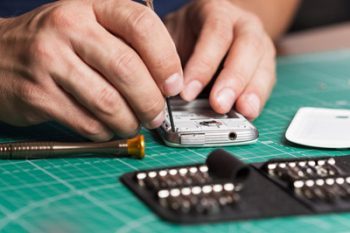
Phone Repair
Quis autem repreh enderit in velit esse nihil molestiae vel illum dolorem fugiat voluptas nulla pariatur.
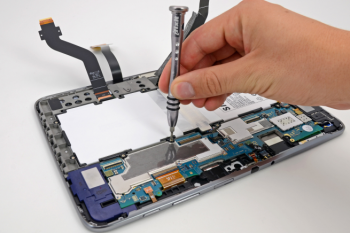
Tablets Repair
Quis autem repreh enderit in velit esse nihil molestiae vel illum dolorem fugiat voluptas nulla pariatur.
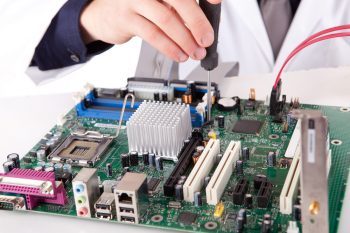
Laptop Repair
Quis autem repreh enderit in velit esse nihil molestiae vel illum dolorem fugiat voluptas nulla pariatur.
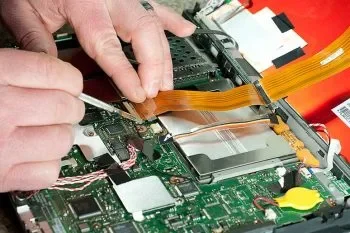
Computer Repair
Quis autem repreh enderit in velit esse nihil molestiae vel illum dolorem fugiat voluptas nulla pariatur.
Featured Offers
Body Repair
Professional smartphone body repair using modern technologies and high-quality materials.
TDH87JGT7DFG 25% DiscountWater Damage Repair
Restoration of devices after water damage with guaranteed preservation of all functions and data.
TDH87JGT7DFG 25% DiscountBattery Replacement
Restoration of devices after water damage with guaranteed preservation of all functions and data.
TDH87JGT7DFG 25% Discount
Speaker Repair
Replacement and restoration of speakers and microphones using original components.
TDH87JGT7DFG 25% DiscountUniversal Unlocking
Professional replacement of broken and damaged screens while preserving all touch functions.
TDH87JGT7DFG 25% DiscountLCD Screen Replacement
Professional replacement of broken and damaged screens while preserving all touch functions.
TDH87JGT7DFG 25% Discount- We Fix All Types of Smartphones & Tablets
Chat Support
Duis aute dolor repreh enderit velit esse cillum dolor eu fugiat nulla pariatur sint.
- Quick & Convenient Repair Process
- We are Professional Technicians
- Only Use High Quality Parts
- Many Locations For Your Convenience
- We are Professional Technicians
01
Select Your Device Brand
02
Choose Our Nearest Shop
03
Get Repair Your Device
- We Use Genuine Parts to Fix your Device
Low Pricing & Faster Repair Services
Sed ut unde omnis iste natus sit volur tatem accus antium laudan tium totam rem aperiam eaque ipsa ab illo inventore eceur sante monarsa veritatis et architecto beatae vitae dicta sunt explicabo.
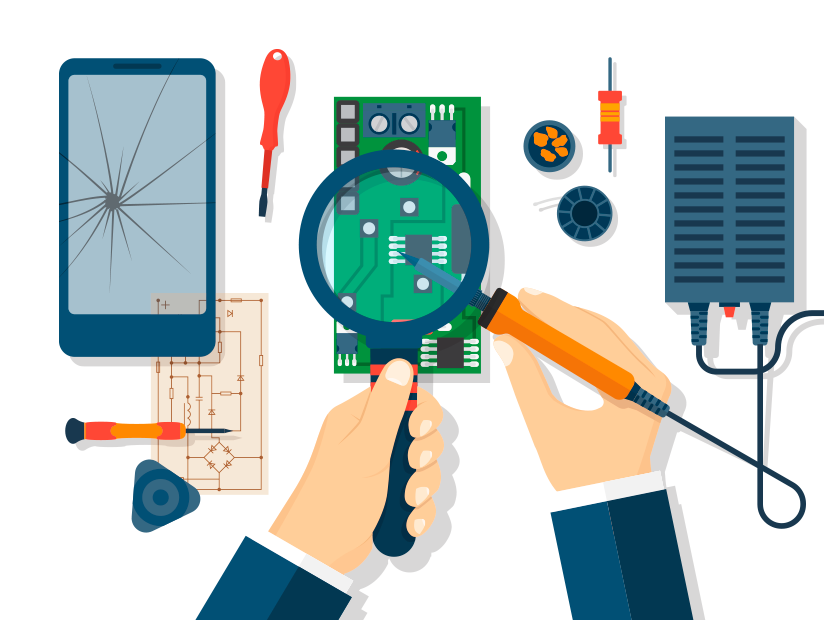


Before & After
Use Only Genuine Parts
Aabore dolore maga aliquat veniam nostrud exercitation utabore dolore sed ipsum magna aliquau enim
Leaders in the Repair Industry
Aabore dolore maga aliquat veniam nostrud exercitation utabore dolore sed ipsum magna aliquau enim
Offer 6 Months Repair Warrenty
Aabore dolore maga aliquat veniam nostrud exercitation utabore dolore sed ipsum magna aliquau enim
Experienced Specialists at Work
Aabore dolore maga aliquat veniam nostrud exercitation utabore dolore sed ipsum magna aliquau enim
How many days it’ll take to repair broken screen?
Sed ut unde omnis iste natus sit volur tatem accus laudan totam aperiam ipsa ab illo et architecto beatae vitae dicta sunt explicabo asper sed dolores ratione.
Which types of smartphones you unlock?
Sed ut unde omnis iste natus sit volur tatem accus laudan totam aperiam ipsa ab illo et architecto beatae vitae dicta sunt explicabo asper sed dolores ratione.
What is the Product Gurantee?
Sed ut unde omnis iste natus sit volur tatem accus laudan totam aperiam ipsa ab illo et architecto beatae vitae dicta sunt explicabo asper sed dolores ratione.
Will I lose my personal data while repair phone?
Sed ut unde omnis iste natus sit volur tatem accus laudan totam aperiam ipsa ab illo et architecto beatae vitae dicta sunt explicabo asper sed dolores ratione.
How can we make sure you have used genuine parts?
Sed ut unde omnis iste natus sit volur tatem accus laudan totam aperiam ipsa ab illo et architecto beatae vitae dicta sunt explicabo asper sed dolores ratione.
Which types of smartphones you unlock?
Sed ut unde omnis iste natus sit volur tatem accus laudan totam aperiam ipsa ab illo et architecto beatae vitae dicta sunt explicabo asper sed dolores ratione.
Frequently Asked Questions
Sed ut unde omnis iste natus sit volur tatem accus antium laudan tium totam rem veritatis beata.
24/7 Fastest Support
Quis autem repreh enderit in velit esse nihil molestiae vel illum dolorem fugiat voluptas nulla pariatur.
Reliable Pricing
Quis autem repreh enderit in velit esse nihil molestiae vel illum dolorem fugiat voluptas nulla pariatur.
Reliable Pricing
Quis autem repreh enderit in velit esse nihil molestiae vel illum dolorem fugiat voluptas nulla pariatur.
Sample Subtitle
Our the best specialists
Amnis natus volur tatem accus antium laudan exceurs totam rem aperiam eaque ipsa ab illo inventore veritatis et architecto vitae dicta sunt explicabo.

Amanda Moore
Apple Specialist
Sed unde omnis iste natus sit volur tatem accus antium laudan tium totam rem aperiam inventore veritati.

Matthew Taylor
Android Specialist
Sed unde omnis iste natus sit volur tatem accus antium laudan tium totam rem aperiam inventore veritati.

Sarah Martinez
Computer Specialist
Sed unde omnis iste natus sit volur tatem accus antium laudan tium totam rem aperiam inventore veritati.
Sample Subtitle
What our clients say
Michael Robert
Newyork
Nicole Adams
Chicago
Laura Thomas
London
CALL US NOW
0800 (212) 44 77
Sed ut unde omnis iste natus sit volur tatem accus antium laudan tium totam rem aperiam eaque ipsa ab illo inventore veritatis et architecto beatae vitae dicta sunt explicabo.